Become A Certificate Authority
How to become a Certificate Authority and validate your site.

I’m moving a live site between hosts, and I’ve come across an irritating issue:
I can’t test my site’s HTTPS connection without a certificate.
I can create a self-signed certificate, but my browser doesn’t trust it. Chrome bombards me with warnings and declines my page’s fetch requests.
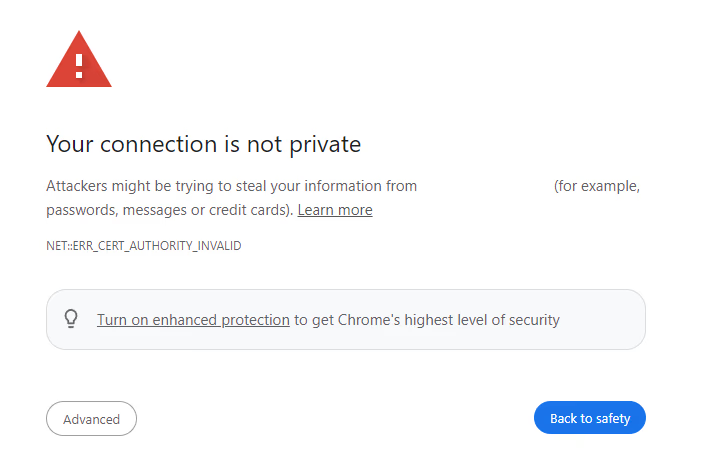
“NET:ERR_CERT_AUTHORITY_INVALID! You shall not pass human.” — 🤖
This error got me thinking, what makes a certificate valid or not? It works like this:
- Valid certificates are signed by a trusted third party called a Certificate Authority.
- Chrome’s trusted Certificate are held on your computer at the Chrome root store.
- Warnings don’t appear for any certificate signed by an authority in the root store.
So, what’s my solution? Create a certificate authority and put it in the root store.
Become a Certificate Authority
Get OpenSSL
Before beginning, check that you have OpenSSL installed. If you’re on MacOS or Linux you’ve got it by default. If you’re on Windows, check by opening PowerShell and using this command:
openssl versionIf you get output like the following:
OpenSSL 3.0.7 1 Nov 2022 (Library: OpenSSL 3.0.7 1 Nov 2022)You’ve got OpenSSL, continue to the next section. If you get output like this:
openssl : The term 'openssl' is not recognized as the name of a cmdlet, function, script file, or operable program.
Check the spelling of the name, or if a path was included, verify that the path is correct and try again.
At line:1 char:1
+ openssl version
+ ~~~~~~~~
    + CategoryInfo          : ObjectNotFound: (openssl:String) [], CommandNotFoundException
    + FullyQualifiedErrorId : CommandNotFoundException
Then you don’t have OpenSSL and will have to install it. I suggest getting Chocolately. It’s package managing software that makes installation simpler. You can install it through this link:
Once installed, load a new PowerShell and use this command:
choco install opensslLet the installation complete, load a new PowerShell, and re-run openssl version to verify it worked.
Create a Self-Signed Certificate
All Certificate Authorities need a public and private key. I created mine with this:
openssl genpkey -algorithm RSA -out certificate-authority-key.pemgenpkey is an OpenSSL command that lets you create a private key. The command tells OpenSSL that the algorithm used for the key should be RSA, and that the name of the key that’s output should be “certificate-authority-key.pem”.
This private key is used to sign certificates, verifying their authenticity. The key is kept secret and needs a partner key called its “public key”. The public key can be seen by anyone and used to encrypt information. The private key lets you easily decrypt that information. The computational cost of decoding encrypted information without the private key is too large to be worthwhile, which makes the system secure.
For Certificate Authorities, the public key is a self-signed certificate, which can be generated with the following command:
openssl req -x509 -new -nodes -key certificate-authority-key.pem -sha256 -days 3650 -out certificate-authority-certificate.pemreq is an OpenSSL command that generates certificates. The command is requesting a new certificate based on the private key I just generated. It’s saying the key will be valid for 3650 days, or roughly 10 years. And that the output certificate should be stored in the file “certificate-authority-certificate.pem”.
I ran through this process to generate my certificate and like magic, I am now a Certificate Authority 🧙🏻.
Trust Your Certificate Authority
There’s more to a Certificate Authority than a private key and a public certificate. That’s the easy bit. The hard part is trust. A real Certificate Authority spends years networking to establish itself as a legitimate certificate vendor. Fortunately, this can be bypassed.
Computers hold lists of trusted Authorities. Browsers like Chrome use this list to decide if a site is safe. If I put my certificate on the list I’m considered safe too. Here’s how I added it on Mac and Windows:
Windows
I opened a terminal (PowerShell) as an administrator, and added my certificate using certutil:
certutil -addstore -f "Root" .\certificate-authority-certificate.pemThis command tells a Windows program called certutil to add my certificate to the “Root” certificate store. Certificates in this store are trusted by browsers.
MacOS
I opened a terminal and ran the following command:
sudo security add-trusted-cert -d -r trustRoot -k /Library/Keychains/System.keychain certificate-authority-certificate.pemThis command uses sudo to give elevated privileges, and then uses the security command to add a trusted certificate. The -d tells security that you want to use user-defined options when adding the certificate. -r tells security where to place the certificate — in this case the trustRoot location. -k tells security which keychain to add the certificate to.
Similarly to Windows, adding the certificate to the root location on MacOS makes it trusted by browsers.
Create a Certificate for your site
Now I’m a trusted Certificate Authority, at least on my machine, I can create a certificate for my site. I did this using a similar process to the certificate authority setup.
Create a private key
First, generate a new private key with OpenSSL:
openssl genpkey -algorithm RSA -out my-site-key.pemCreate a Certificate Signing Request
Next, use OpenSSL to create a “certificate signing request”, a request to a Certificate Authority to verify me.
openssl req -new -key my-site-key.pem -out my-site.csrWhen run, this command asks you for information about yourself, your company, email addresses etc. This is used by a real Certificate Authority for verification. But I’m a live and let live kind of Authority. I filled out a few bits and left most of it blank.
Setup a v3.ext file
When you sign a request as a Certificate Authority, you can use something called an extensions file, or v3.ext, file that lets you add extra information to a certificate. My file contained the following information:
authorityKeyIdentifier=keyid,issuer
The most important part of this file is the alt_names section. It includes the DNS names that this certificate is associated with. If those names don’t match the name of your site then the certificate won’t work.
Sign The Request
Finally, use OpenSSL to sign the request with the Certificate Authority’s public and private keys:
openssl x509 -req -in my-site.csr -CA certificate_authority_certificate.pem -CAkey certificate_authority_key.pem -CAcreateserial -out my-site-cert.pem -days 365 -sha256 -extfile ./v3.extThis command generated a new certificate with my chosen DNS names.
Install and Enjoy
When I got my certificate, I used scp to put it on my site’s server. I altered my Apache web server to point to the certificate and like magic my browser stopped throwing warnings! I can use my development server in peace 😌
Catch you in the next Full Stack update!