Convert Your Supabase Database to Schema As Code
How do you take your crappy ClickOps-generated Supabase schema and make it a GitOps managed one?

This article will show you how to take your Supabase project’s messy, manual schema and turn it into a DevOps team’s wet dream — a beautifully formatted collection of SQL migrations.
Yes, it happens. You know what the best practice is, but sometimes you need to get things done. So, you’ve fallen to the allure of ClickOps. Now you have no track record of the changes you’ve made, you can’t easily rebuild your project’s database or revert changes, and you're questioning your life decisions.
Hey, no judgment, this article is for you. Let me show you how to retcon your database by defining your schema in code. Without further ado, let’s get to it.
Step 0 — Prerequisites
Supabase runs locally on a Docker container. So, for some of the steps below to work correctly, you’ll need Docker Desktop installed. You can download it here:
Step 1 — Download the Supabase CLI
Supabase allows you to manage your project via a convenient CLI tool. To download it, run one of the following.
MacOS
brew install supabase/tap/supabase
If you don’t have brew, you can install it here:
Windows
scoop bucket add supabase https://github.com/supabase/scoop-bucket.git
If you don’t have scoop, you can install it here:
Check your Installation
Run the following in the terminal:
supabase --version
This should give you output like this:
2.22.6
If you see something like the above, congratulations, you have the supabase CLI.
Troubleshooting
If one of the brew, scoop, or supabase commands doesn’t work, but you had no installation errors, try shutting down your terminal and restarting. This is often necessary to refresh your terminal environment and give it access to the new commands.
Step 2 — Log in to Your Supabase Account
To interact with the Supabase cloud at all, you need to log into your account. You can do this with:
supabase login
This will give you some output like this:
Hello from Supabase! Press Enter to open browser and login automatically.
Press Enter, and your browser will open on a page like this:
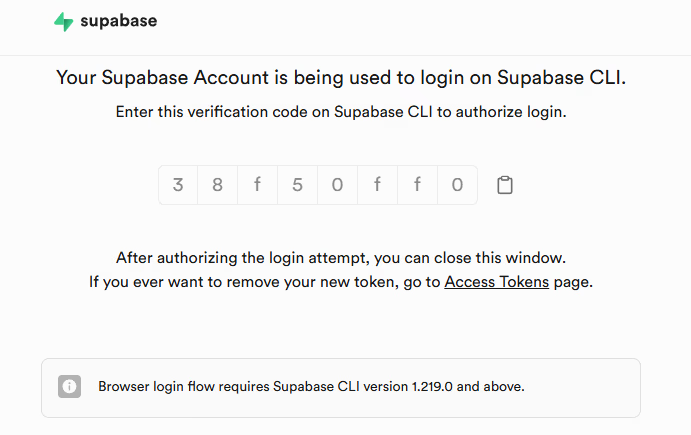
Copy the code and paste it into your terminal. If you are successful, you will see this message:
You are now logged in. Happy coding!
Congratulations! You’re CLI is connected to your Supabase account.
Step 3 — Initialise a Local Project
You need a local version of your cloud project, which begins by setting up a base version. You can do this by creating a new directory with:
mkdir my_local_supabase
Then, from the root of this directory, run:
supabase init
This will create a project in your new folder that looks like this:
📁 ./
├── 📁 supabase/
│   ├── 📄 config.toml
│   ├── 📁 .temp/
│   │   └── 📄 cli-latest
Step 4 — Link Your Cloud Project
Next, you need to link your existing Supabase project. Run the following from the terminal:
supabase link
This will give you a list of options depending on how many projects you have on Supabase:
PS C:\Users\Connor\Documents\Work\Projects\Learning and Testing\devops\supabase> supabase link

    Select a project:

  >  1. <your-project-id> [name: <your-project-name>, org: <your-org-id>, region: <your-project-region>]


    ↑/k up • ↓/j down • / filter • q quit • ? more
You can select from your project list using the up and down arrow keys. Press Enter on the one you’d like to link. Next, you’ll be asked for your database password:
Enter your database password (or leave blank to skip):
Enter your database password; you may need to type it in rather than copying and pasting it. Press Enter when you’re done, and you’ll see output similar to this:
[auth]
This means you’re linked up and ready to go. Linking your project is what allows you to take actions on the cloud version of it.
Resetting Your Database Password
You should have this from the start of your project. But if you’ve lost it, you can reset the password at the following link:
https://supabase.com/dashboard/project/<your-project-id>/settings/database
Replace the <your-project-id> with your actual project ID. You’ll be taken to a screen like this:
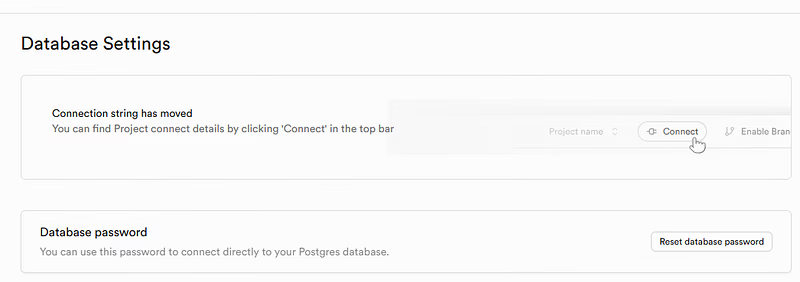
Reset the password from here, put your new password somewhere safe and re-link your account.
Step 5 — Backup if You Are Worried
This part isn’t necessary, but if you’re going to try out lots of things, it’s helpful to know your project is safe. You can backup via the web UI, or you can back up your data and schema with these two commands in the terminal:
supabase db dump --data-only --file data_backup.sql
supabase db dump --file schema_backup.sql
Run those, and put the files in a backup directory.
DISCLAIMER: I haven’t tried to restore from these files before, so I don’t know if this method works 100%. If people are interested, I’ll try it out and see.
Step 6 — Pull Your Initial Migration
If this is the first time you’ve heard of a “migration”, or you’d like a refresher, scroll to the end of this article and read the section on understanding Supabase’s method.
Your database may be a manually defined mess, but that mess is all we’ve got to work with, so we need to pull it, and turn it into our first Migration. You can do this with this command:
supabase db pull
This will pull an initial migration from your project on the cloud and store it in a directory called /migrations. You may be asked if you’d like to update the remote migrations list. Say yes with Y. Your project will now look something like this:
📁 ./
├── 📁 supabase/
│   ├── 📄 config.toml
│   ├── 📁 .temp/
│   │   └── 📄 cli-latest
│   ├── 📁 migrations/
│   │   └── 📄 20250426161206_remote_schema.sql
Open the <some-timestamp>_remote_schema.sql file, and you should see all of your project’s public tables outlined in SQL. You can check the state of your migrations by running the following:
supabase migration list
This will output a table like the following:
   Local          | Remote         | Time (UTC)
  ----------------|----------------|---------------------
   20250426161206 | 20250426161206 | 2025-04-26 16:12:06
The timestamp for the time of your initial migrations creation is registered locally (by the file you’ve downloaded), and on the remote in a specific table. Congratulations, you have a base migration to build your project from!
Step 7 — Get an Initial Schema
Supabase follows a schema-first migration strategy. So we need an initial schema to accompany our initial migration. Again, scroll to the bottom to read more about how this works.
To get our schema, first we generate a new directory called /schemas:
mkdir schemas
From here, we can dump our schema similar to what we did before in the backup:
supabase db dump --schema public > supabase/schemas/<timestamp>_remote_schema.sql
Except this time we’re forcing the schema to be the public schema only and redirecting the output to a file contained in supabase/schemas. This file should be perfectly aligned with the migrations.
You can check this by finding the differences between your downloaded schema and migrations with:
supabase db diff
This command operates differently depending on whether you have a local Supabase container running. If you don’t, the command will deploy a Postgres database on Docker and apply your schema files to it.
It will then set up a second, “Shadow Database” and apply the migration files to that. If you watch Docker Desktop, you will see this happening:

Once both databases are set up, Supabase uses a tool called migra that finds the differences between the two databases.
If your local database is already running, the first part of this process is skipped, and the shadow database will be compared to your local database instead.
In either case, you should see something like the following output:
Creating local database from declarative schemas:
 • supabase\schemas\20250426163002_base_prod_schema.sql
Initialising schema...
Seeding globals from roles.sql...
Seeding globals from 20250426163002_base_prod_schema.sql...
Connecting to local database...
Creating shadow database...
Initialising schema...
Seeding globals from roles.sql...
Applying migration 20250426161206_remote_schema.sql...
Diffing schemas: extensions,public
Finished supabase db diff on branch main.

No schema changes found
Most importantly, No schema changes found. Wonderful, everything is aligned, now let's see how to work with the Schema.
Troubleshooting
If your local Supabase container was started before this step, it won’t contain your initial schema. Hence, migra will think there are differences when there aren’t any. To resolve this, you can update your local database with:
supabase db reset
This will load your new schema onto your local Supabase container. Re-run supabase db diff when ready. You could also stop the Supabase container, and the CLI will build a database from the /schemas directory and compare that instead.
supabase stop
Step 8 — Commit to GitHub
At this point, you can put it in a repository. Initialise a local git repo with:
git init
Commit all of your changes with:
git add .
Then set up a GitHub repository and push the repo to it. Hey presto! You’ve got a version-controlled Schema as Code.
If you don’t know how to set up a repository, read this tutorial:
Quickstart for repositories - GitHub Docs
Step 9 — Redeclare Your Schema
As you can read about in Understanding Supabase’s Method below, Supabase builds migrations off of a declarative schema. You define your final state, and Supabase determines the required SQL migration to get there. Therefore, to alter your database’s format, you need to alter your schema.
Say you have the following schema:
CREATE TABLE
You can alter it by adding a new column, changing a type, whatever you like:
CREATE TABLE
This alteration will cause a migration in the next step.
Step 10 — Generate a New Migration
With your schema altered, you’re ready to generate a new migration. You can do this with:
supabase db diff -f <your-migration-name-here>
In my case, I’m going to call my migration:
supabase db diff -f my_test_alterations
This creates a new migration file in my /migrations directory, which now looks like this:
📁 migrations/
|   ├── 📄 20250426161206_remote_schema.sql
│   └── 📄 20250426170804_my_test_alterations.sql
The file itself looks like this:
alter table "public"."project_context" add column "number_of_features" integer;
You can see the migration in the list if you run:
supabase migration list
Step 11 — Apply the Migration in the Cloud
We can apply our migration to the cloud with:
supabase migration up --linked
This will apply any changes you’ve made to the database schema in the cloud. Try it and you’ll be able to see the changes in the database schema immediately.
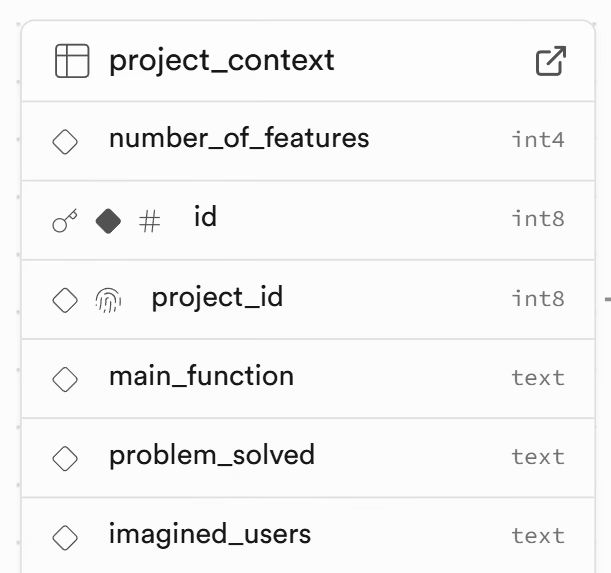
You can make sure the migrations are in the cloud by running:
supabase migration list
You should see something like the following output:
   Local          | Remote         | Time (UTC)
  ----------------|----------------|---------------------
   20250426161206 | 20250426161206 | 2025-04-26 16:12:06
   20250426170804 | 20250426170804 | 2025-04-26 17:08:04
Step 12 — Revert a Migration
Now, what if you realise you don’t want one of your migration changes? You can get a list of the changes with:
supabase migration list
This will produce something like:
   Local          | Remote         | Time (UTC)
  ----------------|----------------|---------------------
   20250426161206 | 20250426161206 | 2025-04-26 16:12:06
   20250426170804 | 20250426170804 | 2025-04-26 17:08:04
Then you can revert one of these changes with:
supabase migration repair --status reverted <your-migration-timestamp>
In my case, I’ll revert my new change:
supabase migration repair --status reverted 20250426170804
To revert the changes in your local folder, simply delete the corresponding file. Now, when you run supabase migration list you’ll get:
   Local          | Remote         | Time (UTC)
  ----------------|----------------|---------------------
   20250426161206 | 20250426161206 | 2025-04-26 16:12:06
Step 13 — Undo a Change in the Cloud
This is great, but if you complete Step 11 and look at your schema in the cloud, you may notice... oh, no, your migration is still there. This is because your migration list in the cloud is just a table with entries, not the actual state of your database.
Therefore, to undo a change you’ve made with supabase migration up you need to redeclare the final state of your schema, see step 8, generate a new migration, and apply that to the cloud as well.
Migrations can only be undone from the CLI by other migrations.
Step 14 — Handling Breaking Changes
There’s one wrinkle to all of this. What if a column has data in it, and you try to alter its type or delete it entirely? What happens to your data?
Changing a Type
If you change a column from one type to an incompatible type, generate a migration and attempt to push to the cloud with:
supabase migration up --linked
You’ll see an error with the following format:
Applying migration 20250429191939_my_test_alterations_2.sql...
ERROR: invalid input syntax for type integer: "This is a list of features or something." (SQLSTATE 22P02)
At statement 0:
alter table "public"."project_context" alter column "standout_features" set data type integer using "standout_features"::integer
Because the column contains text data that cannot be converted to integer data, the migration has failed. If you check your database, you will see that no changes have been made to it. To change the type, you first need to modify the data in the column.
Deleting a Column
What about deleting the same column? You can do this one. So proceed with caution. Try adding a test column to your schema and filling it with data. Then, remove the test column by removing it from the schema, generate a new migration and run:
supabase migration up --linked
Despite having data in, Supabase will instantly remove it. If you’re worried about accidentally deleting all of your data, turn on backups to avoid any mistakes!
https://supabase.com/dashboard/project/<your-project-id>/database/backups/scheduled
Final Words
That’s it! You’re ready to begin your Schema-as-code journey. If you’re interested in how this fits into a wider project, follow the publication. I’m covering a full-stack build using Supabase and Python.
If you’re interested, I’ve included some extras below that provide more details on best practices for undoing changes and how Supabase’s schema-as-code feature works.
Understanding Supabase’s Method
Supabase’s schema-as-code method follows a schema-first principle. You define your schema declaratively in .sql files and allow the supabase cli tool to generate “migrations” for you.
Migrations are SQL statements that sequentially update a database’s schema. They are a set of repeatable actions you can take on any compatible SQL database to regenerate a schema state. This is what makes them a DevOps team’s wet dream. With a few simple commands, you can exactly replicate a complex database structure in minutes, making deployment and redeployment a doddle.
Just as importantly, they provide a track record of what changes have been made, when, by whom, and what for. This is great for project oversight, understanding, and onboarding.
So, How Does it work?
Let’s use a toy example, say you want to add a new table, you would define it in a declarative fashion:
CREATE TABLE
The statement above says: create a table with a column called id with a type of bigint, and a column called name with a type of text. I run the supabase CLI to generate my migration and get the following:
create table "public"."test" (
This is saved in its own file, something like 20250427204000_my_new_table. The start of the name is a timestamp, and the text afterwards explains what the statement does.
Now, say I wanted to add a column. I can amend the original CREATE TABLE statement, to something like this:
CREATE TABLE
I have declared that my table should have the anotherField column and it should have type int. I re-run my migration generation, and I get a new file that looks like this:
alter table "public"."test" add column "anotherField" integer;
Let’s say I call this migration 20240427210200_add_a_new_column. The timestamps keep the migrations in order. Now, I have the following file structure:
📁 migrations/
├── 📄 20250427204000_my_new_table.sql
└── 📄 20240427210200_add_a_new_column
Over time, small schema changes are added and committed to a git repository, creating a track record of schema alterations. They can be applied in chronological order to rebuild a final schema.
Best Practice for Undoing Changes
Unfortunately, having a schema in code isn’t a foolproof way of avoiding annoying mistakes. You can still make a schema change, create a new migration, push it to the cloud and suddenly realise…
Bother, that’s not what I wanted to do.
When this happens, you need to undo the changes somehow, but how? Although it’s tempting to try it, reverting the migration doesn’t help, because the migrations are merely a list of changes, not the changes themselves. Changes registered in migrations are applied to the cloud database when you run supabase migration up.
So what can you do? The best thing to do is create a second migration that undoes your bad migration. Declare the schema to be different, generate a new migration and push that to the cloud. That will apply the migration to your schema and undo your change.
There are some scenarios where you can do slightly more. For example, if you’ve added a field and then removed it in a secondary migration, once the second migration has taken effect, you can revert both migrations in the cloud. Then you could delete them from your local folder. It would be as if they never happened.