Create a Comments Section With IndexedDB
How to use the built-in browser Database to handle persistence in your client-side Web Application.
In this tutorial, I will:
- Explain what
IndexedDBis. - Show you how to set up an object store on
IndexedDB. - Show you how to add and delete data from your store.
- Show you how to build a comments section using
IndexedDB.
By the end, you should have all the knowledge you need to build a powerful client-side application.
If you just want the code
Here is the finished repo, with the comment section inside of it:
GitHub - Connor56/indexeddb-comments-section: A raw Javascript, HTML, and CSS implementation of…
What is IndexedDB?
It’s a browser-based API for storing large amounts of data on the client-side. It was created because big companies in the web space, such as Google, Apple, and Firefox, wanted a client-side database to build powerful applications. The database itself is a NoSQL, key-value, object-storage database that can work with raw JavaScript object types.
InexedDB is asynchronous, so it doesn’t block UI updates, keeping applications snappy. It’s also transactional, so its state can always be relied upon, and there are no halfway complete changes. It uses indexes to improve search speed. It lives inside the browser and can store GB of data, potentially as much as 50% of the storage space on your machine! Each origin you visit gets a separate Database for security purposes. The origin split is:
- Protocol (
httpvshttps) - Domain (
example.comvsapp.example.com) - Port (
example.com:5000vsexample.com:3000)
So, in summary, IndexedDB is THE way to store large amounts of information client-side, it’s fast, non-blocking, and reasonably secure. With all of that said, let’s use it to build a comments section.
Prerequisities
This tutorial is going to use pure Javascript, HTML, and CSS, so you can use any IDE you like. However, if you’re using VSCode, or a VSCode fork (Cursor), you may as well get this extension:
Live Server - Visual Studio Marketplace
It’s great for running your site locally and hot reloading. I use it all the time. Now, onto the build.
Step 1 — Build the UI
First things first, we need something to look at! Let’s create a simple HTML structure for our comments section. This will include a form for users to submit new comments and a list where existing comments will be displayed.
Create an index.html file and paste this code inside:
<!DOCTYPE html>
Now, let’s add a little bit of CSS to make it look presentable. Create a styles.css file:
body {
    font-family: sans-serif;
    background-color: #f4f4f9;
    color: #333;
    display: flex;
    justify-content: center;
    margin-top: 50px;
}

.container {
    background: #fff;
    padding: 2em;
    border-radius: 8px;
    box-shadow: 0 0 10px rgba(0,0,0,0.1);
    width: 100%;
    max-width: 600px;
}

h1, h2 {
    color: #555;
}

#comment-form input, #comment-form textarea {
    width: 100%;
    padding: 10px;
    margin-bottom: 10px;
    border: 1px solid #ddd;
    border-radius: 4px;
    box-sizing: border-box; /* Important! */
}

#comment-form button {
    background-color: #007BFF;
    color: white;
    padding: 10px 15px;
    border: none;
    border-radius: 4px;
    cursor: pointer;
    font-size: 16px;
}

#comment-form button:hover {
    background-color: #0056b3;
}

.comment {
    border-bottom: 1px solid #eee;
    padding: 1em 0;
    display: flex;
    justify-content: space-between;
    align-items: flex-start;
}

.comment:last-child {
    border-bottom: none;
}

.comment-content p {
    margin: 0;
}

.comment-content .author {
    font-weight: bold;
    margin-bottom: 5px;
}

.delete-btn {
    background: #dc3545;
    color: white;
    border: none;
    padding: 5px 10px;
    border-radius: 4px;
    cursor: pointer;
    font-size: 12px;
}

.delete-btn:hover {
    background: #c82333;
}
Because it’s basic HTML, you can open index.html directly in a browser. Or, if you have the Liver Server extension, click this little button in the bottom right corner of your IDE:
This will open your index.html file at http://127.0.0.1:5500/. Either way, your page should look like this:
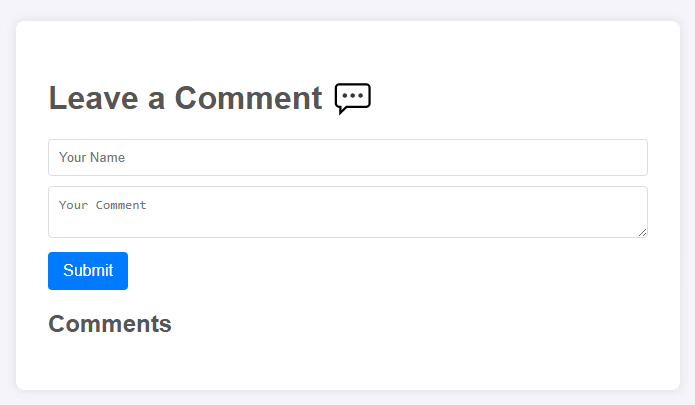
You can play with the form, but it does nothing. Let’s remedy that.
Step 2 — Make it Interactive
Time to add some JavaScript! We’ll start by grabbing the form and listening for its submission. For now, we’ll just console.log the data to make sure we're capturing it correctly.
Create an app.js file and add this code:
// Get references to our form and list
const commentForm = document.getElementById('comment-form');
const nameInput = document.getElementById('name-input');
const commentInput = document.getElementById('comment-input');
const commentsList = document.getElementById('comments-list');

// Listen for form submission
commentForm.addEventListener('submit', (event) => {
    // Prevent the default form submission behavior
    event.preventDefault();

    // Create a comment object with the input values
    const newComment = {
        name: nameInput.value,
        comment: commentInput.value,
        timestamp: new Date()
    };

    console.log('New comment submitted:', newComment);

    // Clear the form fields
    nameInput.value = '';
    commentInput.value = '';
});
Now, if you open your browser’s developer tools (usually with F12), fill out the form, and hit submit, you’ll see your comment object printed to the console:
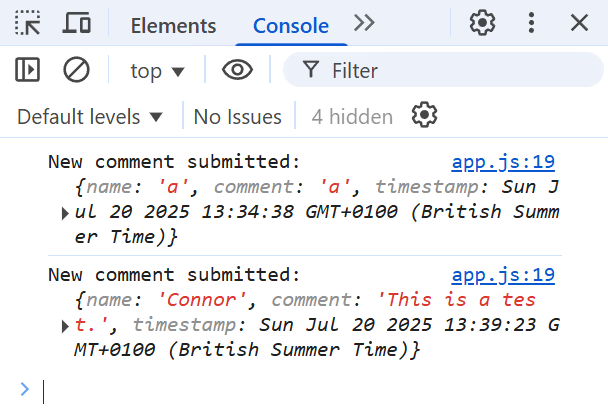
WARNING: To see this correctly you need to be serving the site via a tool like Live Server. If you’re not you won’t be able to import the Javascript code. Swap to Live Server or use a similar tool to server the site locally.
Okay, with this preliminary function in place, let’s get started on IndexedDB.
Step 3 — Initialise IndexedDB
This is where the magic starts. We need to open a connection to our IndexedDB database. If the database doesn’t exist, IndexedDB will create it for us.
The most important part of this step is the onupgradeneeded event. This is the only place where you can change the structure of your database, like creating or deleting object stores (which are like tables in SQL databases).
Add persistence.js
To keep the database logic separate, set up a new file persistence.js and paste in the following:
// Exported variables for interacting with the database in other modules
export let db;
export const storeName = "comments";

const dbName = "CommentsDB";

// Request to open the database
// The `window` part is not required, but it's good practice as it avoids aliasing,
// and keeps the namespace clean.
const request = window.indexedDB.open(dbName, 1);

// Handle database creation or version upgrade
request.onupgradeneeded = (event) => {
  console.log("Database upgrade needed.");
  db = event.target.result;

  // Create an object store if it doesn't already exist
  if (!db.objectStoreNames.contains(storeName)) {
    // We use 'id' as our keyPath and enable autoIncrement
    const objectStore = db.createObjectStore(storeName, {
      keyPath: "id",
      autoIncrement: true,
    });

    // You can create indexes here for faster searching
    objectStore.createIndex("name", "name", { unique: false });
    objectStore.createIndex("timestamp", "timestamp", { unique: false });

    console.log('Object store "comments" created!');
  }
};

// Handle errors
request.onerror = (event) => {
  console.error("Database error:", event.target.error);
};

// Handle success - this runs after onupgradeneeded (if it runs)
request.onsuccess = (event) => {
  console.log("Database opened successfully!");
  db = event.target.result;
  // We'll load the comments here later
};
Breaking this file down, we have:
export let db— This is the variable we’re going to use for accessing the database throughout the site.export const storeName— This is the name of the object store we’re going to use for storing objects in the Database. This is like a table name in SQL.dbName— This is the name of the top-level container for all of the tables we’re going to create in the browser. Similar to the database name of an SQL database. It’s unique with an origin, and you can have multiple databases per origin.window.indexedDB.open(dbName, 1)— This is the function call that begins the process of opening the database in the browser. BecauseIndexedDBwas introduced before Promises and Futures, this function call returnsIDBOpenDBRequesta class which inherits fromEventTarget.EventTarget’s are objects that can have listeners attached to them, which trigger when the appropriate event is sent — similar to elements in the DOM. Further down the file, you can see therequestvariable has listeners attached to it. ForIndexedDBthe browser triggers the events from a different process to the main tab process, allowing asynchronous interaction.open(dbName, 1)— The first parameter is the name of the database, and the second is theschema version. The version is set to 1, because this is the first iteration of the database schema. Although technically the database is schema-less, this is theIndexedDBway of tracking what structure the database should have, and updating it if necessary. Allowing progressive changes to database structures.request.onupgradeneeded— This is an event listener that will be triggered if the database A) doesn’t exist for this origin, or B) does exist, but is a different version. If these conditions aren’t met, the event will not be emitted, and this code will be skipped.db = event.target.result— The result of event is a database object, which can be used to interact with IndexedDB.db.createObjectStore— This is used to create the object store under thestoreNamewe’ve defined at the top of the file. Our comments table, if you like. ThekeyPathis the pathIndexedDBshould expect to follow in any given object stored in it to get thekeypart of thekey-valuestore.autoincrement: truemeans this"id"key will be created and autoincremented automatically when objects are added.objectStore.createIndex— This allows you to create indexes on your data for faster searching. The first argument is the name of the index, the second is thekeyPathto base the index on, and the third is optional parameters. Here{unique: false}means the value at the chosenkeyPathdoesn’t have to be unique.request.onerror— The code in this event listener is triggered when there’s an error opening the database. In this case, the error is being printed to the developer console.request.onsuccess— Similarly the code triggered when the database has been successfully created. As noted in the comments, this is run afteronupgradeneededif that event has to run at all. It’s printing a success message to the console, and then assigning thedbvariable to the result of the event. Giving the rest of the code access to the database interaction object.
Update app.js
You may have noticed that the code in persistence.js is top-level, which means its executed when the module is imported. To trigger the database initialisation, add an import to the app.js file:
import { db, storeName } from "./persistence.js";Test the Changes
Refresh your web page, and the developer console should show something like the following:
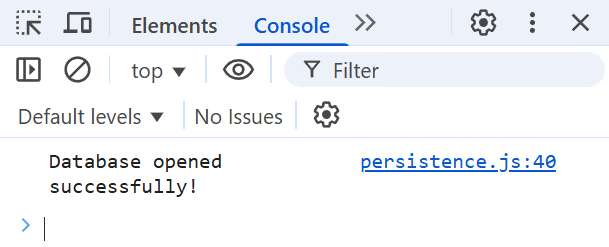
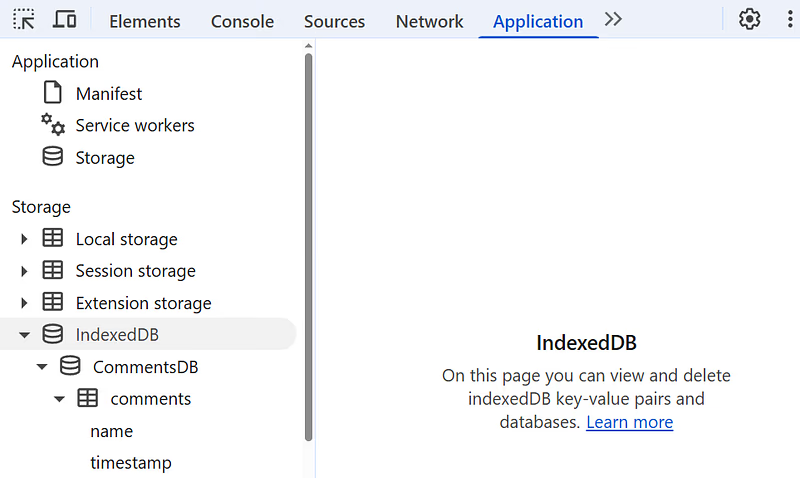
You can check that the database has been created by going to the Application section of your developer toolkit, and looking in the IndexedDB section:
Step 4 — Save Comments in IndexedDB
We’re ready to save data! To do anything with our object store, we need to create a transaction. A transaction ensures that our database operations are atomic — they either all succeed or none of them do, preventing data corruption.
Let’s create a function to add comments to the database and call it from our form’s submit listener.
Update persistence.js
Update persistence.js with the addComment function:
// ... keep all the DB initialization code from Step 3 ...

// NEW: Function to add a comment to the DB
function addComment(comment) {
    // Start a "readwrite" transaction
    const transaction = db.transaction([storeName], 'readwrite');
    const objectStore = transaction.objectStore(storeName);

    // Add the new comment object to the store
    const request = objectStore.add(comment);

    request.onsuccess = () => {
        console.log('Comment added to the database!');
        // We will refresh the displayed comments later
    };

    request.onerror = (event) => {
        console.error('Error adding comment:', event.target.error);
    };
}
Again, breaking down the code, we have:
db.transaction— Like the.opencommand for initialisation, this returns a type:IDBTransaction, which inherits fromEventTarget. Whilst this object can listen for events, it’s primary purpose is to act as a container for related requests to the database. This transaction doesn’t have to be closed, and will execute all the requests associated with it automatically, simplifying the interface.transaction([storeName], 'readwrite')— The first of the method’s arguments tells you what object store to open a transaction for, and the second tells you what kind of access you want to the object store.storeNameis in an array because a transaction can operate on multiple stores at once. We wantreadwriteso we can read from and write to the object store.transaction.objectStore— This gives us anIDBObjectStorewhich allows us to interact with that specific object store.objectStore.add— This is the object store method for starting an asynchronous request that adds a comment to the database. Like before, it returns arequestobject, of typeIDBRequest. Like before, we add event listeners to this object to handle success and error.
Update app.js
To use the addComment function, import it, and update the form submission event listener. Your new app.js file should look like this:
import { addComment } from "./persistence.js";

// Get references to our form and list
const commentForm = document.getElementById("comment-form");
const nameInput = document.getElementById("name-input");
const commentInput = document.getElementById("comment-input");
const commentsList = document.getElementById("comments-list");

// UPDATE the form submit listener
commentForm.addEventListener("submit", (event) => {
  event.preventDefault();

  const newComment = {
    name: nameInput.value,
    comment: commentInput.value,
    timestamp: new Date(),
  };

  // Call our new function to save it
  addComment(newComment);

  nameInput.value = "";
  commentInput.value = "";
});
You can see I’ve dropped the db and storeName imports. We don’t need them anymore because we’re importing other functionality from the file. This gives us a cleaner API for interacting with the database.
Test the Changes
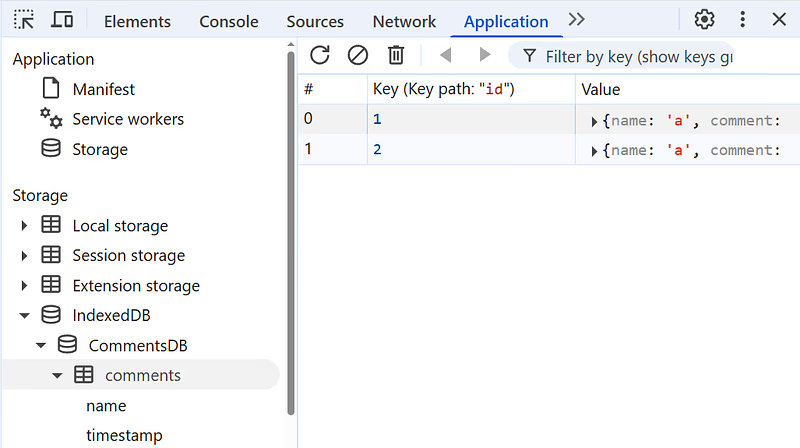
To check this has worked, you can reload your page, then submit a comment with the form. Check your IndexedDB in your developer tool Application tab and you’ll see:
Step 5 — Load Comments From IndexedDB
Saving data is cool, but our users can’t see it yet. Let’s fetch all the comments from the database when the page loads and display them.
We’ll use a cursor to iterate over all the records in our object store. We’ll also create a helper function to render a single comment to the DOM.
Update persistence.js
Add the following function to fetch all of the comments from the database:
// NEW: Fetch all comments and return them as an array
export function fetchComments() {
  const transaction = db.transaction([storeName], "readonly");
  const objectStore = transaction.objectStore(storeName);

  // Get all the comments in the object store
  const request = objectStore.getAll();

  return new Promise((resolve, reject) => {
    request.onsuccess = (event) => {
      const comments = event.target.result;
      resolve(comments);
    };

    request.onerror = (event) => {
      reject(event.target.error);
    };
  });
}
Breaking this file down, we have:
db.transaction— As before in Step 4, the container for all subsequent requests.transaction.objectStore— Retrieving the interaction object for our object store.objectStore.getAll— This produces arequestto the database that gets everything stored in theobjectStore. I’ve usedgetAllhere on the assumption the number of comments is small. If you want to be memory efficient, you need to check out thecursormethod of theIndexedDBAPI.return new Promise— This puts the function in the Promise architecture, meaning it can be awaited and the results return nicely. Because our code is deliberately separated intopersistence.jsandapp.jsfor clarity, we cannot make UI updates inpersistence.js. That means the data has to be returned toapp.jssomehow, and this is the simplest method. There are only two other options: A) Pass a callback intofetchComments, B) Set up app-wide event emission (overkill).request.onsuccess— We listen for success andresolvethe comment array, returning it to the caller.request.onerror— Werejectthe promise and return the error.
Update app.js
Update app.js to look like the following:
import { addComment, fetchComments } from "./persistence.js";

// Get references to our form and list
const commentForm = document.getElementById("comment-form");
const nameInput = document.getElementById("name-input");
const commentInput = document.getElementById("comment-input");
const commentsList = document.getElementById("comments-list");

// UPDATE the form submit listener
commentForm.addEventListener("submit", async (event) => {
  event.preventDefault();

  const newComment = {
    name: nameInput.value,
    comment: commentInput.value,
    timestamp: new Date(),
  };

  // Call our new function to save it
  addComment(newComment);

  // Render the comments
  await renderComments();

  nameInput.value = "";
  commentInput.value = "";
});

// NEW: Function to render a single comment to the DOM
function renderComment(comment) {
  const commentDiv = document.createElement("div");
  commentDiv.classList.add("comment");
  // Store the comment's ID on the element for easy deletion
  commentDiv.setAttribute("data-id", comment.id);

  const contentDiv = document.createElement("div");
  contentDiv.classList.add("comment-content");
  contentDiv.innerHTML = `
        <p class="author">${comment.name}</p>
        <p>${comment.comment}</p>
    `;

  const deleteButton = document.createElement("button");
  deleteButton.classList.add("delete-btn");
  deleteButton.textContent = "Delete";

  commentDiv.appendChild(contentDiv);
  commentDiv.appendChild(deleteButton);
  commentsList.appendChild(commentDiv);
}

async function renderComments() {
  commentsList.innerHTML = "";

  const comments = await fetchComments();
  comments.forEach(renderComment);
}

setTimeout(renderComments, 100);
You can see the changes are:
- Add the
renderCommentfunction for rendering a single comment object from the array. This creates a new element and then dynamically appends it to the DOM. Pay attention to thedeleteButtonpart, we’ll use that shortly. - Add the
renderCommentsfunction for resetting the comments list, fetching all the comments viapersistence.jsand then rendering them one at a time. - Update the form submission event listener to call
renderCommentsonce a new comment has been added. - Add
setTimeout(renderComments, 100)to do an initial comment load 100 milliseconds after the page has loaded. The delay is necessary to ensure the database has been initialised before the comments are fetched.
Test the Changes
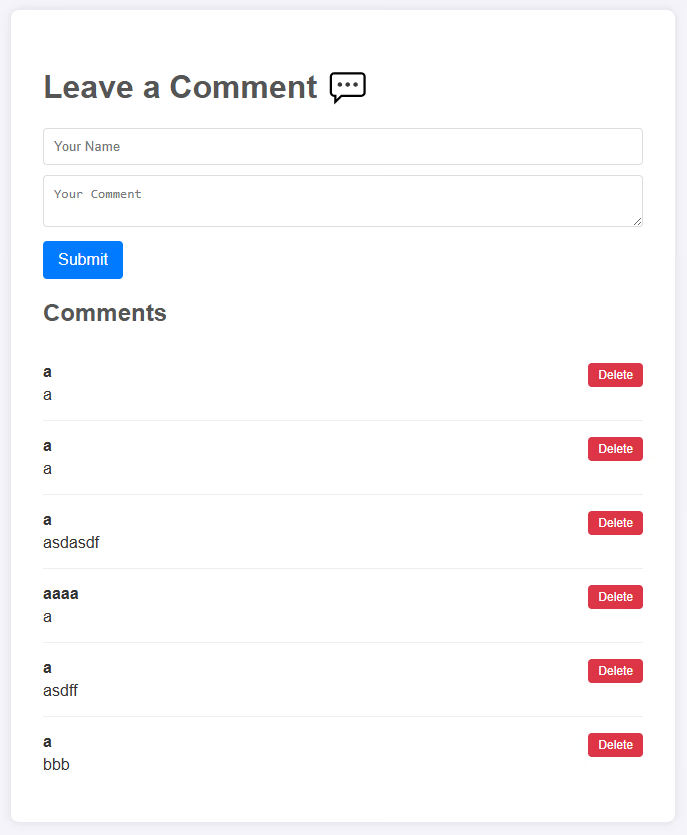
To check this has worked, you can reload your page. You may see comments already if you’ve been adding them during the tutorial, if not, add a new one and you’ll see it appear in the comments list:
Step 6 — Delete Comments from IndexedDB
The final piece of the puzzle is deleting comments. We already added a “Delete” button. Now we need to make it work.
We’ll use event delegation to listen for clicks on the main comments-list container. This is more efficient than adding a listener to every single button. When a delete button is clicked, we'll get the comment's ID from the data-id attribute we set earlier.
Update persistence.js
Add the following function to the persistence.js file:
// ... keep all the previous code ...

// New function for deleting a comment by its ID
export function deleteComment(id) {
  // Set up a transaction
  const transaction = db.transaction([storeName], "readwrite");
  const objectStore = transaction.objectStore(storeName);

  // Remove the comment by its ID, the `data-id` comes through as a
  // string, so it is explicitly converted to a number here.
  const request = objectStore.delete(Number(id));

  request.onsuccess = () => {
    console.info(`Comment, with ID ${id}, was deleted successfully.`);
  };

  request.onerror = (event) => {
    console.error("Couldn't delete comment, with error:", event.target.error);
  };
}
Breaking it down, we have:
db.transaction— Our container for all subsequent requests to ensure they’re all executed at the same time to maintain database consistency.transaction.objectStore— Retrieving the interaction object for our object store.objectStore.delete— This produces arequestto the database that deletes the object (the comment) from theobjectStorewith the corresponding ID.request.onsuccess— Listens for the success event. If the event is emitted, it logs that the comment was deleted successfully along with its ID to the developer console.request.onerror— Listens for an error. If the event is emitted, it logs the error to the console with a message.
Update app.js
Next, we need to listen for clicks on the delete buttons. Update app.js with the following code:
// Add deleteComment to the imports
import { addComment, deleteComment, fetchComments } from "./persistence.js";

// ... keep all the previous code ...

// Checks for delete button press in the comment list
commentsList.addEventListener("click", async (event) => {
  event.preventDefault();

  if (event.target.classList.contains("delete-btn")) {
    // Get the data ID attribute from the delete buttons parent comment element
    const commentId = event.target.parentElement.getAttribute("data-id");

    deleteComment(commentId);

    // Re-render the comments list
    renderComments();
  }
});
You can see above, we’ve made the following changes:
- Imported the
deleteCommentfunction frompersistence.js. - Added an event listener to the
commentsListelement that listens for all clicks in that element. - But because the
commentsListincludes all of the comment elements, there is a filter to check for thedelete-btnclass. When the click event isn’t on a delete button, it is ignored. - If it is on a delete button,
deleteCommentis called with thedata-idon the parent element of the button, and the comment is deleted fromIndexedDB. - Finally, the comments are rerendered to reflect the new state of the database with
renderComments.
Test the Changes
You should now have a fully functional, client-side comments section powered by IndexedDB. Check it works by adding comments, deleting comments and checking state is updating in IndexedDB. Refresh the page, and see them persist also!
Final Words
Thank you for reading! The comments section is a slightly trite example, but it gives you everything you need to build something bigger and better. Happy client-side app building!