Editing My Hosts File
How I re-directed a domain name to an IP address of my choosing…

You might think it’s impossible to type Google.com into your browser and end up at a different site… Well, you’re WRONG! It can be done, and I did it. Okay, not Google, but the principle’s the same. I’m moving a live WordPress site from an old host onto AWS. Getting it onto the EC2 instance is easy-ish, but testing the site via its randomly assigned public IP Address is not ideal.
You see, the WordPress site was set to run on somedomain.com, and I’m trying to force it to run on: 108.34.254.12 (not the real IP). Once I’d set up the web server and WordPress, I could get to the main page just fine, but click any link on the site and whoops! I was back to the actual (live) somedomain.com. Annoying.
Overcoming the annoyance
Well, it turns out there’s a way around this. Your browser doesn’t automatically know where a domain name points. When you type that name into your browser and hit enter, it goes out into the internet to something called “[Name Server](https://en.wikipedia.org/wiki/Name_server)” and finds your domain name’s matching IP Address. The IP address is like your site’s postal code, and that’s what it visits.
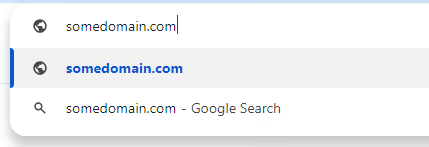
But what if you could pass secret notes to your postman and re-direct letters? Oh, the power you’d have! Alright, it’s not a perfect analogy, but that's basically what the hosts file lets you do. You give it an IP address and a name, and it becomes your personal Name Server. Your browser will search this file first for any name you type in the address bar, so you can literally redirect Google.com if you like. Let me show you how.
On Windows
You need Administrator permissions to do this. Type Notepad in your Windows search bar, right-click on it, and select Run as Administrator.
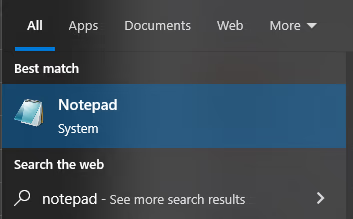
Enter your Administrator password and open Notepad. Once you’re in, click file->open:
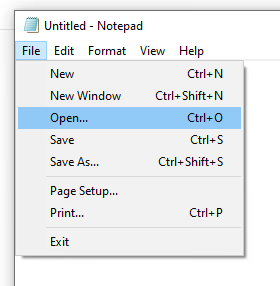
Navigate to this location in the file explorer:
C:\Windows\System32\drivers\etcIf you can’t see anything, click on the box next to the file name and select all files:

Now you should see the hosts file. Click it, open it, and you’ll have a screen like this:
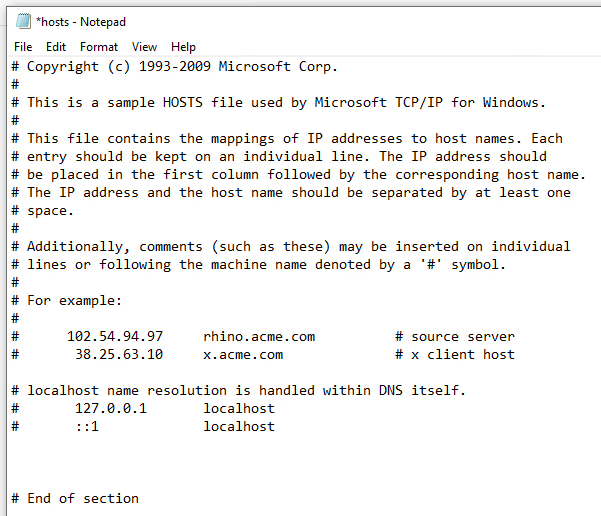
Let’s say we wanted to make google.com point to our own server. Easy enough, simply add the following:
108.34.254.12 google.comReplace my fake IP Address with your real one. If you use my fake IP your file will look like this:
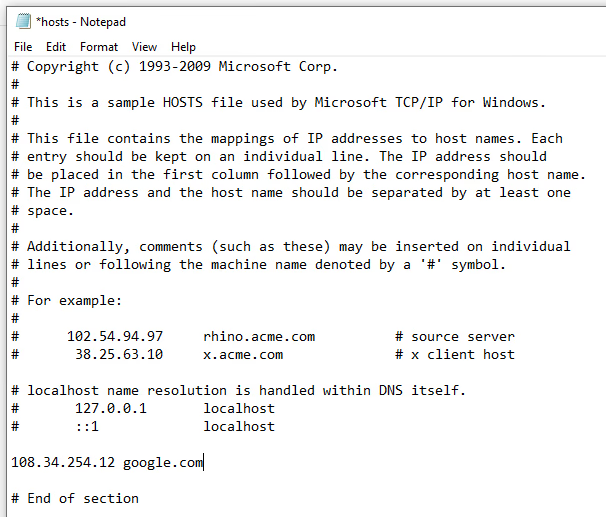
Save it, and we’re nearly done. All you have to do now is reset your DNS. Open a terminal by typing “terminal” into your Windows search bar:
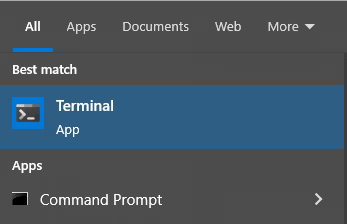
You’ll get an application that looks like this:
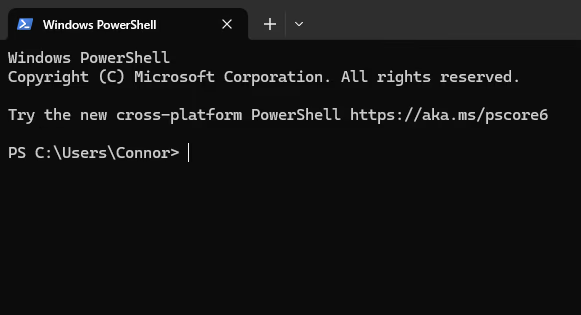
Type the following command and hit enter:
ipconfig /flushdnsYou’ll get this output if you were successful:
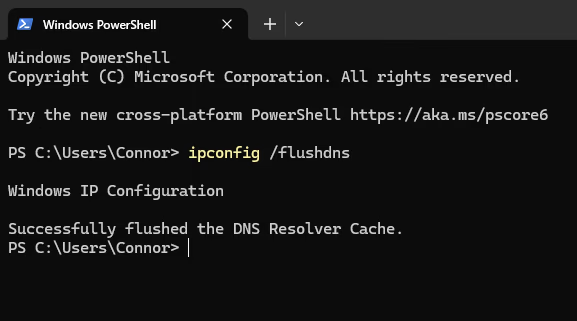
Now visit google.com, annnndd, you’re at your chosen IP Address! Boom. Pretty cool huh? You can do this for any site name you like, which is incredibly useful when you want to route traffic to a development version of a live site on your local machine.
On Mac
To do this on Mac, you need Administrator privileges. First, open a terminal by visiting Launchpad and searching for the terminal application. Once you’ve loaded it type in the following command:
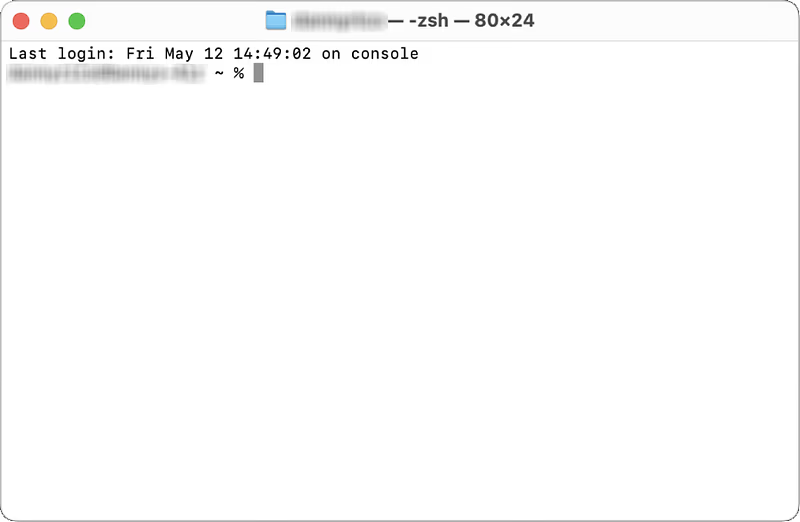
Type the following command into this terminal:
sudo nano /etc/hostsYou might be prompted for your admin password; type it in and press enter. You might not see characters loaded on the screen when you do this, this is a security feature, don’t worry about it. Assuming all goes well, this command will open an editor called nano in the terminal for you. Change the IP address of google.com by adding the following single line in your hosts file:
108.34.254.12 google.comReplace my fake IP address with your real one. Save the file with ctrl+S, and exit nano with ctrl+X. Now you’re back in the standard terminal interface, reset the DNS by running this command:
sudo killall -HUP mDNSResponderVisit google.com, anddd, yeah, that’s right. It’s your site! Cool huh? In case you’re wondering, sudo is short for “super user do”. It’s a UNIX command that tells your terminal to user administrator permissions. You can’t edit your hosts file without it, so ensure you have it!
Wrapping Up
There we go, I hope you find this as helpful as I did for local development! It made my life much easier when I was testing my redeployed WordPress site. I’ll write more about my WordPress deployment soon, so stick around if that interests you! Ta-Ra 😀
P.s. The process on Linux is very similar to Mac.