Handling CloudFront Errors For Noobs
How I resolved a 403 Forbidden request on a WordPress instance behind CloudFront
CloudFront uses an AWS Web Application Firewall (WAF) to prevent people from abusing your site. From time to time, it prevents legitimate activity, and you’ll see an error like this:
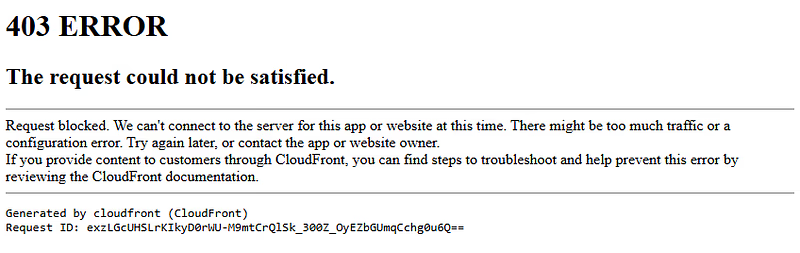
Here’s what you can do to troubleshoot this.
Step 1 — Log into your AWS console
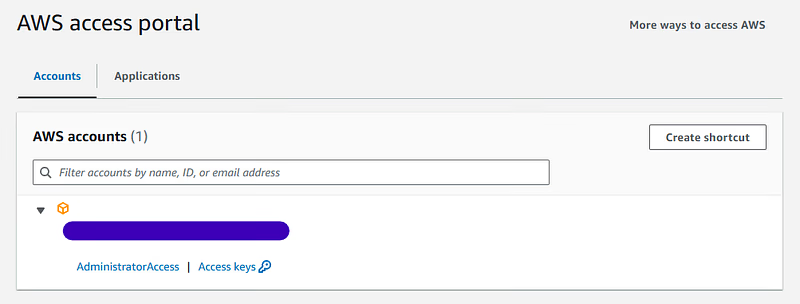
Log into your AWS console using an IAM role with access to CloudFront and CloudWatch logs. As you can see below, I’ve selected a role with Admin Access:
Step 2 — Find your CloudFront distributions
Select CloudFront in the console and look at your list of distributions:
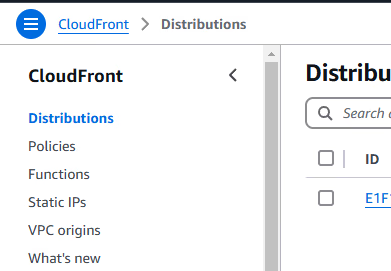
You’ll see the option in the left-hand pane, as shown above.
Step 3 — Find your CloudWatch logs
Visit the logging tab, and you’ll be presented with the following interface:

I’ve cut off my rows of logs, but you should have a row with a Destination link that can take you to CloudWatch. If you can see that, click it and move on to the next step. If you don't have a link to CloudWatch, click the Add button in the top right. You’ll be presented with logs to add. Add them, click the destination and proceed to the next step.
Step 4 — Get to your logs
You should end up on a page that looks something like this:
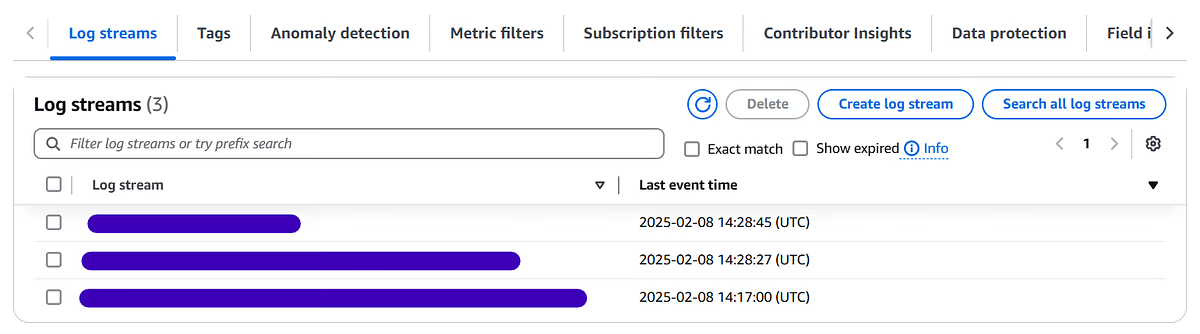
I’ve covered up the names of my logs, but you get the picture. Choose the logs that have the latest last event time. You’ll be presented with a screen like this:
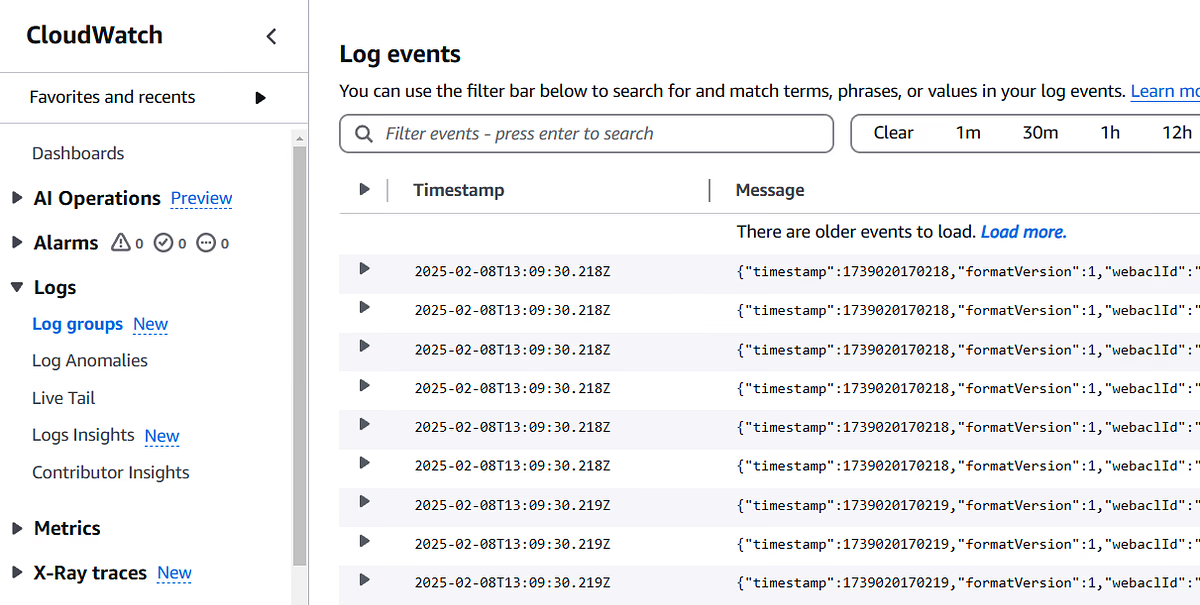
From here, you can see all of CloudFront’s output.
Step 5 — Trigger the error
I’m assuming the error you’re dealing with is persistent, and the actions required to cause it are well understood. Therefore, you can retrigger the error and see a log entry appear. The log entry will be in JSON format and look something like this:
{
  "timestamp": 1739024965288,
  "formatVersion": 1,
  "webaclId": "some-value",
  "terminatingRuleId": "AWS-AWSManagedRulesCommonRuleSet",
  "terminatingRuleType": "MANAGED_RULE_GROUP",
  "action": "BLOCK",
  "terminatingRuleMatchDetails": [],
  "httpSourceName": "CF",
  "httpSourceId": "some-value",
  "ruleGroupList": [
    ... // <-- left out for brevity
  ],
  "rateBasedRuleList": [
    ... // <-- left out for brevity
  ],
  "nonTerminatingMatchingRules": [],
  "requestHeadersInserted": null,
  "responseCodeSent": null,
  "httpRequest": {
    "clientIp": "some-ip",
    "country": "some-country",
    "headers": [
      ... // <-- left out as unimportant
    ],
    "uri": "some-uri",
    "args": "",
    "httpVersion": "HTTP/2.0",
    "httpMethod": "POST",
    "requestId": "QqdWwrl6ruptXRY98DEo9EAdvP8i7_h1eE01SSFHHIvlt_T1lEwtsQ=="
  },
  "labels": [
    ... // <-- left out as unimportant
  ],
  "requestBodySize": 9492,
  "requestBodySizeInspectedByWAF": 9492,
  "ja3Fingerprint": "some-base64-value",
  "ja4Fingerprint": "some-base64-value"
}
Step 6 — Analysing the Log
In the log above, you can see the following two sections:
ruleGroupListrateBasedRuleList
WAF uses these rule sets to decide if traffic is allowed through the firewall. Scan through this list, and you should see BLOCK on one of the rules. As an example, here’s mine:
"ruleGroupList": [
    {
        "ruleGroupId": "AWS#AWSManagedRulesAmazonIpReputationList",
        "terminatingRule": null,
        "nonTerminatingMatchingRules": [],
        "excludedRules": null,
        "customerConfig": null
    },
    {
        "ruleGroupId": "AWS#AWSManagedRulesCommonRuleSet",
        "terminatingRule": {
            "ruleId": "SizeRestrictions_BODY",
            "action": "BLOCK",
            "ruleMatchDetails": null
        },
        "nonTerminatingMatchingRules": [],
        "excludedRules": null,
        "customerConfig": null
    }
],
You can see I’ve triggered a rule from the AWSManagedRulesCommonRuleSet, a standard set of rules provided by and managed by AWS. The ruleset offers protection against common threats. In my case, I’ve fallen foul of the SizeRestrictions_BODY rule:
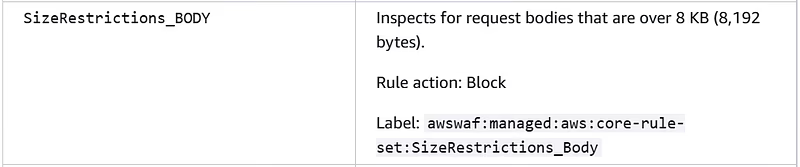
My request was sending 9KB of data in the body, over the allowed 8KB, causing the 403 forbidden error. Find the rule that’s tripping you up, research it, and then assess if you want to change the rules or change how you’re sending traffic.
In my case, I regularly have to send over 8KB of data in the body, so I need to change the rules.
Step 7— Editing Rules
If you’ve decided your traffic needs to get through, it’s time to edit the AWS Web Application Firewall (WAF) rules. Here’s how.
Step 1 — Get to your WAF configuration
Go back to your CloudFront distribution and select the security tab.
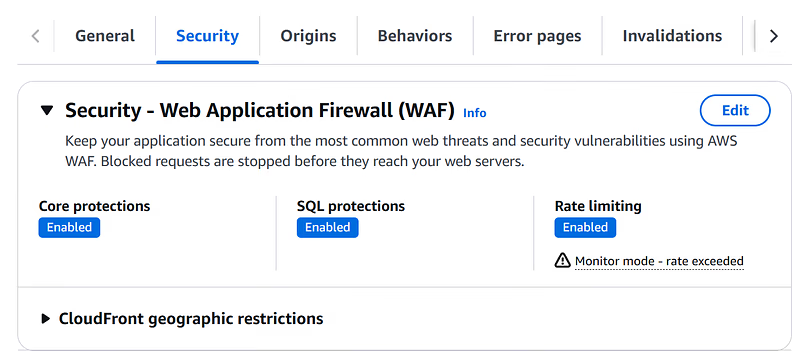
Click the Edit button, and you’ll be taken to the following page:
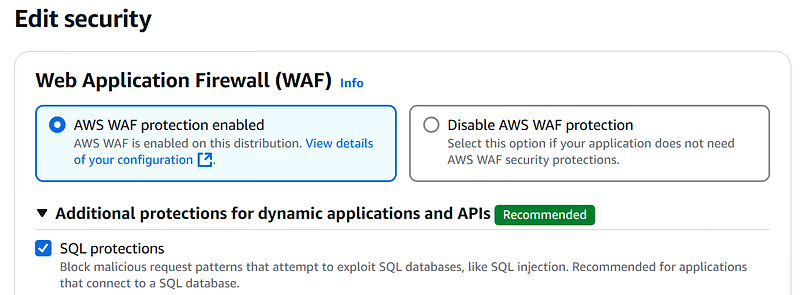
Hit the view details of your configuration link.
Step 2 — The rules section
From your WAF distribution, hit the Rules tab, and you’ll be presented with the screen below:
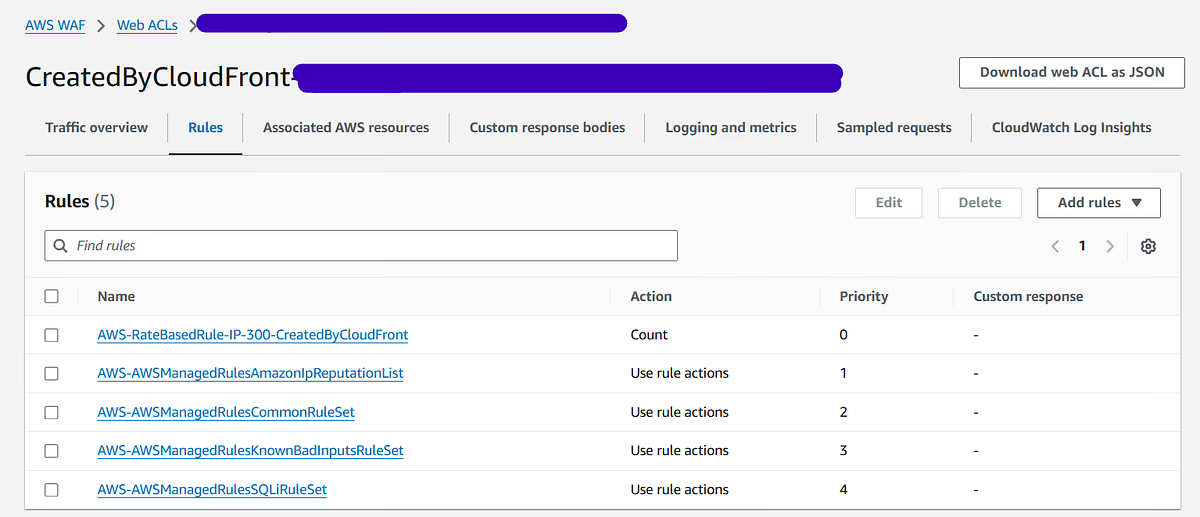
From here, you can add rules, delete rules, and edit rules. In the image above, you can see some of the WAF rules that I have guarding my site. Next to the rules, there’s a priority ranking. The lower the rule’s priority, the sooner it is evaluated. So 0 is evaluated before 1, 1 before 2, etc.
Rules match parts of the request coming into WAF. The first rule to match a request has its action executed. Therefore, if the rule with priority 0 matches your request and says to ALLOW it through, it doesn’t matter if every other rule would BLOCK it. The request will make it through the Firewall.
Step 3 — Adding a rule
To resolve my case, I need to add a new rule with higher priority than the AWS-managed common ruleset. To do so, hit the Add rules button in the top right corner and select one of the two options:
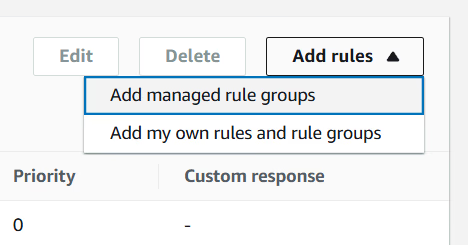
AWS provides managed rule groups. If they have a rule group that matches your use case, select Add managed rule groups and add it to your WAF configuration. If you need a custom rule, select Add my own rules and rule groups.
Step 4 — Custom rules
If you select the second option, you’ll be taken to a screen like this:
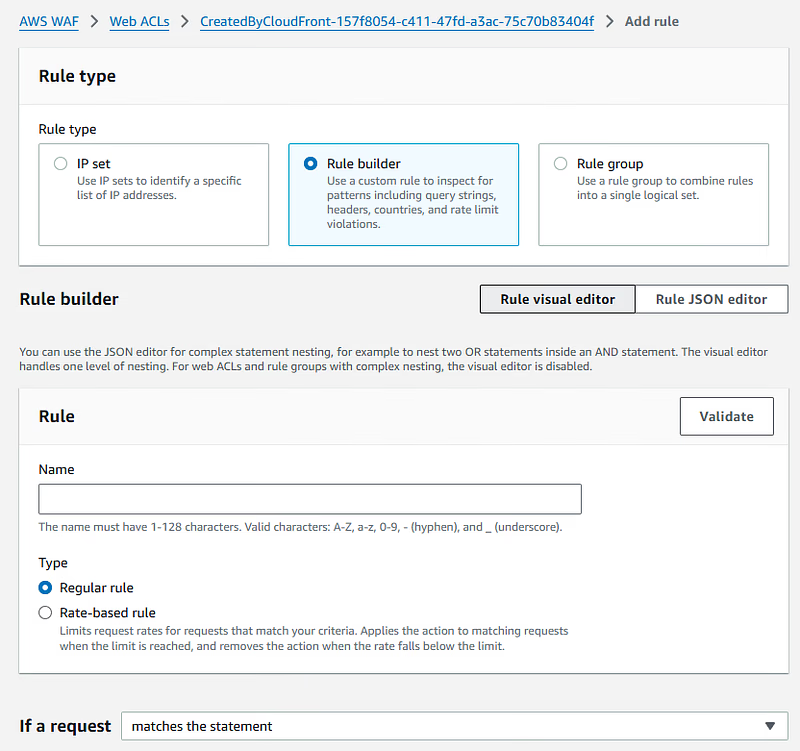
Choose your rule type and give your rule a name. Select whether you want it to be regular or rate-based. You can then build your rule using visual if statements:
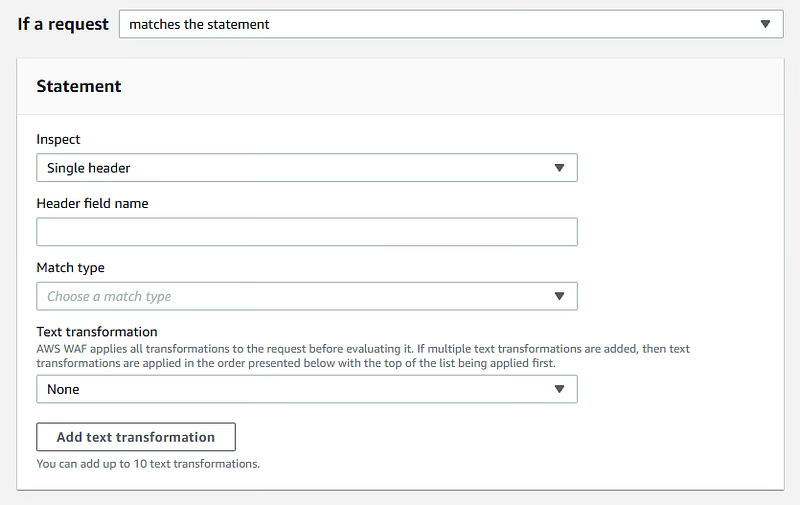
The if statements can cover things like IP Addresses, Cookies, URI path, etc. Combine them to make a logical statement that matches your traffic. Once you’re done, you can decide on the action to take on the traffic. In my case, I want to allow the traffic through:
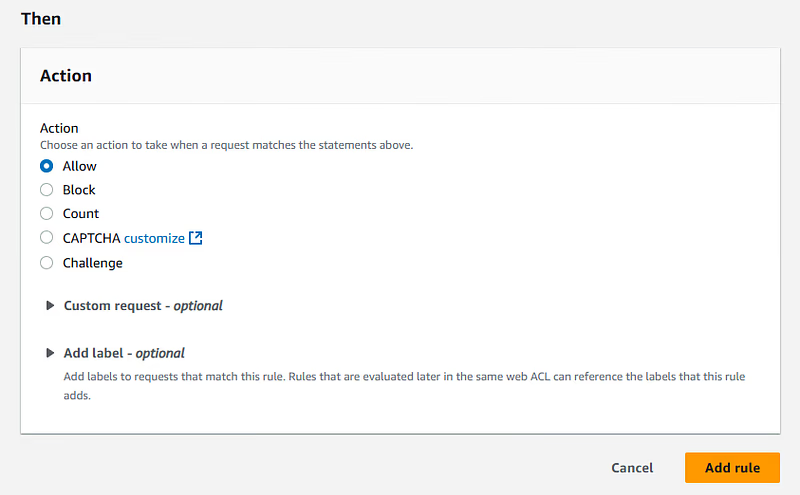
A note on the CAPTCHA option. Traffic that triggers a CAPTCHA action rule will launch a CAPTCHA check. If passed, the check provides a token to the user that stops the captcha from reappearing for N seconds. However, captcha rules are “non-terminating rules” — the user passing the captcha doesn’t automatically ALLOW their traffic.
This means lower-priority rules will be evaluated on the same traffic once the captcha is passed. These rules can still BLOCK the traffic.
Click Add rule and you’ll be taken to a final screen:
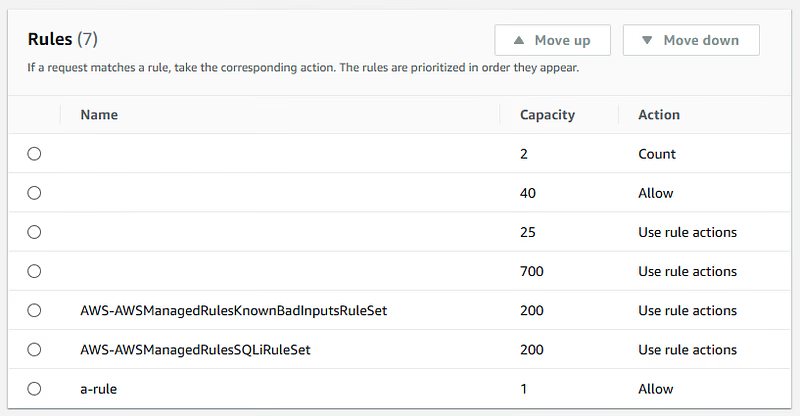
This screen tells you how much compute capacity each rule takes, the higher the value, the more compute required. It also allows you to move your rule in the priority order. You can see my new rule a-rule is at the bottom of the priority order and will be evaluated last.
Useful Links
Below are some helpful links for understanding WAF.
Log fields for web ACL traffic
Setting rule priority in a web ACL
Extra Info — Ask an LLM what’s gone wrong
If you’re stuck, and can’t understand the logs, you can always turn to an LLM for advice. At the time of writing (2025–02–08), ChatGPT o1/ o1-mini are my favourites for this sort of advice. Use a prompt like the following:
I'm getting a <insert-your-error-code-here> error from CloudFront.

I don't understand why I'm getting this error, but this is the behaviour that's causing it:
<insert-your-behaviour-here>
Here is the associated log error:
<insert-your-log-error-from-above-here>
Please explain to me what's going wrong, and suggest how to fix it.
Don’t do what it says blindly. Investigate the solution it suggests. If it makes sense, attempt it. If that solves the problem, happy days! If not, get the new error log, re-prompt, re-try, and keep going until your problem’s resolved. Remember, if all else fails, there’s always Stack Overflow!
Final Word
Hopefully, this process has helped you resolve your CloudFront issue. If you think anything should be added, post it in the comments, and I’ll update the article. Cheers!