How To Add a GPU to a Firebase Function
How to make your Firebase function a machine learning workhorse by attaching a GPU.
This tutorial will teach you how to:
- Add a GPU to a pre-existing Firebase function.
- Prevent the GPU from being removed when you redeploy your function.
Adding a GPU to a Firebase function is incredibly useful if you want to use computationally intense machine learning algorithms serverlessly on your app.
Prerequisites
You need a pre-existing Firebase function, both in source code and deployed onto the Firebase platform via the firebase-tools CLI.
If you don’t have this already, set up a basic function by following this tutorial:
Step 1 — Add the GPU to the Function
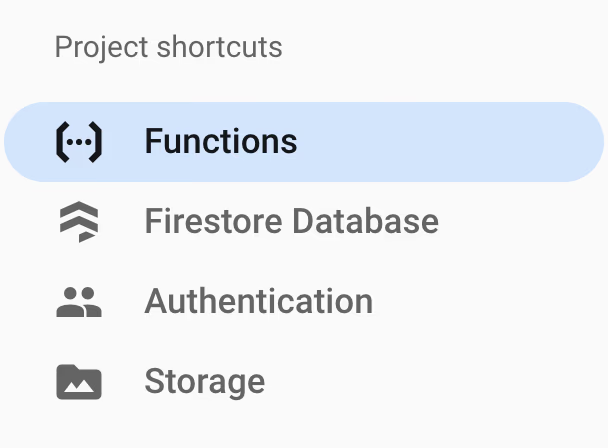
Find your function in the Firebase console:
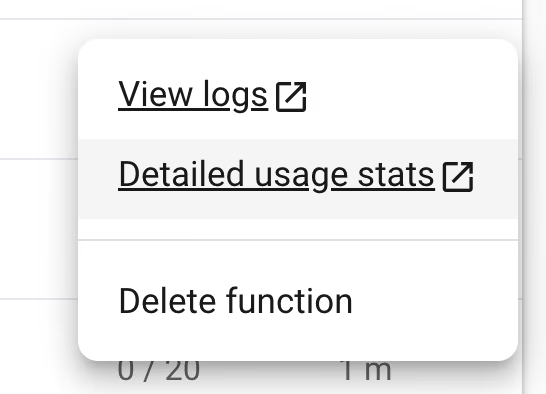
Hover over one of your functions in the list and click on the three-dot drop-down. Then select the Detailed usage statsoption:
This will take you to a Cloud Run interface and put you on the Source page. At the top of this page, you’ll see the following:

Click on the Edit and deploy new revision button. You’ll be taken to a page like the following:
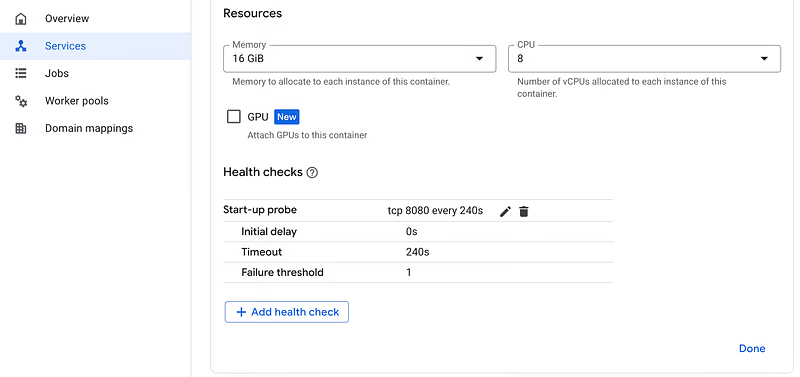
From here, tick the GPU box to attach a GPU to the container. You’ll see a list of things you need to complete to make this viable:

Click on Apply 3 changes and this should sort out all of your alterations for you automatically.
The final thing to change is the Zonal redundancy option:

Assuming Zonal redundancy isn’t set up, select No zonal redundancy and that’s it! You’re ready to deploy.
Click the Deploy button at the bottom of the section:
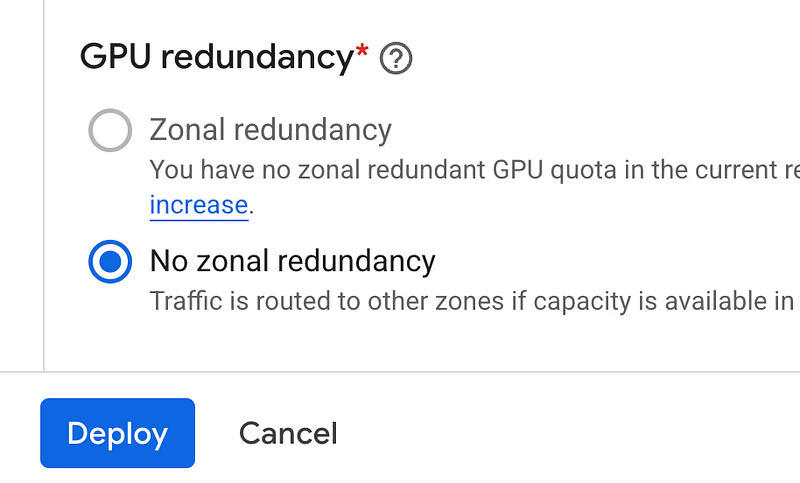
And let the magic happen. Voila, you have a GPU attached!
Step 2 — Preserve The GPU Change
To keep the GPU change, you need to alter your Firebase function’s source code definition. As machine learning models are typically deployed in Python, here’s what you’ll likely have over your function:
@https_fn.on_request(
)
To prevent the GPU from being removed, you need to preserve external changes, which can be done with this flag:
@https_fn.on_request(
    timeout_sec=300,
    memory=MemoryOption.GB_16,
    region="europe-west1",
    cpu=4,
    preserve_external_changes=True, # The GPU protecting addition
)
That’s it! You’ve got a GPU attached and you’re good to go.
Final Words
I hope this gets your new serverless machine learning workload set up quickly, or your clients are happy with the speed boost! Happy Machine Learning’ing.