How to Build a Typescript NPM Package For a Cloudflare Worker
Learn how to architect your NPM package for fast development, small size, and simple deployment to the package repository.
In this tutorial, you will learn:
- How to architect your Cloudflare Worker-focused NPM package.
- How to publish your package on NPM.
Once you’re done, you’ll have everything you need to release Cloudflare Worker packages fast!
Quick Start
This tutorial is based on a template I’ve made for my NPM packages. You can find it here:
GitHub - Connor56/cloudflare-worker-npm-package: A skeleton structure for a CloudFlare worker npm…
To start a new package, clone it using SSH with:
git clone git@github.com:Connor56/cloudflare-worker-npm-package.git
Or using HTTP with:
git clone https://github.com/Connor56/cloudflare-worker-npm-package.git
Rename the repo with:
mv cloudflare-worker-npm-package <your-package-name>
Delete the pre-existing .git with:
cd <your-package-name>
You may have to use an elevated terminal command to dete the .git folder:
sudo rm -r .git
Then reinitialise the repo with:
git init
This will give you a fresh start to build from.
If you already understand NPM and TypeScript publishing, that’s all you need! Read on to learn more about the decisions behind the package’s design.
Step 1 — How To Architect Your Package
The Overall Structure
I recommend this package structure:
📁 ./
├── 📁 test/
│   └── (... your tests)
├── 📁 src/
│   └── (... your source code)
├── 📄 .gitignore
├── 📄 LICENCE
├── 📄 README.md
├── 📄 package.json
├── 📄 tsconfig.json
It has everything you need:
- The obligatory
package.jsonto define your package. - A dedicated place for your source code:
/src - A dedicated place for testing:
/test - A copyright licence.
- A
README.mdintroducing people to your package. tsconfig.jsonfor configuring the TypeScript compilation step..gitignorefor keeping things likenode_modulesand your compiled package distribution out of the repo.
Most importantly, it’s a simple base that’s easy to build from. A detailed explanation of the most important parts is below.
The package.json
This is the structure as of 2025–12–24:
{
  "name": "my-package-name",
  "version": "0.1.0",
  "description": "My package description.",
  "author": "Connor Skelland",
  "license": "MIT",
  "engines": {
    "node": ">=18.0.0"
  },
  "keywords": ["something", "something else"],
  "type": "module",
  "types": "dist/index.d.ts",
  "exports": {
    ".": {
      "import": "./dist/index.js",
      "types": "./dist/index.d.ts"
    }
  },
  "scripts": {
    "test": "vitest run",
    "clean": "tsc --build --clean",
    "build": "tsc --build",
    "build:watch": "tsc --watch",
    "prepublishOnly": "npm run test && npm run clean && npm run build"
  },
  "devDependencies": {
    "@cloudflare/workers-types": "^4.20250816.0",
    "@types/node": "^24.3.0",
    "typescript": "^5.9.2",
    "vitest": "^3.1.0"
  },
  "files": []
}
Here is the purpose behind each of these options:
nameYour package’s unique identifier on NPM. This is how users will install your package:npm install my-package-nameversionCurrent version of your package (follows semver). Start at0.1.0and increment with each release. NPM uses this to track updates.descriptionBrief summary of what your package does. Appears in NPM search results and helps users understand your package.authorYour name or organization. Shows who maintains the package.licenseType of license (e.g., MIT, ISC). Tells users how they can legally use your code. MIT is very permissive.enginesMinimum Node.js version required.>=18.0.0ensures users have a Node version that supports your code.keywordsArray of search terms. Helps people discover your package on NPM when searching for related topics.typeSet to"module"for ES modules. Critical for Cloudflare Workers — enables modernimport/exportsyntax instead of oldrequire().typesLocation of TypeScript type definitions. Points todist/index.d.tsso TypeScript users get autocomplete and type checking.exportsDefines package entry points. Modern way to specify what users get when they import your package.exports["."]The default/main entry point. The"."means this is what users get when they doimport pkg from 'my-package-name'.exports["."].importPoints to your compiled JavaScript. The actual code that runs when someone imports your package.exports["."].typesPoints to your type definitions. Tells TypeScript where to find type information.scriptsCommands you can run withnpm run. Automates common tasks like testing and building.scripts.testRunsvitest run. Executes your test suite once. I prefer single executionscripts.cleanRunstsc --build --clean. Removes all compiled files from the dist folder (cleanup before rebuilding).scripts.buildRunstsc --build. Compiles your TypeScript code to JavaScript and generates type definitions using the TypeScript compiler.scripts.build:watchRunstsc --watch. Continuously watches for changes and rebuilds automatically (useful during development).scripts.prepublishOnlyRunsnpm run test && npm run clean && npm run build. Lifecycle hook — tests, cleans, and builds your package before publishing to NPM (prevents publishing stale, broken, or unbuilt code).devDependenciesTools needed for development only. These aren’t installed when users add your package to their project.@cloudflare/workers-typesTypeScript types for Cloudflare Workers. Provides autocomplete and type checking for Workers-specific APIs.@types/nodeTypeScript types for Node.js. Provides types for Node.js built-in modules. A large number of these are polyfilled by Cloudflare Workers.typescriptThe TypeScript compiler. Enables writing type-safe code.vitestFast testing framework. Modern, fast alternative to Jest with great TypeScript support.filesWhitelist of files to publish. Works like a reverse.gitignore— only listed files/folders get published. Empty means everything is included.
If you want more information, you can read the npm documentation:
The tsconfig.json
This is the tsconfig.json as of 2025–12–25:
{
  "compilerOptions": {
    "rootDir": "./src",
    "outDir": "./dist",
    "module": "nodenext",
    "target": "esnext",
    "types": ["@cloudflare/workers-types"],
    "declaration": true,

    // Opinionated options below
    "noUncheckedIndexedAccess": true,
    "noUnusedLocals": true,
    "noUnusedParameters": true,
    "noPropertyAccessFromIndexSignature": true,
    "strict": true,
    "verbatimModuleSyntax": true,
    "isolatedModules": true,
    "noUncheckedSideEffectImports": true,
    "skipLibCheck": true,
    "forceConsistentCasingInFileNames": true
  },
  "include": ["src/**/*"],
  "exclude": ["node_modules", "dist", "test"]
}
The top set of options in compilerOptions are technically all you need. Th remaining compilerOptions are opinionated settings that force you to write solid TypeScript. Delete at your leisure.
Here’s the purpose of all the options:
rootDirThe root directory of your source code. Set to./srcso TypeScript knows where to find your source files.outDirThe output directory for compiled code. Set to./distso all compiled JavaScript and type definitions go in one place.moduleThe module code generation mode.nodenextensures compatibility with modern Node.js ESM (ES Modules). See also TypeScript Module Documentation.targetThe target ECMAScript version.esnextcompiles to the latest JavaScript features, making it perfect for the Cloudflare Workers runtime, which run in V8 engine isolates.typesType definitions to include.@cloudflare/workers-typesgives you autocomplete and type checking for Cloudflare Workers APIs.declarationGenerates .d.ts declaration files. Set to true so TypeScript creates type definition files that consumers of your package can use.noUncheckedIndexedAccessEnforces strict checking of indexed access. Prevents bugs by making TypeScript warn when accessing array/object properties that might not exist.noUnusedLocalsEnforces that all local variables are used. Helps keep code clean by catching unused variables.noUnusedParametersEnforces that all parameters are used. Catches unused function parameters, improving code quality.noPropertyAccessFromIndexSignaturePrevents accessing undefined properties. Forces you to use bracket notation for dynamic property access, preventing typos.strictEnforces strict type checking. Enables all strict type checking options — catches more bugs at compile time.verbatimModuleSyntaxForces explicit type imports. Requires you to writeimport typewhen only importing types — making bundling more efficient.isolatedModulesEnforces strong module boundaries. Each file must be independently compilable to ensure compatibility with bundlers and build tools.noUncheckedSideEffectImportsPrevents importing non-existent modules. Catches typos in import statements before runtime.skipLibCheckSkips checking external library types. Speeds up compilation by not type-checkingnode_modules.forceConsistentCasingInFileNamesEnforces consistent casing in file names. Prevents issues when moving code between case-sensitive (Linux) and case-insensitive (Windows/Mac) filesystems.includeFiles to include in compilation.["src/**/*"]tells TypeScript to compile everything in the src folder.excludeFiles to exclude from compilation. Prevents TypeScript from unnecessarily processingnode_modules,dist, andtestfolders.
If you want more information, you can read the tsconfig reference:
TSConfig Reference - Docs on every TSConfig option
Why the simple structure?
My biggest pet peeve in a project is root directory detritus. Even something as messy as this makes my skin crawl:
📁 ./
Sometimes you need every bit of it. But it’s still an ugly cognitive overload. Starting from a simple template means you own any extra files that end up in your root. With ownership comes understanding and the absolute permission to tidy and optimise without fear.
In short, I’ve kept it simple to keep you nimble.
Package Extensions
If you’d prefer decisions to be made for you, here are some things you may want to add:
- A formatter.
- Pre-commit hooks.
/docsfolder for extra examples./scriptsfolder for custom repo actions.- CI/CD pipeline.
- Automated versioning.
I’ve added links to the most recommended tools, where applicable.
Step 2 — Create an Account on NPM
If you don’t have one already, visit the sign up page:
Sign up using:
username\\ \\— Choose something fairly bland but identifiable. Or, if you already have a profressional/ developer username, use that. For me, that’sconnor56.email— Choose a stable email address you have access to and read regularly. If your email provider allows aliases, you could always add+npmto the front to make them easy to sort.
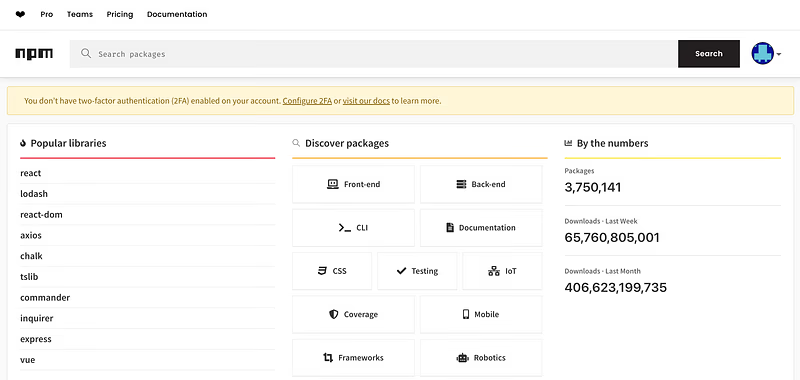
You’ll be asked to verify your email by a One-Time-Passcode. Once complete you’ll see this screen:
Private Email Alias
If you dislike the idea of making your private email address public but still want to use it for communication, use a relay service. For example, ProtonMail has its Proton Pass manager, which lets you set up aliases:
Proton Pass: Free password manager with identity protection | Proton
If you don’t use ProtonMail, you could also use something like SimpleLogin:
SimpleLogin | Open source anonymous email service
Step 3 — Build and Publish Your Package
Once you’ve created your package and you’re ready to publish, you need to log in to your account on the npm CLI. Do this with:
npm login
You’ll be taken to the npm login screen and sent another One-Time Passcode. Fill this in on the web browser, and you’ll grant your npm CLI permission to use your account:
➜ git:(main) ✗ npm login
Before publishing, you may need to bump the package version if you’ve made changes:
npm bump patch
npm bump minor
npm bump major
Then publish with:
npm publish
If you’ve left the prepublishOnly script in your package.json this will run all of your tests, delete all of the code from the /dist folder, and rebuild everything. If there are any issues, publishing will fail.
If you’re being told you need to pay to publish a private package, it’s probably because you have a scope in front of the package name. For example:
@connor56/some-package
When you use a scope the npm CLI assumes you want to publish your package privately. You can prevent this by running:
npm publish --access public
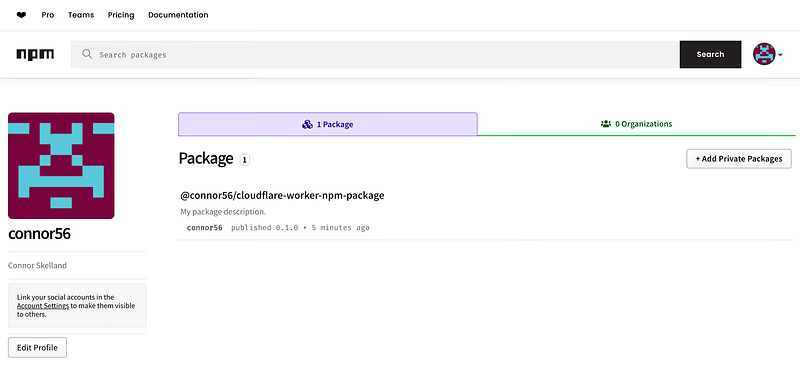
That’s it, you’ll see your package on your NPM account:
Final Words
Well, there you are! I hope this helps you set up and build your own reusable software for Cloudflare Workers. If it’s your first time releasing anything on NPM, let me know if the explanations help you to get over the first publication nerves.
Happy publishing!