How To Create a Cloudflare Worker
Learn how to create and deploy a Cloudflare Worker using the create-cloudflare-cli.
In this tutorial, you will learn:
- How to create a basic Cloudflare Worker project using the
create-cloudflare-cli. - How to deploy your Cloudflare Worker to your Cloudflare account.
- How to delete your Cloudflare Worker.
Having this skill up your sleeve is immensely handy when you want to build small APIs with lightning-fast response times.
Prerequisities
You will need:
- A package manager, i.e. npm, which comes packaged with Nodejs.
- A Cloudflare account.
If you don’t have a Cloudflare account, they’re easy to set up, learn how here:
Create account · Cloudflare Fundamentals docs
With those in hand, you’re good to go.
Step 1 — Create a Basic Cloudflare Worker
First, set up a minimal Worker project. The best way to do this is with create-cloudflare an npm package maintained by Cloudflare. To install it, run:
npm i -g create-cloudflareOpen a terminal, and navigate to the location you want to create your project:
cd path/to/your/directoryThen run the following:
npm create cloudflare@latest -- <name-of-your-project>When prompted:
- Choose Hello World example → Worker only → TypeScript.
- Accept git initialisation if you like.
- Choose not to deploy for now.
Your terminal output should look something like this:
╭ Create an application with Cloudflare Step 1 of 3
The resulting folder should look like this:
📁 ./
├── 📄 .editorconfig
├── 📄 .gitignore
├── 📄 .prettierrc
├── 📄 package-lock.json
├── 📄 package.json
├── 📄 tsconfig.json
├── 📄 vitest.config.mts
├── 📄 worker-configuration.d.ts
├── 📄 wrangler.jsonc
├── 📁 src/
│   └── 📄 index.ts
├── 📁 test/
│   ├── 📄 env.d.ts
│   ├── 📄 index.spec.ts
│   └── 📄 tsconfig.json
If you’re interested, here’s an explanation of every file that’s produced:
.editorconfig— Defines consistent coding styles (indentation, line endings, charset) across different editors/IDEs..gitignore— Lists files/folders Git should ignore (e.g.node_modules, build outputs)..prettierrc— Configuration for Prettier, the code formatter (e.g. tab width, semicolons, quotes). This is a common way to make code look nice.package.json— Main metadata file for the project, as well as a place to define project-level scripts for development work. For examplenpm run build.package-lock.json— Exact dependency tree (ensures reproducible installs).tsconfig.json— TypeScript configuration — compiler options, which files to include/exclude, module resolution settings, etc.vitest.config.mts— Configuration for Vitest, your test runner (like Jest but for Vite)..mtsindicates it’s a TypeScript module (type: "module").worker-configuration.d.ts— Type declaration file for Cloudflare Worker environment variables or bindings — lets TypeScript know about KV namespaces, Durable Objects, etc. Allows cool tools like IntelliSense.wrangler.jsonc— Configuration for Wrangler, the Cloudflare Workers CLI — defines entrypoint, name, routes, env vars..jsoncmeans JSON with comments. This is where we can connect Cloudflare resources to our code.
The most important file for this tutorial is /index.ts.
Step 2 — Deploy Your Worker
Logging into Wrangler
To deploy or redeploy your worker, you need to use wrangler, Cloudflare’s resource management CLI. To use it, you first need to sign in. Run the following command:
npx wrangler@latest loginYou’ll see output like this:
Need to install the following packages:
wrangler@4.47.0
Ok to proceed? (y)


 ⛅️ wrangler 4.47.0
───────────────────
Attempting to login via OAuth...
Opening a link in your default browser: https://dash.cloudflare.com/oauth/(etc.)
And a page will pop up on your browser that looks like this:
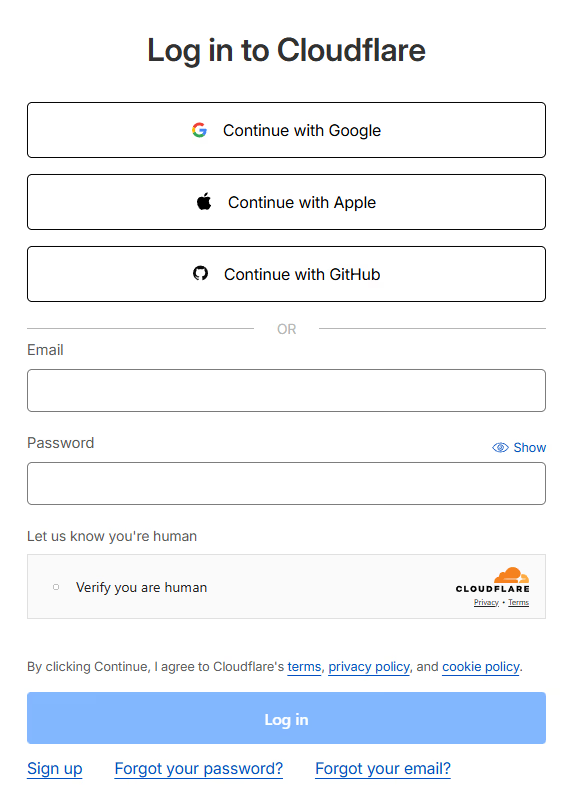
Log in using your preferred method. You’ll be asked if you want to give permission to Wrangler:
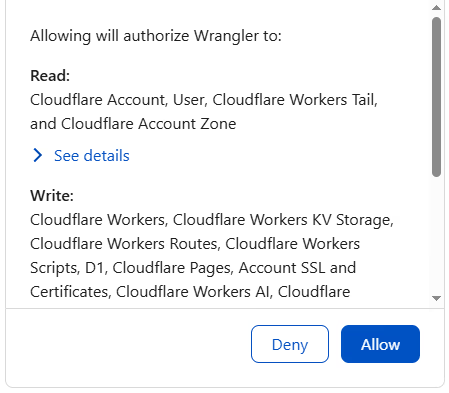
Select Allow and you’ll be shown this page:
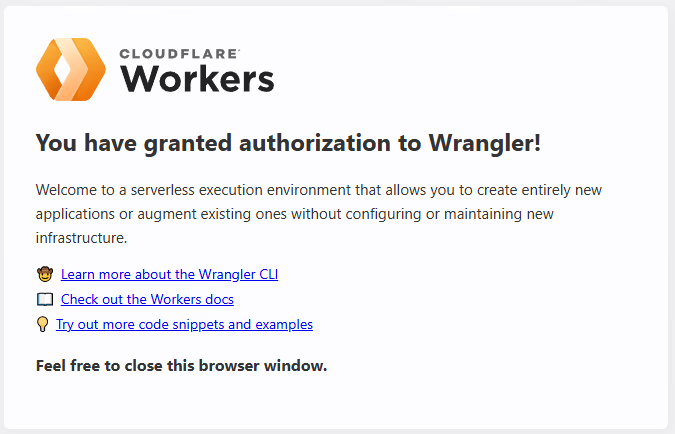
Congratulations, you have terminal access! Now let’s deploy.
Deploy using Wrangler
Now you’re logged in, run the following command to deploy your worker:
npx wrangler@latest deployYou’ll see output like the following:
 ⛅️ wrangler 4.47.0
───────────────────
Total Upload: 0.19 KiB / gzip: 0.16 KiB
Uploaded my-test-worker (5.06 sec)
Deployed my-test-worker triggers (4.06 sec)
  https://my-test-worker.your-username-here.workers.dev
Current Version ID: dbadh3f16-f2b3-49e0-983jc-3e9aasd7f9b2dd
A sub-10s deployment, very nice! If you want to check it works, paste your link into a browser. For example, mine would be:
https://my-test-worker.your-username-here.workers.devYou’ll see a very simple web page with the words:
Hello worldDouble Check on Cloudflare
If you can’t believe that’s it, and you want extra proof, you can check you’ve deployed on the Cloudflare dashboard. Go to the Compute and AI section in the left-hand panel, click:
Compute & AI → Workers & Pages
On the dashboard that follows you’ll see your worker:
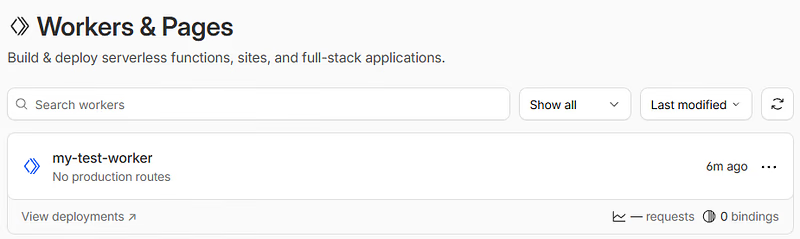
Voila! That really is all it takes.
Alter Hello World
If you’d rather see a different message to Hello World you can change what your worker returns by editing /src/index.ts. Your current version should look like this:
/**
Change the 'Hello World!' text in the return statement. Redeploy with:
npx wrangler@latest deployAnd you’ll see it reflected when you next call your endpoint.
Step 3 — Delete a Cloudflare Worker
To take your worker down, you run the following CLI command:
npx wrangler@latest deleteSelect Y when asked if you really want to delete the worker. You’ll see output like this:
⛅️ wrangler 4.47.0
Reload your endpoint to see if it’s gone. You should see something like this:

Check your dashboard, and you’ll see it has been deleted. To redeploy, follow Step 2 again.
Final Words
Congratulations! You now have the basic skill required to build a wicked-fast API. I typically find myself using Cloudflare Workers in SvelteKit Pages applications, but deploying directly is useful when all you want is a simple API. I hope this tutorial helps you get there in the shortest possible time Happy Worker’ing!