How To Force Run a Firebase Function Cron Job
Learn how to manually run a live Firebase Function cron job using Google Cloud Scheduler.
In this tutorial, you will learn how to manually trigger a live Firebase Function cron job. You can do this in two ways:
- Via the Firebase Console web platform.
- Via the gcloud CLI.
I will explain both.
Method 1 — Trigger via the Firebase Console
Visit the Firebase console to see all of your functions:
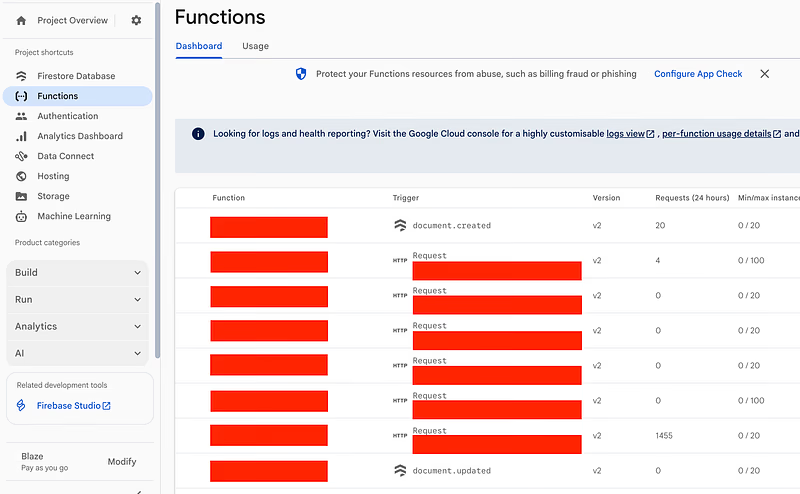
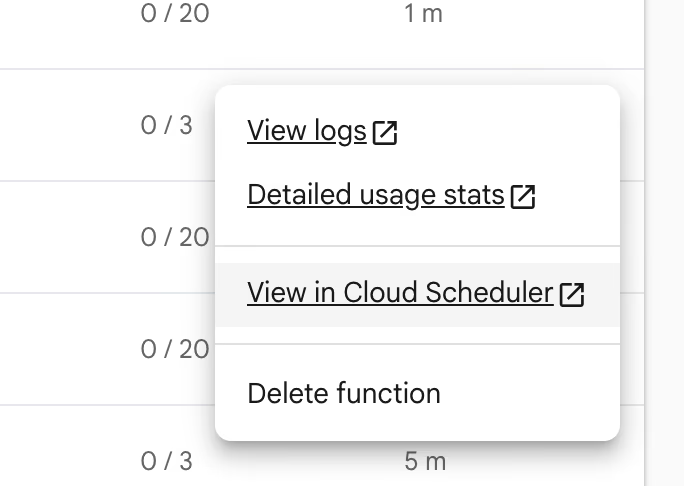
Click the triple-dot options button on your chosen function, and then select View in Cloud Scheduler:
You will see the following interface:
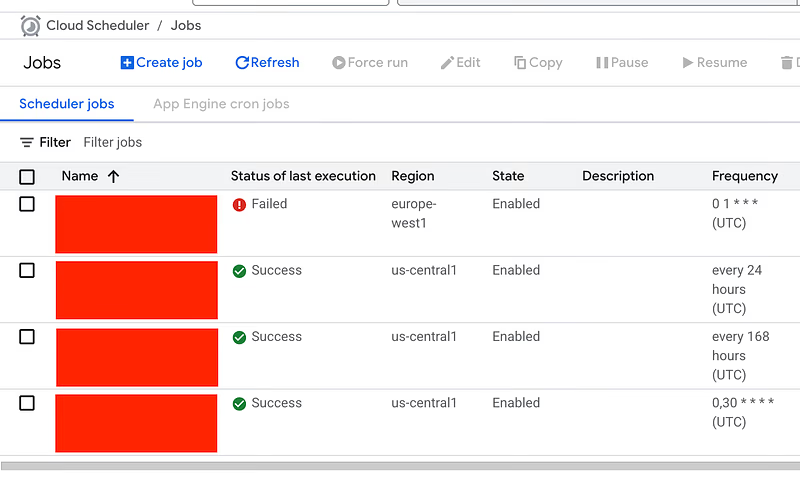
Click the triple-dot button on the far right of the function you want to force run. It will be in the Actions column. Select the Force run option.
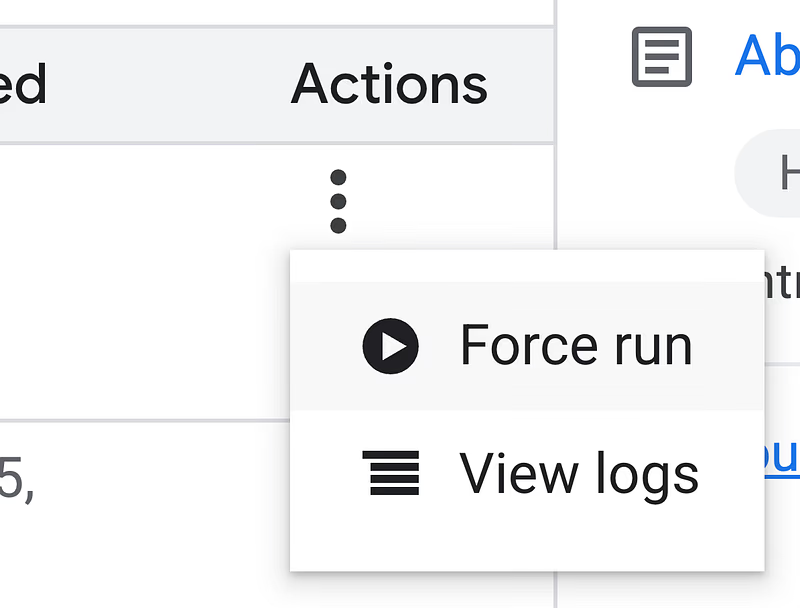
This will run your cron job as if it were triggered by the standard trigger. You can check your Function’s logs to see the output.
Method 2 — Trigger via the gcloud CLI
If you don’t have the gcloud CLI tool, you can download it here:
Quickstart: Install the Google Cloud CLI | Google Cloud SDK | Google Cloud Documentation
Once you have the tool, check what jobs you can run:
gcloud scheduler jobs list --location=europe-west1 --project=<project-id>
The flag values have the following meaning:
<region>— Replace this with the region of your project, i.e.europe-west1.<project-id>— Replace this with the ID of your Project. Without this, gcloud will use whatever project you currently have set. If this is already the correct project, you can remove this flag.
If you don’t know your Project ID, you can find it with the Firebase CLI:
firebase projects:list
Run the query, and you’ll get output similar to the following:
ID                                        LOCATION      SCHEDULE (TZ)    TARGET_TYPE  STATE
firebase-schedule-some-func-europe-west1  europe-west1  0 1 * * * (UTC)  HTTP         ENABLED
Copy the ID of the function, in this case: firebase-schedule-some-func-europe-west1. Then run the following:
gcloud scheduler jobs run <job-id> --location=<region> --project=<project-id>
As an example, mine would look like this:
gcloud scheduler jobs run firebase-schedule-some-func-europe-west1 --location=europe-west1 --project=myProject123
Check logs in the terminal
If you live in the terminal, you can check the cron job has worked by tailing the logs with the Firebase CLI, like this:
firebase functions:log --only <function-name>
Final Words
I hope this saves you the frustrating 5-minute “how do I do that again?” when you come to your cron job tests. Happy cronn’ing!