How To Install a Swift Formatter in VSCode
Learn how to format your .swift files in VSCode.
This simple process will help you stay in lovely VSCode and away from horrible Xcode. It’s a quick fix; let’s do it.
Step 1 — Install swift-format
If you don’t already have Homebrew installed, you can get it here. Run the following command from your terminal:
brew install swift-format
This installs the following package:
This package does all of the heavy lifting. It’s an opinionated formatter released by the Swift-lang team.
Step 2 — Add the apple-swift-format Extension
Next, you need an extension in VSCode that can use that package. So install the following extension:
apple-swift-format - Visual Studio Marketplace
This extension is able to see swift-format and call it on your .swift files.
Step 3 — Update Your settings.json
Now you have the correct extension installed, open your settings.json file in VSCode by pressing: cmd+shift+p. Then typing “_settings”_. This will show you the following option:
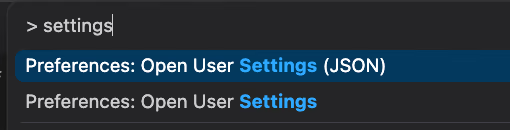
Click on the top one.
Paste the following options into the file:
{
  // ... (other settings)
  "[swift]": {
    "editor.defaultFormatter": "vknabel.vscode-apple-swift-format",
    "editor.formatOnSave": true
  }
  // ... (other settings)
}
This sets the correct formatter and tells VSCode to format your file when you save it. Format-on-save is optional; I just happen to like it.
Final Words
That’s it! I hope this helps my fellow VSCode lovers develop in Swift without changing their favourite IDE. Manual formatting sucks, opinionated formatting rules. Enjoy 😁