How to Test Pub/Sub Events in Firebase
Learn how to trigger a Firebase function that listens to a pub/sub topic in Google Cloud Platform.
In this tutorial, you will learn:
- How to find your pub/sub topic in Google Cloud Platform.
- How to manually send an event to your topic and test your code.
This helps test infrequent webhooks or retry those that failed. This tutorial is based on sending JSON messages.
Step 1 — Access Your Pub/Sub Topics
To access your Pub/Sub topics, visit the following page:
https://console.cloud.google.com/cloudpubsub/
This will take you to a screen like this:
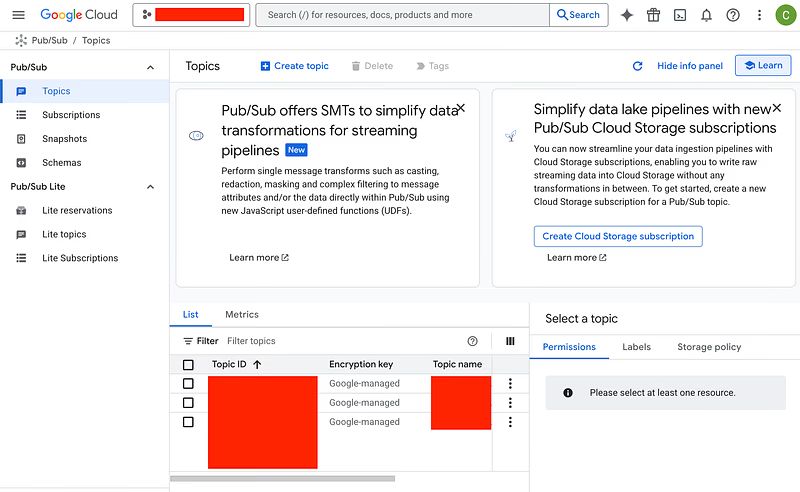
At the top, in the red box to the left of Search, you will see the name of a project. This project should match the name of your Firebase project with the pub/sub event listener. If not, switch to the correct project by clicking on it and selecting from the list.
When you’re on the correct project, you’ll see your pub/sub topic below in the list. Click on your topic link, and you’ll see a page like this:
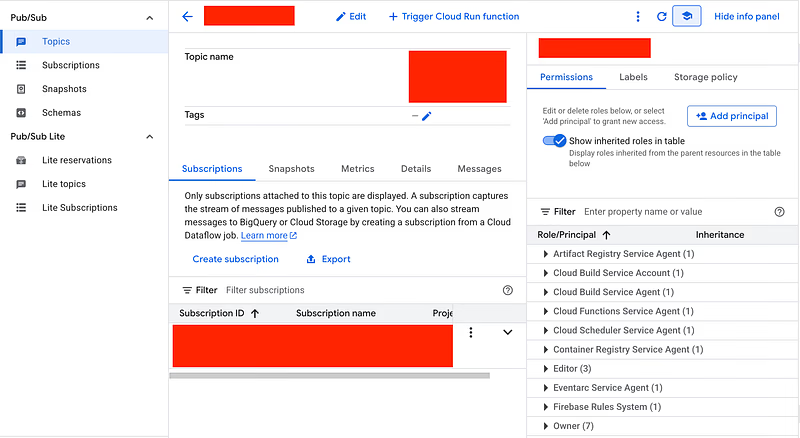
We’ll send messages from here.
Step 2 — Gather Data From a Previous Event
It’s good debugging practice to log out the content of any event you receive in Firebase. You can do this with a log statement like this:
export const someListener = onMessagePublished("webhooks", async (event) => {
  const data = event.data.message.json;

  logger.info("Received Bondio webhook event", { event, data });
});
You must call event.data.message.json to decode the message into JSON. By default, it is in Base64.
The data held in event.data.message.json is what you need to copy for manual sending.
Why is the message base64 encoded?
It allows arbitrary bytes to be passed in pub/sub messages. Base64 encoding converts any byte sequence into ASCII characters that can be safely passed in an HTTPS request.
It’s up to the event listener to decode this data into the correct format. As sending JSON is incredibly common, the message comes with a special .json attribute to extract this quickly.
Step 3 — Manually Send an Event to a Pub/Sub Topic
From your pub/sub topic page, click on the Messages tab:
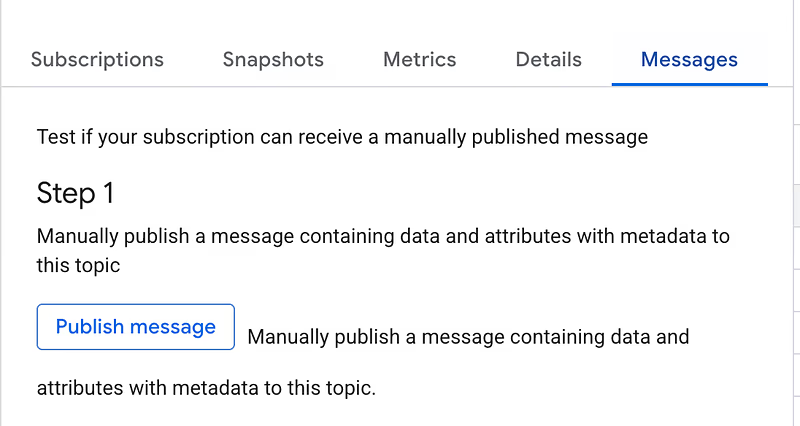
Click on the Publish message button:
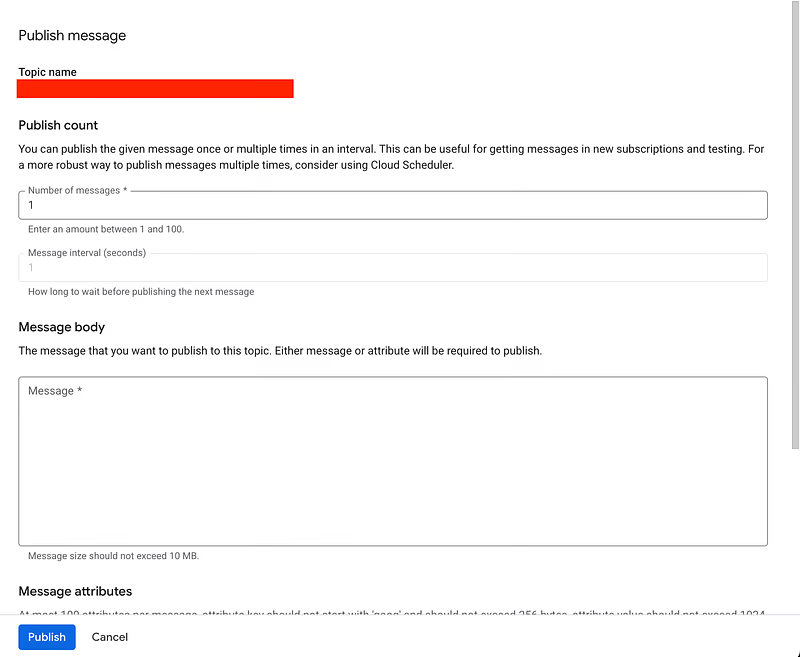
Inside the Message body section, place the data you gathered in Step 2. Select Publish.
Congratulations! You have successfully manually published to your topic. Double-check your function’s logs; it should have been triggered. If not, post in the comments, and I’ll help you.
Final Words
A short one, but an easily forgotten method that is incredibly useful when you need it! I hope this saves you 20–30 minutes and keeps you in that delightful debugging flow.