How To Use a KV Namespace in a Cloudflare Pages SvelteKit Application
How to set up a Cloudflare KV Namespace and use it to store and serve data in a SvelteKit application.
In this tutorial, you will learn:
- How to set up a KV Namespace via the wrangler CLI tool.
- Bind the Namespace to your SvelteKit Cloudflare Pages application.
- Use it in a basic caching service to avoid an external call.
This is the next article in a series on building a SvelteKit website on Cloudflare.
Prerequisites
Here’s what you’ll need to complete this tutorial:
- A SvelteKit application deployed to Cloudflare Pages via their GitHub integration.
npx— The npm eXecutor, it downloads packages and executes commands from them without installing locally.- Basic knowledge of the
Node.jsecosystem.
Let’s get started.
Step 1 — Set Up The KV Namepsace
You can manage your infrastructure from the command line, using Cloudflare’s awesome CLI tool wrangler. First, log in to wrangler:
npx wrangler login
Walk through the OAuth login flow and confirm access for the CLI tool. You can check that you have successfully logged in with:
npx wrangler whoami
Once you’re successfully logged in, use this command to create your KV Namespace:
npx wrangler kv namespace create <your-namespace-name>
Add in the name you’d like to give your database. I’m going to use:
npx wrangler kv namespace create fullstackgaming-kv
You’ll see some output like this:
{
  "kv_namespaces": [
    {
      "binding": "fullstackgaming_kv",
      "id": "9b726c6a1d82347haskb03a7705f01f"
    }
  ]
}
Save this, we’ll be using it in the next step. If you want to double-check the database exists, you can run:
npx wrangler kv namespace list
You’ll get some output like this:
[
  {
    "id": "9b726c6a1d82347haskb03a7705f01f",
    "title": "fullstackgaming-kv",
    "supports_url_encoding": true
  }
]
Confirming: yes, it worked. You have a KV Namespace. If you’re really worried, you can check in the Cloudflare dashboard.
Step 2 — Bind The KV Namespace To Your SvelteKit Application
Next, we need to bind the Namespace, which is the Cloudflare name for adding a resource to your pages application. You do this with a deployment configuration file called: wrangler.jsonc, which defines what resources are attached to your Pages application.
If you don’t have one already, create one by running the following command from your project’s root:
touch wrangler.jsonc
Inside this file, paste the following, or something similar:
{
 "name": "<your-site-name>", // "fullstackgaming" for me
 "compatibility_date": "2025-01-01",
 "pages_build_output_dir": ".svelte-kit/cloudflare",
 // <your-output-from-step-1>
}
In my case, I ended up with the following file:
{
 "name": "fullstackgaming",
 "compatibility_date": "2025-01-01",
 "pages_build_output_dir": ".svelte-kit/cloudflare",
 "kv_namespaces": [
    {
      "binding": "fullstackgaming_kv",
      "id": "9b726c6a1d82347haskb03a7705f01f"
    }
  ]
}
Here’s an explanation of what all of this means:
name- The project name used by Wrangler and Cloudflare to identify this app or worker. It’s often used in URLs or dashboard listings.compatibility_date- Specifies which version of the Workers runtime APIs your project expects. This allows Cloudflare to avoid breaking changes by locking in behaviour as of this date.pages_build_output_dir- The output directory for your built Pages project. In this case, it's pointing to the SvelteKit build output for Cloudflare. This tells Wrangler to look in this directory for the deployment.kv_namespaces- An array of KV Namespace bindings that connect your project to Cloudflare's KV Namespace service. Each entry in the array represents a Namespace your Worker or Pages project can access.binding- The variable name your code will use to reference this KV Namespace (e.g.env.fullstackgaming_kvin Workers). You can call this whatever you like.KVis the most commonly used name, but not necessary, as you can see from mine being calledfullstackgaming_kv. However, it must be a valid TypeScript variable name.id- The unique identifier for the KV Namespace instance — required for API operations and deployment linkage.
With your wrangler.jsonc file set up, push your repo to GitHub and let your site redeploy. Bingo, you can now access a KV Namespace.
You can double-check this has worked by visiting the Cloudflare dashboard. Going into:
Compute & AI → Workers & Pages → <your-site> → Settings → Bindings
You should see something similar to the following:
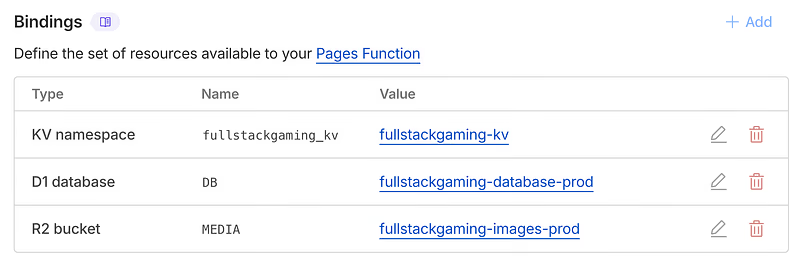
You can see the KV Namespace is there now. The D1 database and R2 bucket are from previous tutorials. You shouldn’t expect to see them in your pages application if all you’re doing is adding a KV Namespace.
Step 3 — Prepare SvelteKit To Use the KV Namespace
Now that the Namespace is connected, we need to set up SvelteKit so that it can use it. You can read more about how to do this in SvelteKit’s adapter-cloudflare documentation.
Simply, SvelteKit has a file: src/app.d.ts. This file defines all of the ambient types. These types are automatically imported and available everywhere in your SvelteKit app. One of those types is: Platform. This type contains platform-specific values. Cloudflare populates this with connections to Cloudflare resources.
To make the database available, open your src/app.d.ts file:
// See https://svelte.dev/docs/kit/types#app.d.ts
// for information about these interfaces
declare global {
 namespace App {
  // interface Error {}
  // interface Locals {}
  // interface PageData {}
  // interface PageState {}
  // interface Platform {}
 }
}

export {};
If you’ve created a brand new SvelteKit site, it will look like the above. You have:
global— A declaration, which allows you to extend the global variable space.namespace App— A namespace within the global space that helps you avoid aliasing.
Within the namespace, you can see all of the standard SvelteKit type interfaces commented out. We want to uncomment the Platform interface and tell SvelteKit to expect a KV Namespace:
import { KVNamespace } from '@cloudflare/workers-types';

// See https://svelte.dev/docs/kit/types#app.d.ts
// for information about these interfaces
declare global {
 namespace App {
  // interface Error {}
  // interface Locals {}
  // interface PageData {}
  // interface PageState {}
  interface Platform {
   env: {
    fullstackgaming_kv: KVNamespace;
   };
  }
 }
}

export {};
The resulting code should look like the above. This makes your Namespace available under platorm.env.<your-name-here>. In my case, platform.env.fullstackgaming_kv.
If you’re seeing an error on the KVNamespace top-level import, you may need to install the @cloudflare/workers-types. You can do this with:
npm install @cloudflare/workers-types
That’s it, you can now use your KV Namespace with:
platform.env.fullstackgaming_kv
In your server-side worker code.
Step 4 — Build a Weather Caching Service
As an example of a possible use case, we’ll build a weather caching service. For the sake of this tutorial, let’s:
- Get the weather forecast for London via an API.
- Cache it in our KV Namespace for 1 hour.
- Return the cached value to users.
To do this, you’ll need to make two new files. One for an API route:
mkdir -p routes/api/weather
touch routes/api/weather/+server.ts
Then one for a new page:
mkdir -p routes/weather-test
touch routes/weather-test/+page.svelte
We’ll deal with these one at a time.
API route setup
Add the following code to your +server.ts:
import { json } from '@sveltejs/kit';
import type { RequestHandler } from './$types';

interface WeatherResponse {
 temperature: string;
 condition: string;
 location: string;
 cached: boolean;
 duration: number;
 timestamp: number;
}

interface CachedData {
 temperature: string;
 condition: string;
 timestamp: number;
}

const CACHE_KEY = 'weather:london';
const CACHE_TTL = 3600;

async function fetchWeatherFromAPI(): Promise<{ temperature: string; condition: string }> {
 const response = await fetch('https://wttr.in/London?format=j1');

 if (!response.ok) {
  throw new Error('Failed to fetch weather data');
 }

 const data = await response.json();

 const current = data.current_condition[0];

 return {
  temperature: current.temp_C,
  condition: current.weatherDesc[0].value
 };
}

export const GET: RequestHandler = async ({ platform }) => {
 const startTime = Date.now();

 if (!platform?.env?.KV) {
  return json({ error: 'KV namespace not available' }, { status: 500 });
 }

 const kv = platform.env.KV;

 try {
  const cachedData = (await kv.get(CACHE_KEY, { type: 'json' })) as CachedData;

  if (cachedData) {
   const duration = Date.now() - startTime;

   return json({
    temperature: cachedData.temperature,
    condition: cachedData.condition,
    location: 'London',
    cached: true,
    duration,
    timestamp: cachedData.timestamp
   } as WeatherResponse);
  }

  const weatherData = await fetchWeatherFromAPI();
  const timestamp = Date.now();

  await kv.put(CACHE_KEY, JSON.stringify({ ...weatherData, timestamp }), {
   expirationTtl: CACHE_TTL
  });

  const duration = Date.now() - startTime;

  return json({
   ...weatherData,
   location: 'London',
   cached: false,
   duration,
   timestamp
  } as WeatherResponse);
 } catch (error) {
  console.error('Error fetching weather:', error);

  return json(
   {
    error: 'Failed to fetch weather data',
    message: error instanceof Error ? error.message : 'Unknown error'
   },
   { status: 500 }
  );
 }
};

export const DELETE: RequestHandler = async ({ platform }) => {
 if (!platform?.env?.KV) {
  return json({ error: 'KV namespace not available' }, { status: 500 });
 }

 const kv = platform.env.KV;

 try {
  await kv.delete(CACHE_KEY);

  return json({ success: true, message: 'Cache cleared' });
 } catch (error) {
  console.error('Error clearing cache:', error);

  return json(
   {
    error: 'Failed to clear cache',
    message: error instanceof Error ? error.message : 'Unknown error'
   },
   { status: 500 }
  );
 }
};
Within this code, you’ll see locations where I’m using platform.env.KV. You need to replace this with the actual name of your KV Namespace, as defined in app.d.ts in Step 3.
Breaking the code down, we have the following endpoints:
- The
GETrequest endpoint that either retrieves the weather forecast from the wttr.in API endpoint. Or, if the weather is cached, returns the cached value instead. - The
DELETErequest endpoint that clears the weather forecast held in the KV Namespace.
If you don’t understand endpoints like this, you can read about them here:
SvelteKit + Cloudflare — Create an API Endpoint
Weather page setup
To set up the frontend, paste the following into your +page.svelte:
<script lang="ts">
</script>

<div class="container">
 <h1>Weather Cache Test</h1>

 <div class="buttons">
  <Button onclick={fetchWeather} disabled={loading}>
   {loading ? 'Fetching...' : 'Fetch Weather'}
  </Button>
  <Button onclick={clearCache} disabled={clearingCache} variant="outline">
   {clearingCache ? 'Clearing...' : 'Clear Cache'}
  </Button>
 </div>

 {#if error}
  <div class="error">
   {error}
  </div>
 {/if}

 {#if weatherData}
  <div class="weather-card">
   <div class="weather-main">
    <h2>London</h2>
    <div class="temperature">{weatherData.temperature}°C</div>
    <div class="condition">{weatherData.condition}</div>
   </div>

   <div class="weather-details">
    <div class="detail-row">
     <span>Source:</span>
     <span class={weatherData.cached ? 'cached' : 'external'}>
      {weatherData.cached ? 'Cache' : 'External API'}
     </span>
    </div>
    <div class="detail-row">
     <span>Server Duration:</span>
     <span>{formatDuration(weatherData.duration)}</span>
    </div>
    <div class="detail-row">
     <span>Client Duration:</span>
     <span>{formatDuration(Date.now() - clientStartTime)}</span>
    </div>
    <div class="detail-row">
     <span>Timestamp:</span>
     <span>{formatTimestamp(weatherData.timestamp)}</span>
    </div>
   </div>
  </div>
 {/if}

 <div class="info">
  <p><strong>How it works:</strong></p>
  <ul>
   <li>First request fetches from external API and caches for 1 hour</li>
   <li>Subsequent requests within 1 hour return cached data (faster)</li>
   <li>After 1 hour, cache expires and next request fetches fresh data</li>
  </ul>
 </div>
</div>

<style>
 .container {
  max-width: 600px;
  margin: 0 auto;
  padding: 2rem 1rem;
 }

 h1 {
  font-size: 1.5rem;
  font-weight: bold;
  margin-bottom: 1.5rem;
 }

 .buttons {
  display: flex;
  gap: 0.75rem;
  margin-bottom: 1.5rem;
 }

 .error {
  background-color: #fee;
  border: 1px solid #f44;
  color: #c00;
  padding: 0.75rem 1rem;
  border-radius: 4px;
  margin-bottom: 1rem;
 }

 .weather-card {
  background: white;
  border: 1px solid #ccc;
  border-radius: 4px;
  padding: 1.5rem;
  margin-bottom: 1.5rem;
 }

 .weather-main {
  margin-bottom: 1rem;
 }

 .weather-main h2 {
  font-size: 1.25rem;
  font-weight: 600;
  margin-bottom: 0.5rem;
 }

 .temperature {
  font-size: 2rem;
  font-weight: bold;
  color: black;
  margin-bottom: 0.25rem;
 }

 .condition {
  font-size: 1rem;
  color: #555;
 }

 .weather-details {
  border-top: 1px solid #ddd;
  padding-top: 1rem;
 }

 .detail-row {
  display: flex;
  justify-content: space-between;
  margin-bottom: 0.5rem;
 }

 .detail-row span:first-child {
  font-weight: 500;
  color: #000;
 }

 .detail-row span:last-child {
  color: #000;
 }

 .cached {
  color: #059669;
  font-weight: 500;
 }

 .external {
  color: #ea580c;
  font-weight: 500;
 }

 .info {
  font-size: 0.875rem;
  color: #666;
 }

 .info p {
  margin-bottom: 0.5rem;
 }

 .info ul {
  list-style: disc;
  list-style-position: inside;
 }

 .info li {
  margin-bottom: 0.25rem;
 }
</style>
Apologies for the large chunk of code, but it does make for a very pretty frontend. To see it working run your development server with:
npm run dev
Navigate to /weather-test and you’ll see something similar to the following:
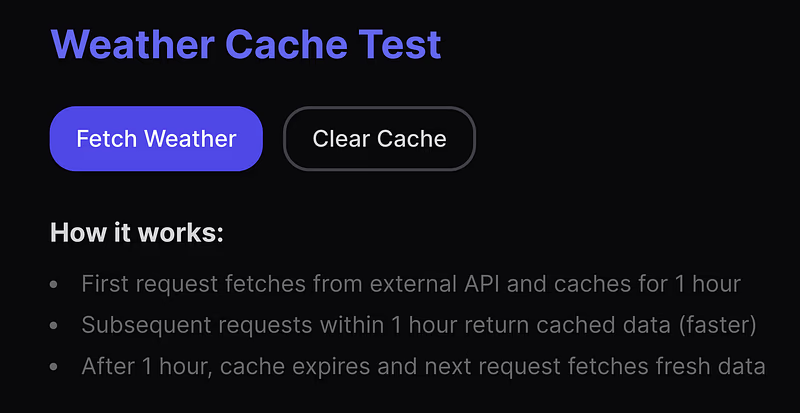
The results
Click the Fetch Weather button and after a short wait you’ll see the following:
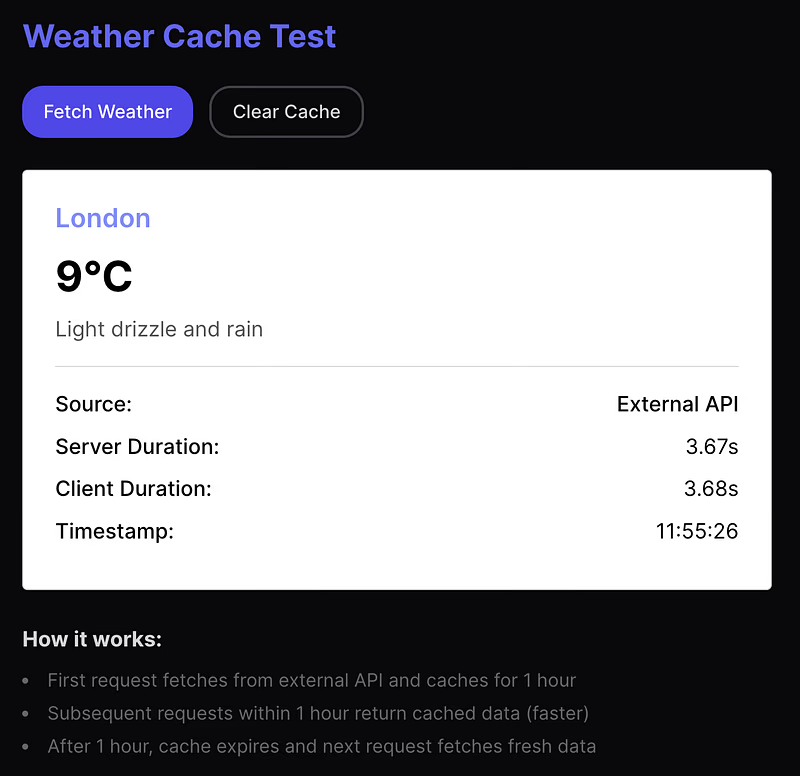
As you can see, the initial call took 3.68 seconds. Hit the Fetch Weather button again and you’ll see the power of the cache:
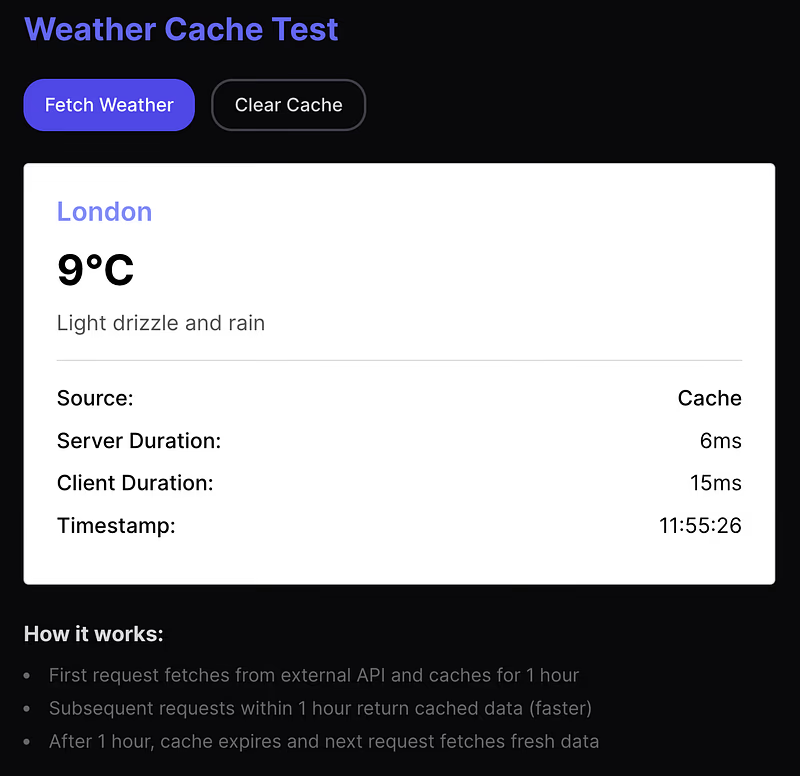
As you can see, it’s now down to 15ms. About 240 times faster. This varies somewhat, and as we’re running locally, there will definitely be a speedup from that too, but you should expect total client durations of around 50ms. About 72 times faster.
This is the difference between a lightning-fast user experience and a sluggish, irritating experience.
Final Words
Congratulations, you can now include a KV Namespace in your Cloudflare SvelteKit application! If you’d like a more practical use case for the KV Namespace, let me introduce you to cloudfire-auth:
Cloudfire Auth | CloudFireAuth Docs
An npm package I made to give you lightning-fast, natively supported server-side Firebase authentication on Cloudflare, using a KV Namespace for signing-key caching.
I hope this tutorial has helped you integrate KV Namespace into your project and get your next great idea out the door! Happy namespacing 😁