How To Use Firebase Auth in a Cloudflare Pages SvelteKit Application
How to set up Firebase authentication inside of a SvelteKit application deployed on Cloudflare Pages.
In this tutorial, you will learn:
- How to set up a simple Firebase project.
- How to add Firebase to your SvelteKit Application.
- How to hide your SvelteKit application’s features behind Firebase Auth: client-side and server-side.
- How to enable Google and GitHub authentication on that project.
- How to log in users with login buttons and the Firebase web SDK.
This is the fastest, cheapest way to build a solid authentication system. You get the speed of Cloudflare, coupled with the massive Firebase ecosystem and their fantastic tooling. All free for < 50,000 Monthly Active Users.
Prerequisites
This tutorial assumes you have the following:
- A Google account to create a Firebase project.
- A SvelteKit web app deployed on Cloudflare Pages.
- Node.js installed (
npmavailable). firebase-toolsinstalled globally vianpmfor CLI access.- TailwindCSS installed.
If you don’t have the second, you can read my initial tutorial on setting one up:
The Best Frontend — SvelteKit + Tailwind + Cloudflare
Once you have Node installed, you can install firebase-tools with:
npm install -g firebase-toolsStep 1 — Log Into Your Firebase Account
If you don’t already have one, you can create a Firebase account here:
Log in with your Google account. Because Google owns Firebase, you’ll immediately be logged in to the console. Congrats! You have yourself a Firebase account.
Log in to the CLI
We’ll need access to the CLI later in the tutorial, so while we’re in the habit, let’s log in now:
firebase loginThis will load a Google login screen on your browser. Select the account you have associated with Firebase, and click Accept on the permission screens. Bingo, you’re connected to Firebase in your CLI.
Step 2 — Create a Firebase Project
To use Firebase authentication, we need a Firebase project. The easiest way to set one up is via the Firebase console. Visit the console, and you’ll see a screen like this:
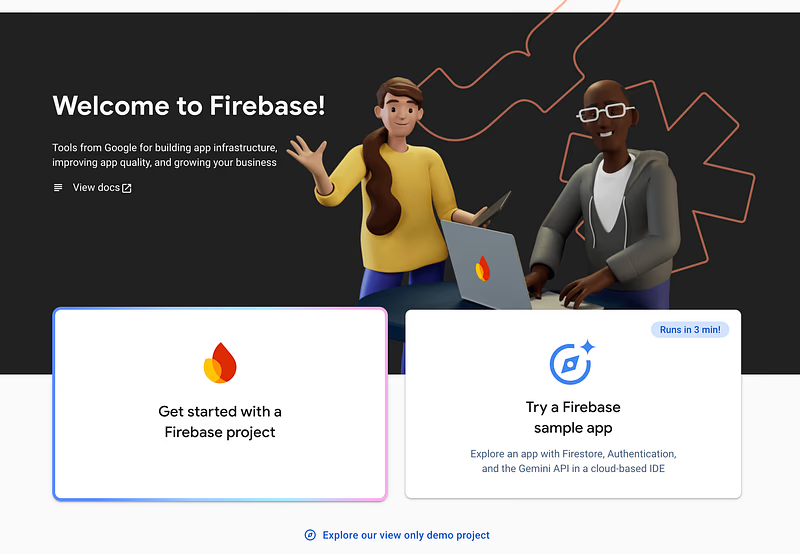
Click Get started with a Firebase project. The next screen will be:
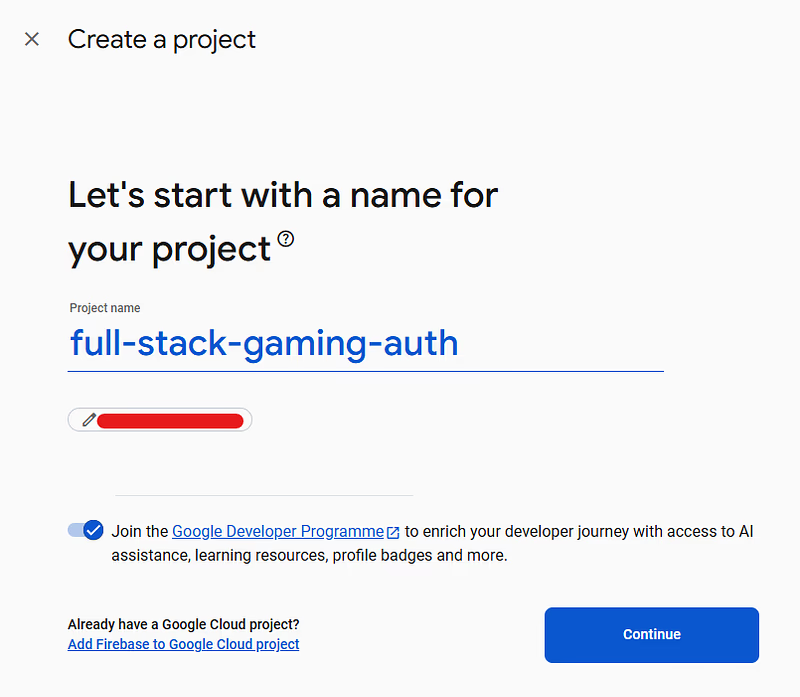
From this screen, fill in the name of your project and accept the terms. The name is unimportant; choose what you like. Click Continue and you’ll be asked to sign up for Google Analytics. Decline on this occasion; this is just a simple app.

Click Create project, and you’ll see a loader like this:
Once complete, click through to your project’s page:
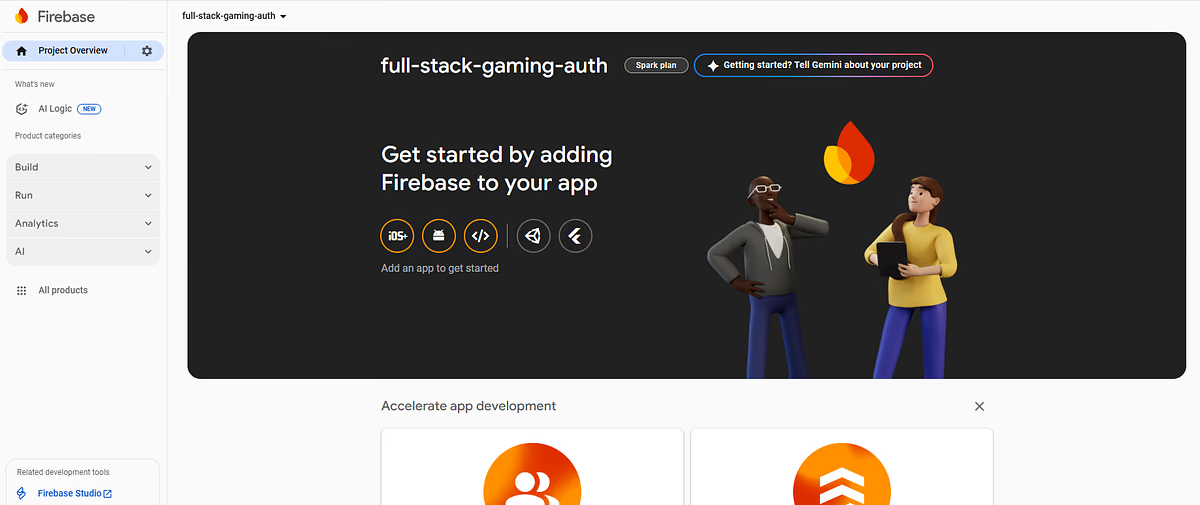
That’s it, your project is set up on Firebase! To check it has worked, go back to your terminal and run the following command:
firebase projects:listYou should get output like the following:
✔ Preparing the list of your Firebase projects
For security purposes, don’t publicly show people your Project ID or Project Number. It is technically not secret information, but it will still make it easier to find and potentially attack your project. The output above is dummy data, taken from a previously deleted project, unrelated to this one.
Step 2 — Add Firebase to Your SvelteKit Application
Start by clicking on the web icon in the centre of the homepage of the Firebase console, the </> symbol, just above Add an app to get started:
You’ll see a screen like the following:
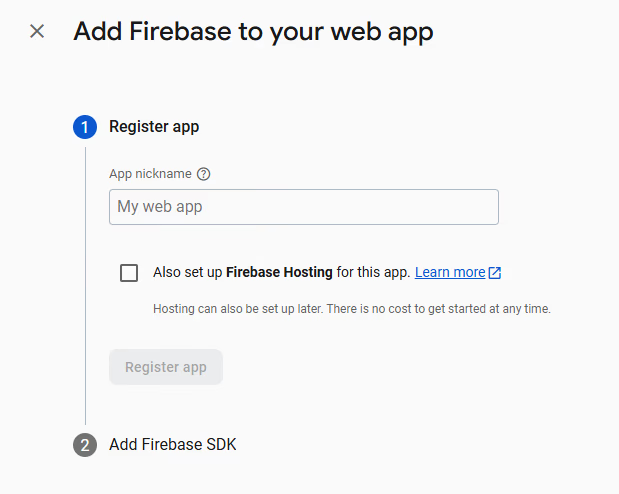
Give your app whatever nickname you like, then click on Register app (it will be blue after you add a nickname). Next, you’ll be shown some instructions and given code to add to your application. The first instruction is to install firebase to npm with:
npm install firebaseThen you’ll be given some code to add to your application. It will look something like this:
// Import the functions you need from the SDKs you need
import { initializeApp } from "firebase/app";
// TODO: Add SDKs for Firebase products that you want to use
// https://firebase.google.com/docs/web/setup#available-libraries

const firebaseConfig = {
  apiKey: "AIzaSyANqChlsasdfkjj2Kklja2KqNJE",
  authDomain: "<your-app-name>.firebaseapp.com",
  projectId: "<your-app-name>",
  storageBucket: "<your-app-name>.firebasestorage.app",
  messagingSenderId: "3778062234",
  appId: "1:3778062234:web:c413fb692hjks3c01d931e"
};

// Initialize Firebase
const app = initializeApp(firebaseConfig);
This code is supposed to run on the client side. Yes, even the apiKey. Firebase uses that key to track your project. Hang onto it, we’ll use it in a moment. But first:
A Word on Security
If it helps, think of it as a projectKey rather than a secret credential, it’s for routing traffic to your backend. If you’re still worried, check out this post:
Is it safe to expose Firebase apiKey to the public?
As your project should only have Firebase Authentication enabled, we don’t even have resources provisioned for an attacker to exploit! If you start using more Firebase services, look into each service's specific security methods. For example: Firestore rules.
Initialise Firebase in Your Application
To connect to Firebase in our application, we need to initialise it. To do this properly, we want to initialise it once, in a single location, export it, then reuse it everywhere else.
Say your SvelteKit application's src tree looks something like this:
📁 src/
Create a new directory in src/lib called client. I’ve chosen client to remind me, all the code in this directory should be client-side. Technically, you could call it anything you like, apart from server, which SvelteKit forces to be server-side.
In the new directory, create a file called firebase.svelte.ts.
📁 src/
├── 📁 lib/
│   ├── 📁 client/
│   │   ├── 📄 firebase.svelte.ts
In this file, paste the following code:
import { initializeApp, getApps, type FirebaseApp } from 'firebase/app';
import { browser } from '$app/environment';

// TODO: Replace with your real configuration!
const firebaseConfig = {
 apiKey: '<your-api-key>',
 authDomain: '<your-app-name>.firebaseapp.com',
 projectId: '<your-app-name>',
 storageBucket: '<your-app-name>.firebasestorage.app',
 messagingSenderId: '<your-messaging-sender-id>',
 appId: '<your-app-Id>'
};

let firebaseApp: FirebaseApp;

if (browser) {
  // Initialize Firebase
  if (!getApps().length) {
   firebaseApp = initializeApp(firebaseConfig);
  } else {
   firebaseApp = getApps()[0];
  }
}

// Makes the app available for import in client-side code
export { firebaseApp };
This initialises your app and exports a client for the rest of your application to import and use. We’ll extend this in Step 3 to include auth.
Initialisation is blocked when the browser is undefined to avoid errors being raised by Firebase during SvelteKit’s server-side rendering.
Step 3 — The Two Ways To Hide Your Features
There are two ways to hide parts of your app behind authentication:
- Client Side: Use this when you want to give a user gradual access to a page. For example, you’re running a blog, and you’d like the content to be readable by anyone, whilst easy access to the commenting interface is available only to paying users.
- Server Side: Use this when you want the user to have no access at all. For example, a user profile page would never be exposed to an unauthenticated user, because you have no way of knowing who they are.
Let’s start with the client-side method.
Step 4 — Client Side Authentication
Within your client/ directory, edit firebase.svelte.ts to add the following:
import { initializeApp, getApps, type FirebaseApp } from 'firebase/app';
You can see firebaseAuth is being exported now too, which is what we’ll need to manage authentication.
Repeating the pattern, we’ll handle auth in a similar centralised location. Create a new file in client/ called auth.svelte.ts:
📁 src/
├── 📁 lib/
│   ├── 📁 client/
│   │   ├── 📄 auth.svelte.ts
│   │   ├── 📄 firebase.svelte.ts
Using .svelte.ts tells SvelteKit to compile the file, so you can use runes like $state. This allows us to manage auth state in a single location. Paste the following into your file:
import { firebaseAuth } from './firebase.svelte';
Breaking down the above, we have:
import { firebaseAuth }— Importing the shared Firebase Authentication instance from thefirebase.svelte.tsfile.currentUserAuthState— A readable store wrapper around theonAuthStateChangedFirebase function. The readable store can be subscribed to in downstream components so that automatic UI updates are triggered.onAuthStateChanged— This is a Firebase auth function that is triggered any time Firebase detects an authentication change in the user. For example, a login, logout, or token invalidation event. When it’s triggered, we’re running a callback to set the user token as a cookie, and then setting thecurrentUserAuthStatestore to trigger reactive updates.storeTokenInCookie— This stores the Firebase Auth ID token inside a cookie calledfirebase-tokenfor up to 1 hour. Meaning the ID token will be passed with every request within that hour. The actual name of the token is entirely up to you, butfirebase-tokenis a good default.getCurrentUser— Returns the currentUser object stored in the central app location. This can be used to retrieve user data and control the UI state.isAuthenticated— Checks if a user exists. Controls conditional rendering of the UI.isAuthLoading— Can be used to block pages from rendering whilst waiting for authentication.getIdToken— Returns the user’s ID token, if they exist. The token can be passed in an API request in theAuthorizationheader, proving the user is who they say they are.
Lock Down Some UI
Let’s use our auth.svelte.ts API to lock down a page. Set up a basic test route by running the following from src/:
cd src
mkdir routes/auth-test
touch routes/auth-test/+page.svelte
Then paste in the following code:
<script lang="ts">
 import {
  currentUserAuthState,
  isAuthenticated,
  isAuthLoading,
  getIdToken,
  type AuthState
 } from '$lib/client/auth.svelte';
 import { onMount } from 'svelte';

 let idToken = $state<string | null>(null);
 let authState = $state<AuthState | null>(null);

 const unsubscribeAuth = currentUserAuthState.subscribe(async (newAuthState) => {
  idToken = await getIdToken(newAuthState);
  authState = newAuthState;
 });

 onMount(async () => {
  idToken = await getIdToken();
  console.log(idToken);
 });

  onDestroy(() => {
    unsubscribeAuth();
  });
</script>

{#if isAuthLoading()}
 <p>Loading...</p>
{:else if isAuthenticated()}
 <div>
  <h1>Auth Test</h1>
  <p>Current User: {getCurrentUser()?.email}</p>
  <p>Is Authenticated: {isAuthenticated()}</p>
  <p>Is Auth Loading: {isAuthLoading()}</p>
  <p>ID Token: {idToken}</p>
 </div>
{:else}
 <div>
  <h1>You Suck, Because You're Not Authenticated</h1>
 </div>
{/if}
The unsubscribeAuth line is subscribing to the currentUserAuthState and altering state on the frontend to trigger reactive updates. When the page is closed, onDestroy is called. At this point, we unsubscribe from the store to avoid listeners hanging around when they’re no longer required.
This should give you output similar to the following:
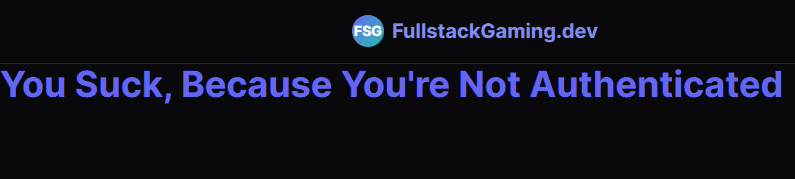
Yours will probably look less interesting, but you should see the same message. This is because no login methods have been set up yet, and you’re not authenticated! More on that later. That’s it for blocking things with auth on the client side; let’s move on to the server side.
By the way, if you’re curious about the styling, you can read how to create your own here:
The Best Frontend — SvelteKit + Tailwind + Cloudflare
Step 5 — Server Side Authentication
To authenticate on the server-side, we need to do a bit more work. firebase-admin is the standard tool for server-side authentication, but it relies on Node.js APIs that Cloudflare Workers don’t emulate. So, we have several options:
- Write a simple client that performs the minimum required actions.
- Use my
cloudfire-authNPM package. - Use the
firebase-auth-cloudflare-workersNPM package.
My preferred option is to use my own package, Option 2.
Option 3 is viable. However, I found their documentation lacking/ non-existent, which led me to create cloudfire-auth. Since both packages achieve the same thing, for brevity, I’ll cover only my package.
Cloudfire-Auth
Install cloudfire-auth with:
npm install cloudfire-authTo use cloudfire-auth create a similar directory to the client one and call it server:
📁 src/
├── 📁 lib/
│   ├── 📁 client/
│   ├── 📁 server/
Everything within the src/lib/server directory is never sent to the client, this is a SvelteKit Project convention. Within the new directory, add a new file called auth.ts:
📁 src/
├── 📁 lib/
│   ├── 📁 server/
│   │   ├── 📄 auth.ts
Within this file, add the following code:
import { CloudFireAuth } from 'cloudfire-auth';
Breaking down the above, we have:
import { env } from '$env/dynamic/private'— Imports your Firebase service account key secret from CloudFlare’s environment variables on the worker.getServerAuth— This is the core exported function that creates a new instance ofCloudFireAuthfor interacting with your Firebase project.kvNamespace— This is a KV Namespace you need to attach to your Cloudflare project. It adds caching to your CloudFireAuth instance.serviceAccountKey— The service account key associated with your Firebase project. I store mine as a single base64 variable, hence the decoding. However, as long as the key is passed in as a JavaScript object, it will work correctly.CloudFireAuth— The returned instance that lets you interact with your Firebase Authentication repo.
It’s safe to put your service account key in an environment variable like: FIREBASE_SERVICE_ACCOUNT_KEY, because any .env variable without a PUBLIC_ prefix is private by default.
Here’s how you can use your CloudFireAuth to complete the two most common server-side authentication actions.
Lock down a Page
Imagine you have a feature page for paying users only that you want to lock down. You can do this with the following code in a +page.server.ts file:
import { redirect } from '@sveltejs/kit';
import { getServerAuth } from '$lib/server/auth';
import type { PageServerLoad } from './$types';

export const load: PageServerLoad = async ({ cookies, platform }) => {
 const token = cookies.get('firebase-token');

 if (!token) throw redirect(302, '/auth-test');

 try {
  // const cloudfireAuth = await getServerAuth(platform?.env?.KV);
  const cloudfireAuth = await getServerAuth(platform?.env?.KV);

  // If the token is invalid, an error will be thrown
  await cloudfireAuth.verifyIdToken(token);

  console.log('token verified');
 } catch (error) {
  console.error('Error verifying token:', error);
  throw redirect(302, '/log-in');
 }
};
First, we get an auth instance with getServerAuth, then we run the verifyIdToken method on the provided token. If the token verification fails, an error is thrown, triggering a redirect to the login page.
Put this in front of any page you’d like to lock down to test this.
Lock down an API endpoint
To use this in an API endpoint, you can add a route like the following:
touch src/routes/api/check-auth/+server.tsPaste this into your +server.ts file:
import { json } from '@sveltejs/kit';
import type { RequestHandler } from '@sveltejs/kit';
import { getServerAuth } from '$lib/server/auth';

export const GET: RequestHandler = async ({ request, platform }) => {
 console.log('request', request);
 try {
  const cookie = request.headers.get('cookie');
  const token = cookie?.split('firebase-token=')[1];

  console.log('token', token);

  const serverAuth = getServerAuth(platform?.env?.KV);

  const idToken = await serverAuth.verifyIdToken(token || '');

  console.log('tokenVerifier', idToken);

  return json({ message: 'You are authorised' }, { status: 200 });
 } catch (error) {
  console.error('Error processing request:', error);
  return json({ error: 'You are not authorised' }, { status: 401 });
 }
};
Similarly, we retrieve an auth instance with getServerAuth. Then we attempt to verify the ID Token from the cookies. If the verification process fails, an error is thrown, and the user receives a JSON response indicating they are not authorised.
The KV Namespace
In both examples, you can see I’ve used platform?.env?.KV in the getServerAuth function. This is a KV namespace I’ve attached to my project. It caches Google’s public keys for faster token verification.
To attach a KV Namespace to your project, read this tutorial here:
How To Use a KV Namespace in a Cloudflare Pages SvelteKit Application
Step 6 — Enable Google and GitHub Authentication
The easiest way to handle login is to use one of the default Single Sign-On options in Firebase. Google covers 99% of all use cases, but as my example is for a full-stack gaming site, I’ll use GitHub Auth too.
To start, switch on Authentication in your Firebase project. Open the Build expansion option in the left sidebar, then click on Get started on the page that opens.
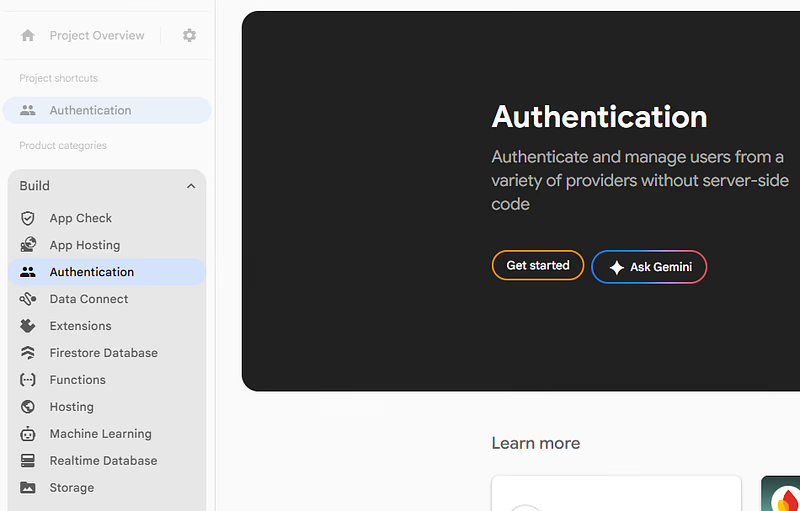
On the page that follows, click on the Sign-in method tab and you’ll see a screen like this:
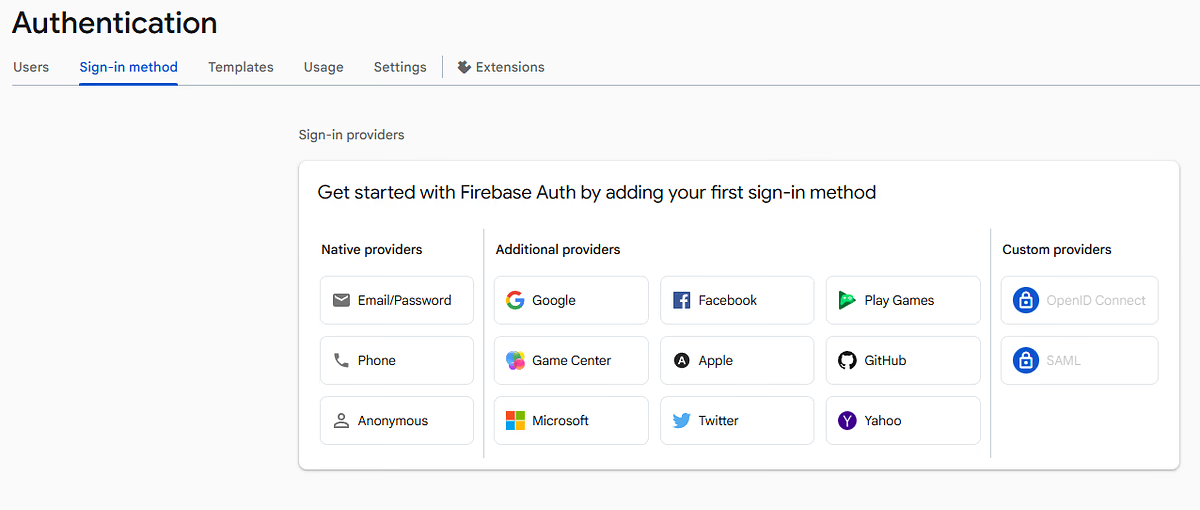
The methods for enabling Google and GitHub differ, so I’ll handle them separately.
Click on the Google provider option in Additional providers. You’ll see a screen like this:
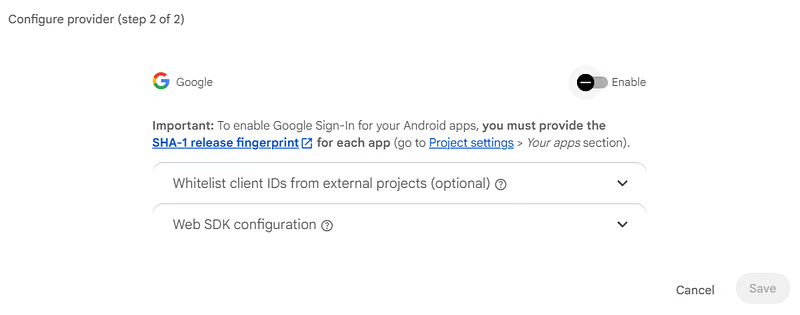
Click Enable in the top right corner, the Whitelist and Web SDK options can be ignored. You can also ignore the SHA-1 release fingerprint, this is for Android apps only.
After clicking Enable, you’ll see the following screen:
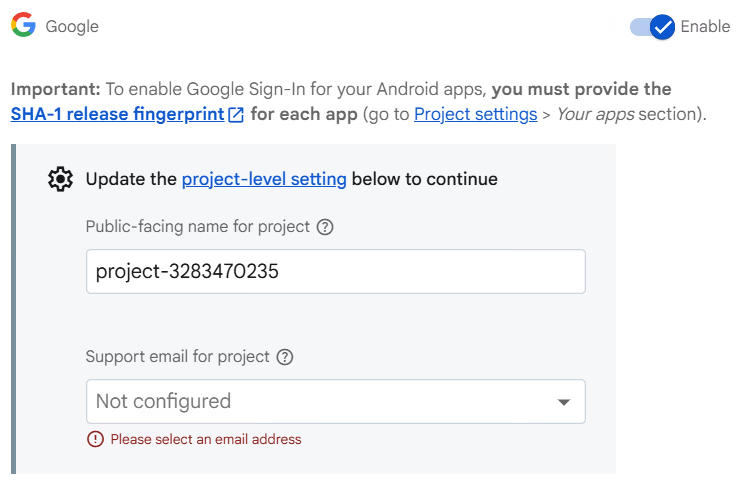
Complete the options in the following way:
Public facing name— Use a pretty name for your website’s URL. For example, mine is Full Stack Gaming.Support email— If you don’t mind using a personal email, the simplest choice is to select the email address that manages the Firebase project. If you’d rather keep it quiet, you can set up a Google Group and use that instead.
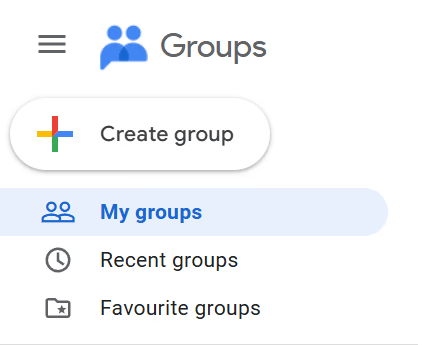
To set up a Google Group, visit this location:
Click on Create group in the top left corner:
Fill out the details to get a support email like the following:
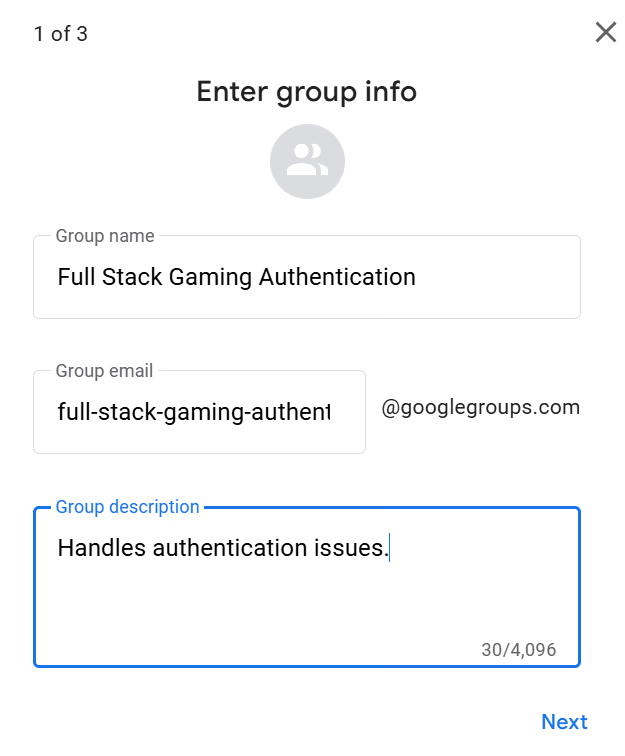
Click Next, then choose your visibility preferences, add no members and create your group.
Close the Configure provider modal, then reload it and re-click to enable Google Sign on. Scroll down to the Support email section, and you will see your Google Group as an email option for support:
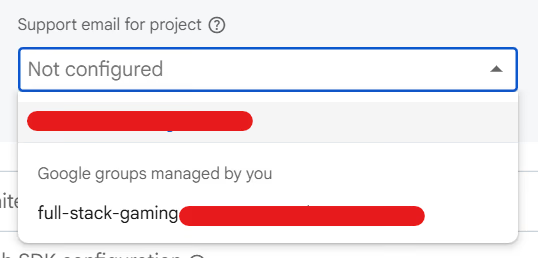
If you want an even prettier email, like support@your-domain.com you’ll need to set it up in a Google Workspace. Comment if you’d like a tutorial on that.Inside the Configure provider modal, click on the Save button in the bottom right corner.
Congratulations! You have enabled Google sign-on, you should see it in your Provider list:
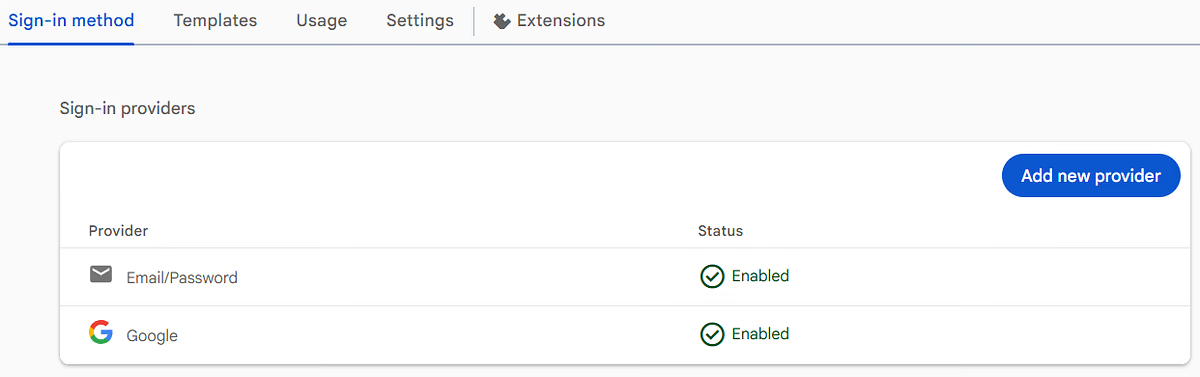
I already had Email/Password enabled. You will only see the Google option.
GitHub
Click on the GitHub option in the Provider list. If you can’t see it click Add new provider. Click Enable and your modal should look like this:
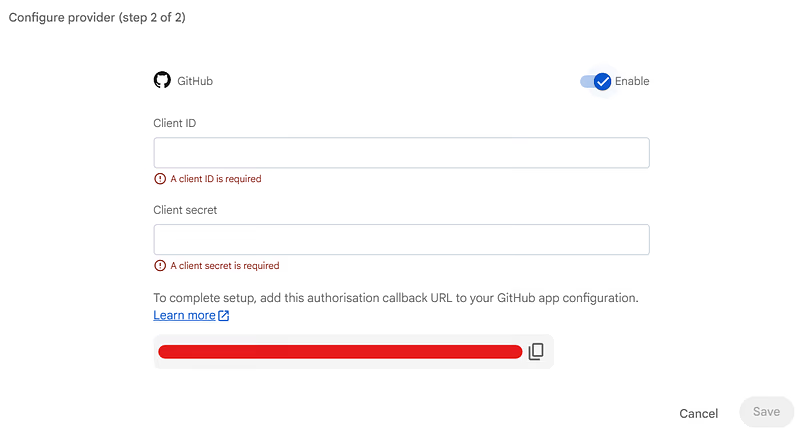
The red line in the image is covering my Authentication callback URL. Copy this, you’ll need it in a moment. The Client ID and Client secret come from GitHub, and you need to create them by setting up an OAuth app on your account. Visit this URL to start:
Build software better, together
If you have no apps, you’ll see this page:
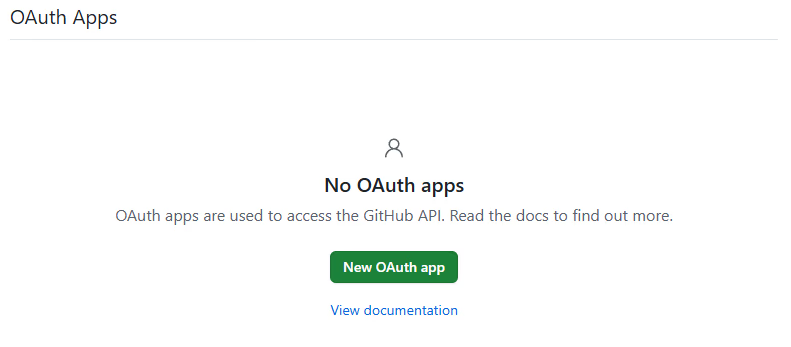
Click on New OAuth app and you’ll be taken to the Register a new OAuth app form. Fill it out with your application’s details, including the callback url copied a moment ago:
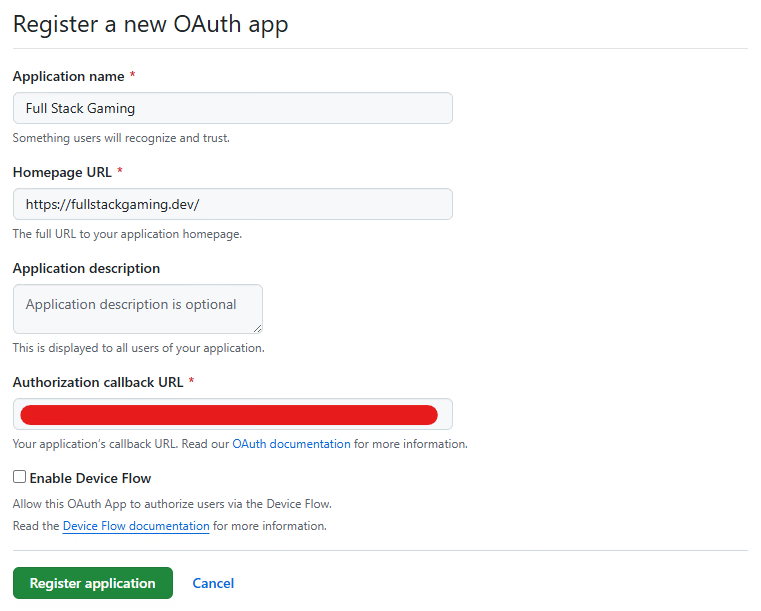
You can leave Enable Device Flow unchecked. Click on Register application and you’ll be taken to the following page:
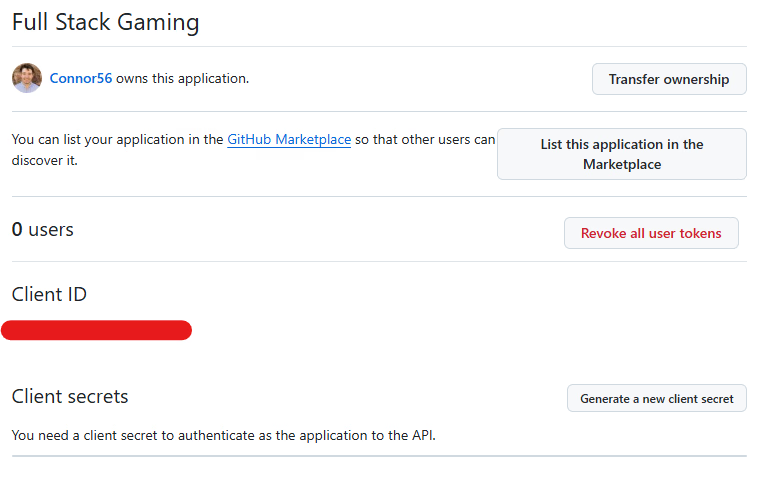
Copy your Client ID into the modal on Firebase, mine is covered by the red line. Click on Generate a new client secret and you’ll get something that looks like this:
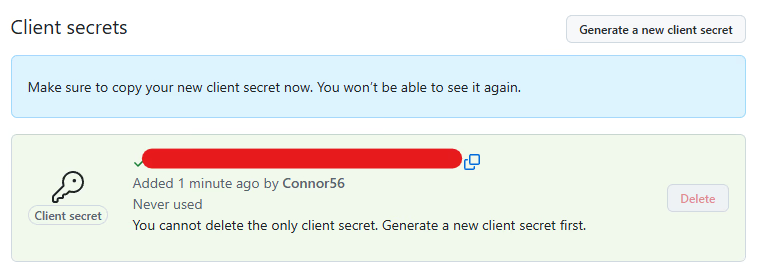
Copy this and paste it into the Client secret section of your Configure provider modal on Firebase. You can only copy this secret when it’s newly created. If you mess up, create another and delete the previous one.
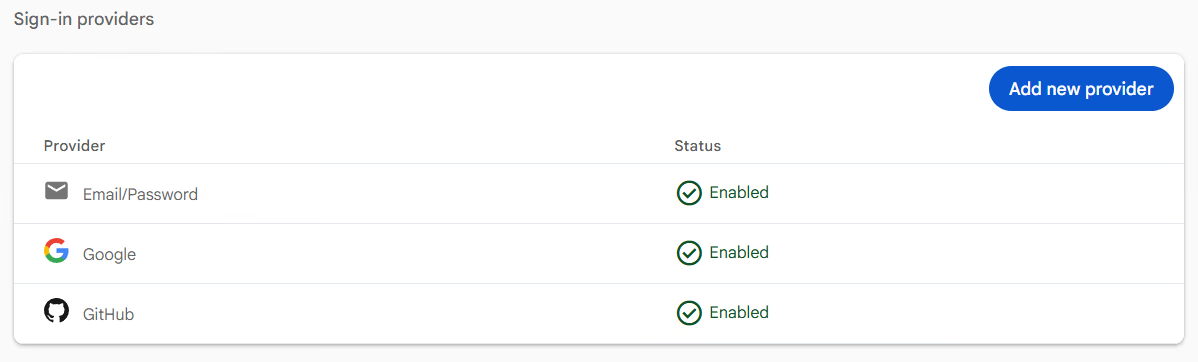
Click Save on the Configure provider modal. Congratulations! You’ve enabled GitHub Authentication on Firebase. You’ll see it on your provider list:
Step 7 — Add Login Buttons for Google and GitHub Sign In
The easiest way to do this is with a Svelte 5 component package I made. You can see what they look like here:
You can install the package with:
npm install svelte-social-login-buttonsThen you can use one of the buttons in a frontend .svelte file, like this:
<script lang="ts">
</script>

<GoogleSignInButton signInFunction={signIn} />
Update your page for testing
To give this a proper test, go back to your auth-test route in the +page.svelte file. Replace what’s in there with the following code:
<script lang="ts">
 import {
  currentUserAuthState,
  isAuthenticated,
  getIdToken,
  logOut,
  signInWithGitHub,
  signInWithGoogle,
  type AuthState
 } from '$lib/client/auth.svelte';
 import { onDestroy } from 'svelte';
 import { GitHubSignInButton } from 'svelte-social-login-buttons';
 import { GoogleSignInButton } from 'svelte-social-login-buttons';

 let idToken = $state<string | null>(null);
 let authState = $state<AuthState | null>(null);

 const unsubscribeAuth = currentUserAuthState.subscribe(async (newAuthState) => {
  idToken = await getIdToken(newAuthState);
  authState = newAuthState;
 });

 async function handleLogout() {
  await logOut();
 }

 async function handleGitHubSignIn() {
  const result = await signInWithGitHub();
  if (!result.success) {
   console.error('GitHub sign-in error:', result.error);
  }
 }

 async function handleGoogleSignIn() {
  const result = await signInWithGoogle();
  if (!result.success) {
   console.error('Google sign-in error:', result.error);
  }
 }

 onDestroy(() => {
  unsubscribeAuth();
 });
</script>

<div class="mx-auto max-w-md space-y-4 p-8">
 {#if authState && isAuthenticated(authState)}
  <div class="flex flex-col gap-4">
   <div class="rounded-lg border border-gray-200 bg-white p-6 shadow-sm">
    <p class="text-sm text-gray-600">Authenticated as:</p>
    <p class="font-medium text-gray-900">{authState.user?.email}</p>
   </div>
   <button
    onclick={handleLogout}
    class="cursor-pointer rounded-lg bg-red-600 px-4 py-2.5 font-medium text-white transition-colors hover:bg-red-700"
   >
    Logout
   </button>
  </div>
 {:else}
  <div class="flex flex-col gap-3">
   <GitHubSignInButton signInFunction={handleGitHubSignIn} />
   <GoogleSignInButton signInFunction={handleGoogleSignIn} />
  </div>
 {/if}
</div>
Run your site locally with:
npm run devAnd you should see the following:
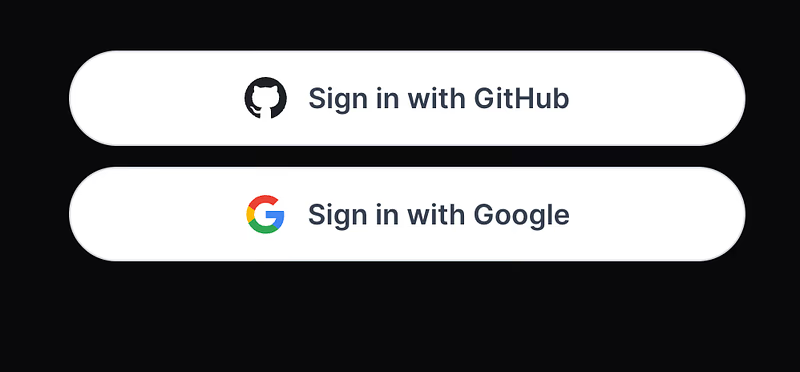
If you try to click these buttons, you will see a spinning wheel forever, since we haven’t set up the login functionality yet. We’ll do that next.
Step 8 — Provide the Firebase Auth Sign In Functions
Finally, we need the sign-in functions. You can see in the previous step, they are imported from: $lib/client/auth.svelte but they don’t exist yet.
Add them to your lib/client/auth.svelte file:
// .. (Update the firebase/auth imports to this)
import {
 signOut,
 onAuthStateChanged,
 signInWithPopup,
 GoogleAuthProvider,
 GithubAuthProvider,
 type User
} from 'firebase/auth';

// Sign in with Google OAuth (popup method)
export async function signInWithGoogle() {
 try {
  const provider = new GoogleAuthProvider();
  const userCredential = await signInWithPopup(firebaseAuth, provider);

  await storeTokenInCookie(userCredential.user);

  return { success: true, user: userCredential.user };
 } catch (error) {
  return { success: false, error: (error as Error).message };
 }
}

// Sign in with GitHub OAuth (popup method)
export async function signInWithGitHub() {
 try {
  const provider = new GithubAuthProvider();
  const userCredential = await signInWithPopup(firebaseAuth, provider);

  await storeTokenInCookie(userCredential.user);

  return { success: true, user: userCredential.user };
 } catch (error) {
  return { success: false, error: (error as Error).message };
 }
}

// Sign out
export async function logOut() {
 try {
  await signOut(firebaseAuth);

  // Clear the cookie
  document.cookie = 'firebase-token=; path=/; expires=Thu, 01 Jan 1970 00:00:00 GMT';

  return { success: true };
 } catch (error) {
  return { success: false, error: (error as Error).message };
 }
}
These new functions do the following:
signInWithGoogle— Uses theGoogleAuthProvider, andsignInWithPopupfunction from Firebase to let the user sign in. If the sign-in completes successfully, the returned token is stored as a cookie.signInWithGitHub— Uses theGithubAuthProvider, andsignInWithPopupfunction from Firebase to let the user sign in. If the sign-in completes successfully, the returned token is stored as a cookie.logOut— Uses thesignOutfunction to log the user out on Firebase, and then delete the token from the cookies.
The imports in the new version of auth-test will now work correctly. Try logging in, you’ll go through the standard pop-up flow, and when authenticated, you’ll see this:
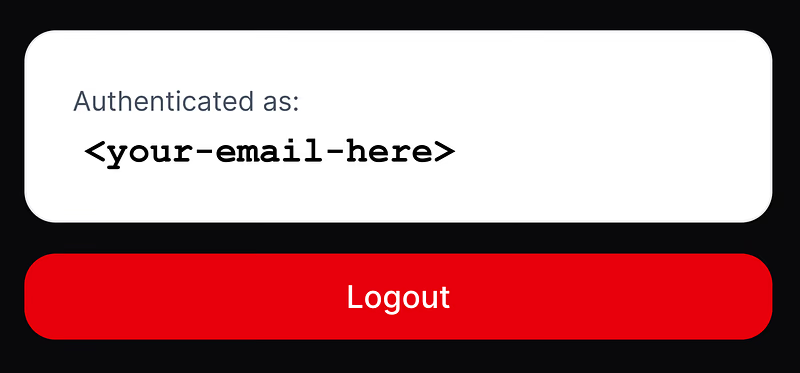
I’ve covered up my actual email, but you’ll see yours.
Step 9 — Deploy and Test
Well, it’s all running locally, so it’s time to deploy and see if it works! Push your changes to GitHub and let the auto-deploy magic happen.
Login will most likely fail, and you’ll see the following error in the console:
Google sign-in error: Firebase: Error (auth/unauthorized-domain).This is because your domain needs to be set as an Authorized Domain. You can do this by going into the Firebase console. Going into the auth project we set up earlier, clicking on Authentication in the left-hand side bar, then Settings in the top tab menu:
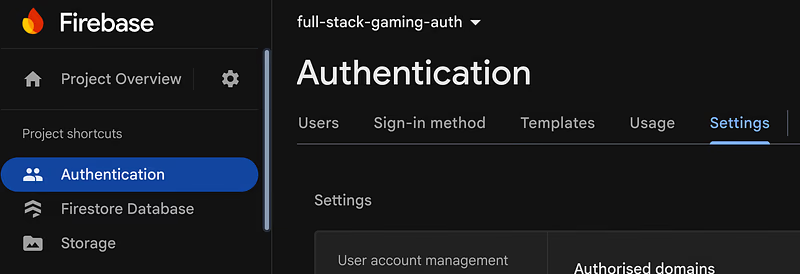
Choose Authorized domains in the left-hand panel on the page:
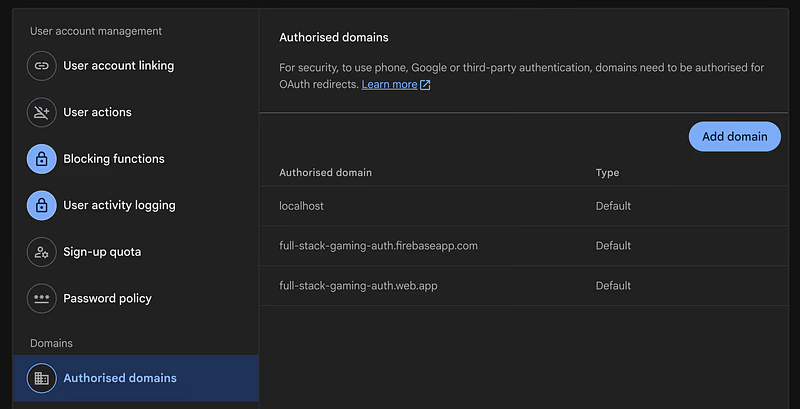
Click on Add domain and put in your deployed site’s domain name. Reload your page, and you should now be able to log in as expected! Huzzah!
Test everything works as expected; if it doesn’t, come back here and leave a comment. I’ll help you!
Final Words
I hope you enjoyed this particularly long article on setting up Firebase Auth. This one was a bit of a mission. I ended up publishing three Medium articles and two NPM packages just to reach this point. I think it was worth it, though.
Cloudflare and SvelteKit are the two best tools in web development; all that was required was a sexy (but cheap) way to manage authentication. Firebase Auth ticks those boxes, but doesn’t play well with Cloudflare out of the box. Well, now IT DOES, with cloudfire-auth.
This was a month or two in the making, but it should have beaten a path for anyone to follow. I hope it helps you get set up in an hour, rather than the weeks of struggle I went through. Happy auth’ing!