Install Mise-En-Place on Windows
Learn how to install the mise-en-place package management tool on Windows and use it to download Node.js
In this tutorial, you will learn:
- How to install
mise-en-placeon Windows. - How to install Node.js via
mise-en-placeon Windows. - How to make PowerShell use your
mise-en-placepackage download.
By the end, you’ll be ready to manage your packages like a pro.
Step 1 — Install scoop
Scoop is a package manager for Windows, similar to Homebrew for macOS. We need to install this to install mise-en-place. Yes, I get the irony. If you already have it, skip to Step 2. Otherwise, run this in PowerShell:
Set-ExecutionPolicy -ExecutionPolicy RemoteSigned -Scope CurrentUser
Invoke-RestMethod -Uri https://get.scoop.sh | Invoke-Expression
This should download scoop.
Step 2 — Install Mise-En-Place
Now we have our package manager, let’s install… er, our package manager! Run the following command in PowerShell:
scoop install miseYou’ll see some output and then a success message. Check it installed correctly with:
mise -vYou should see something like this:
              _                                        __
   ____ ___  (_)_______        ___  ____        ____  / /___ _________
  / __ `__ \/ / ___/ _ \______/ _ \/ __ \______/ __ \/ / __ `/ ___/ _ \
 / / / / / / (__  )  __/_____/  __/ / / /_____/ /_/ / / /_/ / /__/  __/
/_/ /_/ /_/_/____/\___/      \___/_/ /_/     / .___/_/\__,_/\___/\___/
                                            /_/                 by @jdx
2025.9.10 windows-x64 (2025-09-13)
Step 3 — Install Node.js
Before we start, let’s check the latest Long Term Support version of Node.js:
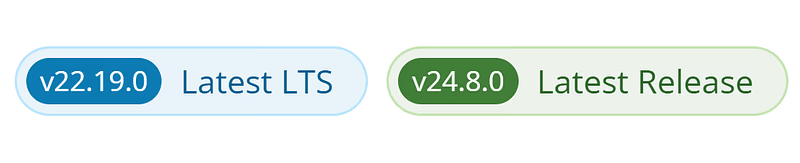
In 2025–09–16, the latest version is 22.19.0. Lovely, let’s check if mise has it with:
mise ls-remote nodeYou’ll see output like the following:
...(more versions)...
22.19.0
...(more versions)...
mise has the version we want, so we can install it with the following command:
mise install node@22.19.0Check it is installed correctly with:
mise ls nodeYou’ll see output like this:s
Tool Version Source Requested
Use this version in your current directory by running:
mise use node@22.19.0This will create a mise.toml file in your directory containing:
[tools]
That’s it! The correct Node version is installed, and we’re nearly there.
Step 4 — Make PowerShell use Mise’s Packages
We’ve got everything set up, but there’s one problem. Trying running:
node -vUnless you’re already using Node 22.19.0, you will likely see a different version. This is because mise needs _shims_ to work properly.
Shims are used to redirect tool calls to the packages you download via mise. A shim is like an interceptor. It sees a tool call and redirects it to a different location. To achieve this, mise’s shims need to be on the environment path.
The best way to get them on the path is to place the following in your PowerShell profile:
# Add mise shims to PATH so all the downloaded packages work correctly
$shim = "$env:LOCALAPPDATA\mise\shims"
if (Test-Path $shim) {
     $env:PATH = "$shim;$env:PATH"
}
Add this to yours, and then reload your profile by running the following in the terminal:
. $PROFILERun the Node version command again:
node -vYou should see v22.19.0 (or whatever you installed). If you don’t, tell me what happened in the comments. I’ll try and help you!
Final Words
Mise is a great way to manage environments and package versions without any fuss. I installed it because Node 20 finally stopped working with the Vite plugin for Svelte 5, and installing Node directly is a pain in the ass. Mise lets you manage everything much more smoothly. I hope this helps you smooth out your package management too! Happy mise’ing.