Link a Local NPM Package for Fast Iteration
Learn how to test an in-development NPM package on a real project locally with hot reloading.
In this tutorial, you will learn how to use npm link. A handy little command that lets you symlink a local version of an NPM package into another Node project. This is incredibly useful during package development, when you want to iterate quickly and test on a real use case. Let’s go!
Step 1 — Link Your Local Package
First, you need to enter the local version of your npm package:
cd path/to/your/local/packageThis folder needs to be a valid npm project for this to work. Once inside, you run the following command:
npm linkThis globally registers your package on your machine. To be precise, it creates a symlink to your folder location in the global npm node_modules folder. You can check this is the case by running the following command:
npm ls -g --depth=0 --link=trueThis will output something like the following:
/Users/connor/.asdf/installs/nodejs/22.4.1/lib
└── cloudfire-auth@0.1.0 -> ./../../../../../Documents/projects/cloudfire-auth
In my case, I’m testing an authentication project I’m working on. You can see it’s called cloudfire-auth, its version is 0.1.0, and the symlink is pointing at folder in /Documents/projects.
The first line is the path to your global node_modules. It will likely be diferent to mine, but don’t let that distract you, it’s unimportant.
Step 2 — Link Your Package To a Node Project
Now that your package is registered, you can link it to a project you’re working on. Enter your node project:
cd path/to/your/node/projectFrom here, at the root, you can run:
npm link <your-package-name>Replace <your-package-name> with the name you’ve given it in your package.json. In my case, my command for cloudfire-auth is:
npm link cloudfire-authThis will give you output like the following:
➜  full-stack-gaming git:(feat/add-firebase-auth) ✗ npm link cloudfire-auth

added 1 package, and audited 704 packages in 4s

109 packages are looking for funding
  run `npm fund` for details
Check inside your node_modules folder and you’ll see something like this:
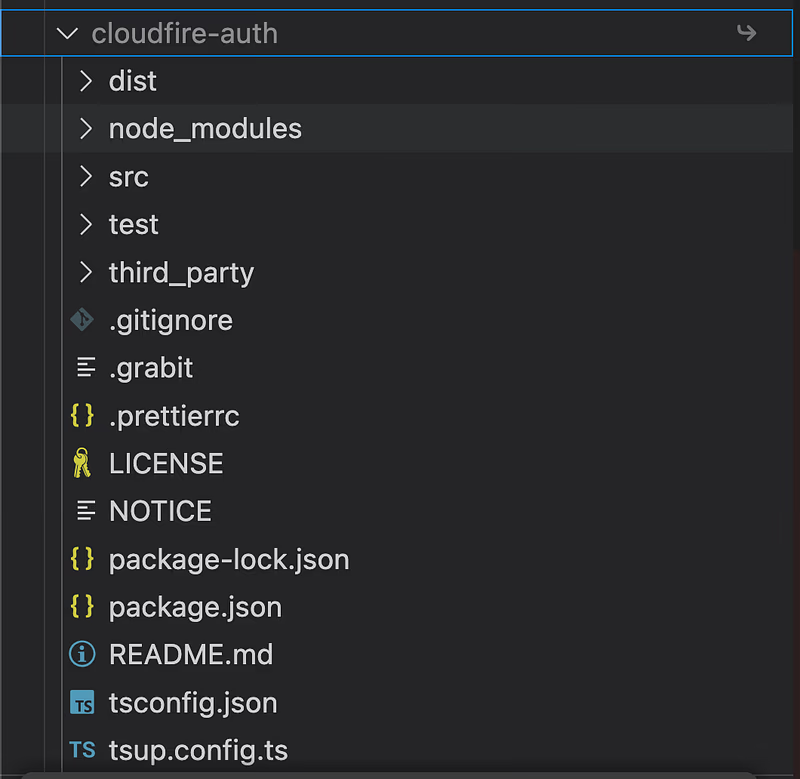
That little arrow to the right of the cloudfire-auth name tells you this is a symlinked folder. To be precise, it’s a symlink to the global symlink in your global node_modules folder!
Step 3 — Iterative Development
The symlinks are like redirects in your file system, or one of those shortcut folders you can create. To your file system, it appears as if your symlinked directory really is in node_modules. This means any changes you make to your local package are reflected everywhere they’re symlinked.
This allows for rapid, iterative dev cycles, but there’s usually one gotcha… If you’re writing in Typescript, you need to run a build watch process. This is because your package.json is normally pointing at a built directory like /dist not source code. So make sure you’re running something like this in your npm package:
npx tsc --watchOtherwise, you might waste a good half hour wondering why you’re code isn’t working properly! (I’ve been there 😅)
Final Words
I hope you find this useful in your own npm packaging endeavours! It’s a great intermediary step before letting your code loose into the world. Happy npm‘ing!