Managing Multiple GitHub Accounts
A Complete Guide to Dual SSH Setup on MacOS.

You can have a Global GitHub account for most things and a local one for everything else. Let me show you how.
Step 1 — Get your SSH Key
Assuming you already have your global account, you only need to set up SSH for your local account. You can follow this tutorial to get the key:
Generating a new SSH key and adding it to the ssh-agent - GitHub Docs
The basics are, go to your ssh folder with this command in a terminal:
cd ~/.ssh
Type the following command to generate a key:
ssh-keygen -t ed25519 -C "yourEmailAddress@you.com"
The -t option lets you choose the algorithm you’d like to use. The -C option adds a “Comment” to your key, in this case, the email address associated with your GitHub account. Follow through the steps, and you’ll get an SSH key. One of the steps will be choosing a name for your key, you’ll need this later.
Once you’ve completed that, you can look at this tutorial too: https://gist.github.com/rahularity/86da20fe3858e6b311de068201d279e3
The second tutorial shows you how to set up two accounts in your ~/.ssh/config file. I’ll also show you that, too, to be safe.
Step 2 — Add your SSH key to GitHub
When you create an SSH key you have a public key (shareable) and a private key (not shareable). You will add the public key to your GitHub. You can print out the text of your key with this command:
> cat yourKey.pub
The above is just a made-up example of what you should expect roughly. i.e. ssh-ed25519 followed by some string of numbers and letters, and finally, your email address. Copy the output and navigate to this URL:
Build software better, together
Click “new SSH key”, give it a name, and paste your output into the box. Done. You have an SSH key.
Step 3 — Set up the ssh config file
To access your SSH config from any location in the terminal, run the following command:
vim ~/.ssh/config
This will open the vim text editor with your config file in the terminal. If you have a global GitHub account, you’ll already have something like this in your config file:
Host github.com
Add the following to it:
Host github-some-other-name
  HostName github.com
  User git
  AddKeysToAgent yes
  IdentityFile ~/.ssh/your-local-key
You can use your secondary ssh key when cloning by giving a different hostname.
Step 4 — Clone a repo with your new host
To test this, start a new repository on your secondary account. Set it to private, add a README or some other file, and then clone it to your local machine using SSH.
When you clone, you’re going to use your custom host, so change your clone from this:
git clone git@github.com:your-account-name/your-repo-name.git
to this:
git clone git@github-some-other-name:your-account-name/your-repo-name.git
You can see the change after the @ we’ve replaced github.com with the hostname set up in the .ssh/config file. This will use your secondary SSH key to access and clone the repo. Try it with your global account. You’ll see it doesn’t work.
Step 5 — Set up your local Github config
If you have no global config, you can stop here, job done. But presumably, you have some global settings for commits, key signing, etc. You can see what you have by running:
git config --list
This will show you something like the following:
credential.helper=osxkeychain
user.name=Your Name
user.email=Your Email
user.signingkey=your-signing-key
init.defaultbranch=main
gpg.format=ssh
gpg.ssh.program=some-program
commit.gpgsign=true
You may have more or less than the above. Either way, you want to override these locally to avoid signing commits with your global name and email.
To do this, you can run the following commands:
git config --local user.email your-secondary-email
git config --local user.name your-secondary-name
git config --local commit.gpgsign false
git config --local user.signingkey null
You can change whatever global parameters you like. These are just the changes I’ve chosen to make. Making local changes won’t override your global changes.
Step 6 — Check local and global config
To double check you haven’t altered anything, you can run the following local command:
git config --list --local
This will give you your local set-up, which takes precedence over global. Then, you can exit the repository and compare it to your global set-up with:
git config --list --global
Step 7 — Make a change and commit
In your test repo, create a new file. You can do this from the terminal with:
touch a_file.txt
Then, commit and push this change with whatever method you typically use. I use Lazygit, a terminal app I would recommend to anyone looking to upgrade their git game.
Check the commit. I can do this easily in Lazygit, but use whatever method you like:
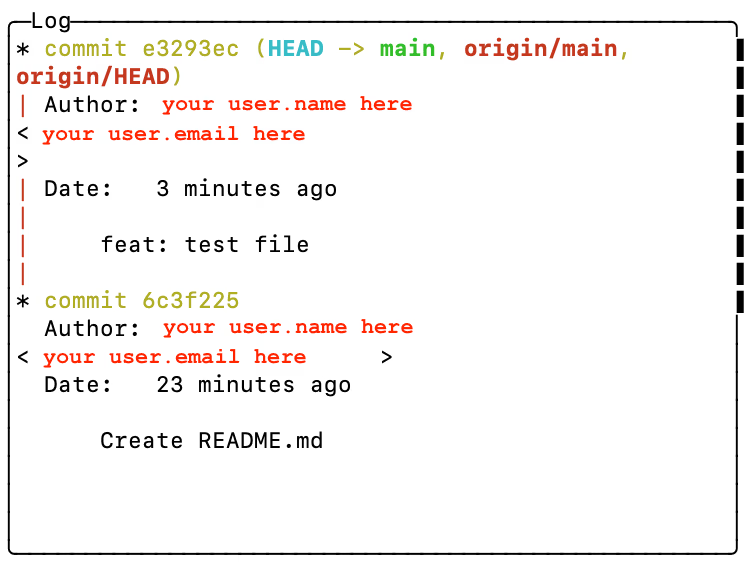
I’ve replaced my user.email and user.name with default values to show you what you should see.
Test committing in a different repo, and you’ll see that the changes don’t carry over.
Final Words
That’s it. I hope you find this guide helpful. If you have any questions, shoot them in the comments, and I’ll address them. Cheers!