Move WordPress Data from CPanel to AWS
How to move data from a CPanel-managed site and put it on an AWS EC2 instance.
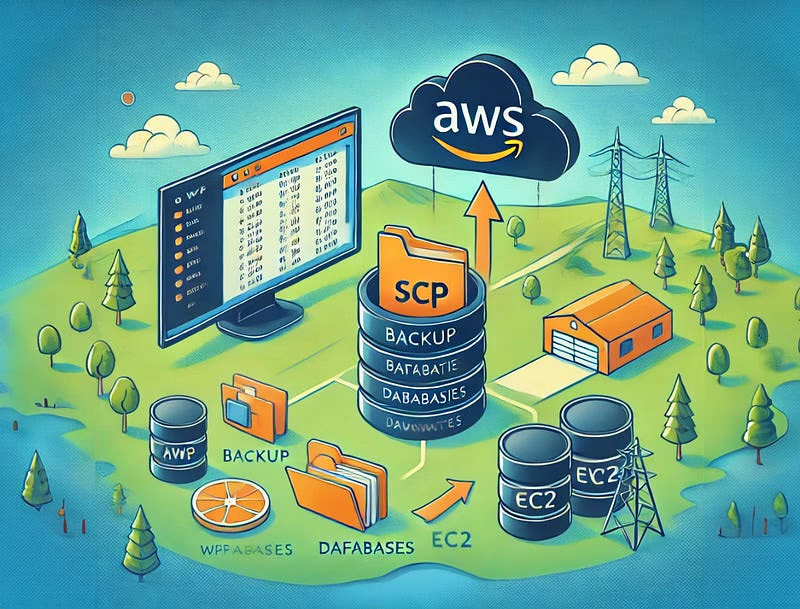
I did this to move a WordPress site from one CPanel-based hosting provider to AWS. You’ll need an AWS account and an EC2 Instance to follow along. You’ll also need SSH access to your EC2 instance and a terminal on your computer.
Step 1 — Download from CPanel
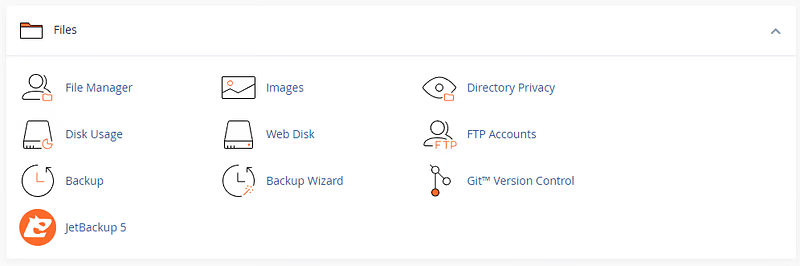
The first step is to log in to your site’s CPanel, scroll and find the Backup option in the Files section:
Clicking on Backup will take you to this screen:
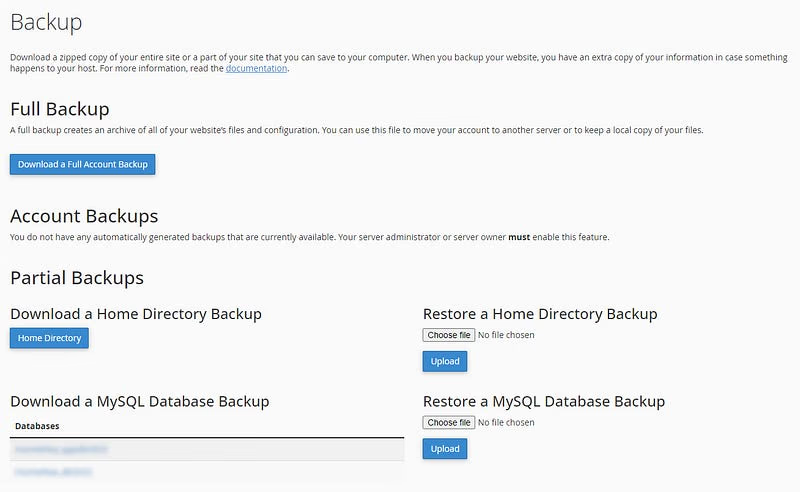
Click on all your databases in the Download a MySQL Database Backup section. Then, get a partial backup of the Home Directory. You’ll have three zip files in your downloads directory. Extract the two database files into the same directory.
For the Home Directory backup, enter the zip file, go to the public_html Folder and extract the wp-content Folder. This folder contains your site’s styling and other content.
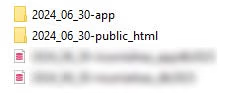
I’m hosting a standard site and a subdomain on a single EC2 instance, so I have two folders with wp-content in them.
Step 2 — Send the files to your AWS instance
Send your extracted data to your EC2 instance using the scp command from a terminal.
scp -i <your_ssh_key.pem> file/or/folder/location ec2-user@your-ec2-public-address:/new/location/to/store/file/or/folderThe -i part of the command provides an access key for your server. If you don’t have one, follow this tutorial:
Create a key pair for your Amazon EC2 instance
Use this command for your database files and your wp-content Folders, and you’ll load your data onto your AWS Server, ready to be used.
Read More
This is part of a series in which I migrate a WordPress site from CPanel to the AWS free tier. Next, I create an RDS instance and load my databases onto it.