Set Up an AWS CLI Profile
How to use your IAM Identity Centre user account in the AWS command line interface.
_“Click-Ops”_ is the name jokingly applied to managing infrastructure in the online AWS console. Click-Ops is a mug's game. You need the Command Line Interface (CLI).
To start, you’ll want a local profile. Here’s how to get one.
Step 0 — The AWS CLI
The very first thing you’ll need is the AWS CLI and an IAM Identity Centre account. If you don’t have these, you can find them here:
Installing or updating to the latest version of the AWS CLI
There used to be a good AWS tutorial for this, but I can’t find it anymore (AWS docs are a bit of a mess). This is the closest thing I could find.
Setting up AWS IAM Identity Center
Step 1 — Get your SSO start URL and Region
If you’re regularly signing in to AWS you should have both of these easily to hand. If not, you can find them by logging into your AWS account, then clicking on the Access keys part of the profile you want to add to the CLI:
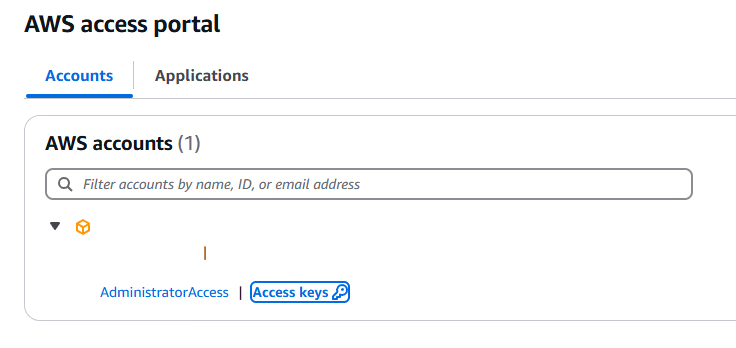
From here, you can see your SSO start URL and Region.
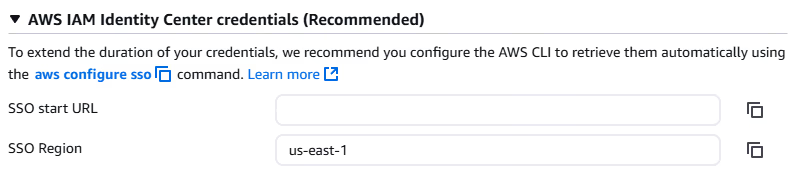
I’ve deliberately covered my SSO start URL — yours will be visible. Copy these and hold them for later.
Step 2 — Set up your profile
There are two ways to set up a profile on AWS:
aws configureaws configure sso
We’re using aws configure sso because it lets you set up once, and pull new credentials automatically when necessary. To start, run the following command in your terminal:
aws configure ssoHere’s what you’ll see in order:
SSO session name (Recommended):— This optional setting lets you share SSO details between profiles. This will become clearer when you see the files this command creates. For now choose whatever session name you like. I went for:ConnorPersonal, as this is my personal AWS account.SSO Start URL [None]:— This is the start URL you collected in Step 1. This URL tells the AWS CLI the web location to visit to collect credentials. Paste in yours and continue.SSO region [None]:— This is the region you collect in Step 1. This tells the AWS CLI what region your SSO service is hosted in. This is required by the AWS CLI to make authentication requests simple. Paste in yours and continue.SSO registration scopes [sso:account:access]:— This simply means the AWS CLI will have access to your IAM account via SSO. It’s a permissions setting in the CLI. Hit enter to continue.
After hitting enter, your browser will load one of two pages.
Already logged in
A page with this login box in the centre:
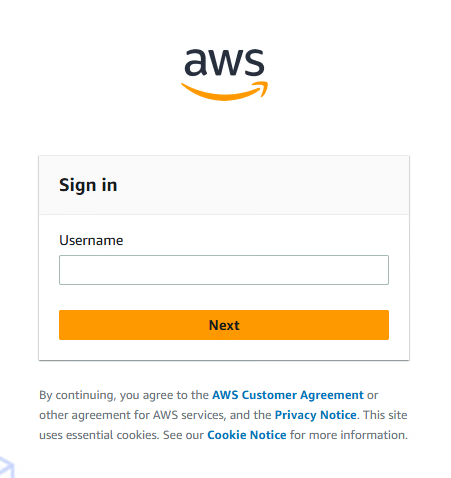
Sign into your AWS IAM account using your usual credentials. Then go back to your terminal and copy the URL:
Attempting to automatically open the SSO authorization page in your default browser.
Visit the webpage and you’ll see the following page:
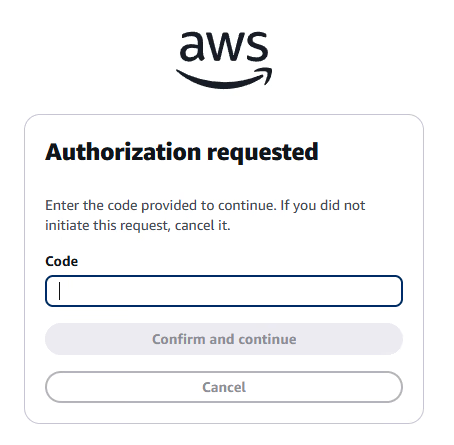
Copy the code from your terminal output into the input bar, and then Confirm and continue. Skip past the “Logged in” section to the the “Both” section.
Logged in
You’ll see something like the following:
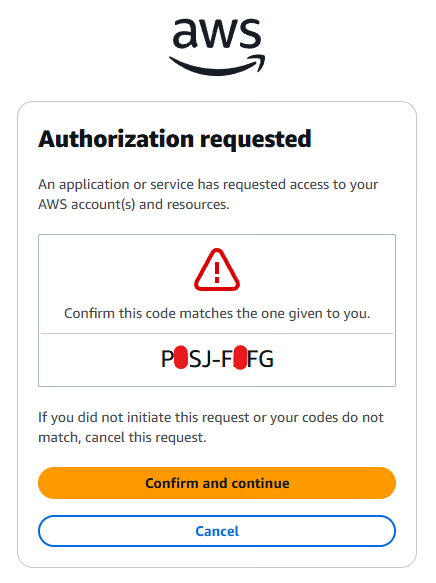
Check the code matches what’s on your terminal, then hit Confirm and contiue.
Both
Either option will take you to this modal:
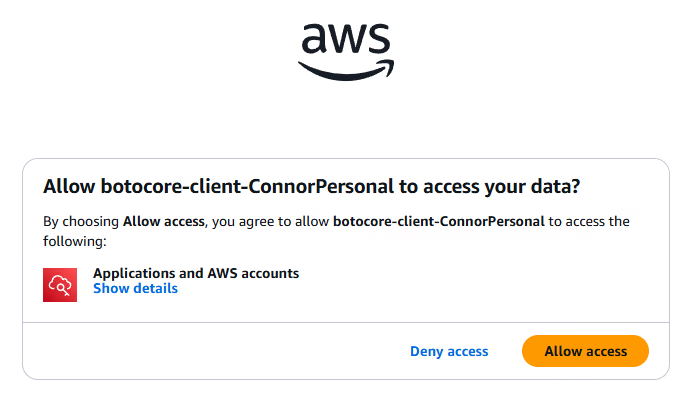
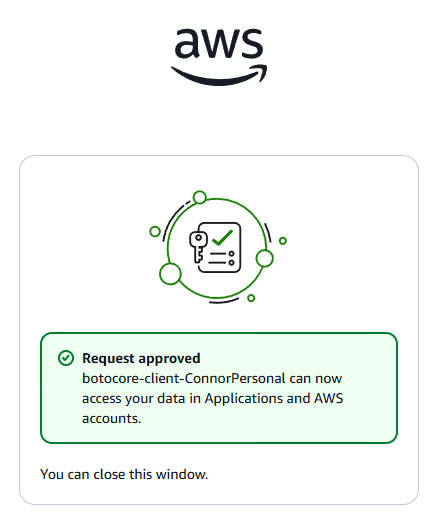
Click Allow access. If you’re confused by botocore-client don’t worry, it’s just the name of the software that the AWS CLI uses to power itself. The final page you’ll see is this, confirming everything:
Now, back to the terminal. You’ll see:
CLI default client Region [None]:— This is the region that the AWS CLI will use to call resources. Set it to the region that contains your infrastructure. I’ve set mine tous-east-1. You can find out more about your region here.CLI default output format [None]:— This is the output format that the CLI will automatically respond to you with. It’sjsonby default, but you can also choose:yaml,text,table.CLI profile name [some-nonsense]:— The final stage! This is the profile name that you’ll use in your AWS commands. Choose this wisely, something short, and easy to type is preferable. I went forpersonal.
When you’ve completed all these steps, you’ll see output similar to the following:
To use this profile, specify the profile name using --profile, as shown:

aws s3 ls --profile personal
Step 3 — Use your profile
Your profile is ready to go! If you have s3 resources, try the command recommended by AWS:
aws s3 ls --profile personalThis will show you nothing if you have no S3 resources. So here’s a more interesting command:
# Path: /list_resources.sh

PROFILE_NAME="<your-profile-name>"

for region in $(aws ec2 describe-regions --query "Regions[*].RegionName" --output text --profile $PROFILE_NAME); do
    echo "Listing resources in region: $region"
    aws resourcegroupstaggingapi get-resources --region $region --output table --profile $PROFILE_NAME
done
The above is a bash script that lists the tagged resources contained in every region. Paste it into a file with a name like: list_resources.sh, the .sh ending is important so that the terminal knows it’s a bash script. Run the script from the command line with:
./list_resources.shHere’s the script in PowerShell if you’re on Windows:
# Path: /list_resources.ps1

$profileName = "<your-profile-name>"

# Get all AWS regions using the specified profile
$regions = (aws ec2 describe-regions `
    --query "Regions[].RegionName" `
        --output text `
     --profile $profileName).Trim() -split '\s+'

Write-Output $regions

foreach ($region in $regions) {
 Write-Output "Listing resources in region: $region\n"
 aws resourcegroupstaggingapi get-resources --region $region --output table --profile $profileName
}
If a resource isn’t tagged it won’t show up here. Sad, I know.
Step 4 — See your Profile
This is an optional extra, but it is interesting. Type the following command into your terminal:
cat ~/.aws/configThis will print out the following:
[profile personal]
sso_session = ConnorPersonal
sso_account_id = <some-id-here>
sso_role_name = AdministratorAccess
region = us-east-1
output = json
[sso-session ConnorPersonal]
sso_start_url = <your-start-url>
sso_region = us-east-1
sso_registration_scopes = sso:account:access
The file ~/.aws/config is where all the details are stored, and if you like you can edit them directly to make changes.
Final Words
Congratulations—you are now a man. Welcome to the big boy DevOps world. I’ll be posting more content on using DevOps and AWS, so if you like that sort of thing, stick around. Happy DevOps’ing!
Next Steps — AWS CDK
Here’s a related post if you want to try out your profile on some infrastructure creation. Warning, this is a slight step up…