The Best Frontend — SvelteKit + Tailwind + Cloudflare
Deploy a site for free with incredible design, fast response times, and easy updates in 30 minutes.
Ahhh, that constant refrain:
*“My portfolio’s in progress.”
“Yeah, I’ll launch that blog soon.” “My e-store is in the works.”*
Maybe you’ve got something to say, to sell, or just want to own your little corner of the web. But instead of building, you’re stuck googling, comparing stacks, bouncing between CSS frameworks, and wondering what the hell “SEO-optimised static rendering” means.
Let’s cut through the noise and get the job done. This tutorial will show you how to set up the bones of your site fast:
- With modern tools.
- With a clean design, without hiring a designer.
- With millisecond response times, easy updates, and an instantly live website.
We’ll use SvelteKit (fast, modern), Tailwind CSS (utility-first, expressive), and Cloudflare Pages (free, scalable hosting).
Step 1 — The Big Picture: Your Stack
Before we go any deeper, let’s discuss the stack.
🧱 Framework — SvelteKit
A modern, fast, elegant web framework with file-based routing and incredible developer friendliness. With the release of Svelte 5, Svelte is even closer to a pure JavaScript library than a heavy framework like React. You work in files that look like standard HTML, JS/ TS, and CSS, and compile everything into lightning-fast, lean JavaScript.
This framework is powerful enough to build huge Single-Page Applications and light enough for content-heavy server-side rendering. It’s easy to learn and a joy to use.
🎨 Styling — Tailwind CSS
A utility-first CSS framework that promotes consistent design whilst reducing CSS class bloat. It’s essentially the standard in web development.
If you’re wondering, utility-first means the styles are small, single-purpose, and easily composable. It includes default theme styling, which we’ll use later in Svelte’s app.css.
Installing with Vite - Installation
🚀 Deployment — Cloudflare Pages
Free, edge-deployed hosting that uses Cloudflare’s Content Delivery Network to serve your site blazingly fast all over the globe. Cloudflare is becoming a serious player in the serverless compute space, competing with AWS, GCP, Azure, etc. for market share. Their free tier is epic.
I’ve chosen Cloudflare because it centralises Domain purchasing, analytics, and deployment into a beautiful, easy-to-use interface that removes all the deployment friction and makes CI/CD simple.
🔁 Version Control + CI/CD — Git + GitHub
The standard industry pairing for managing code. Essential for backing up your work, collaborating, and automating deployment pipelines.
This standard is so strong that it’s almost a given, so I’m assuming prior knowledge here. Fair warning: This is not a Git/ GitHub tutorial, although I will show you the commands to use.
With the stack clearly defined in your mind, let’s move on to the design.
Step 2 — Decide Your Visual System
Even if you’re not a “designer”, you still need visual rules. These will save you hours later. I’m a novice myself, but I understand the basics:
- Consistent colour scheme: primary, secondary, neutral, accents.
- Consistent spacing: matched multiples of distance between elements. Related elements closer together.
- Consistent fonts: The same font or two fonts on all web pages, used for the same logical purpose wherever they appear.
- Consistent Styling: widgets have the same border ratio, font size, font weight, etc.
If you’re a pro, you’ve probably already got a process for this. Don’t let me get in your way! But this is hard to get right as a noob designer (like me). Let’s make use of an AI for the initial set-up. Here’s a prompt I cooked up earlier:
You are a frontend designer. You have been tasked with helping a customer
Paste this into your AI of choice and work through the process. It should produce a decent final Tailwind configuration script. Keep this, we’ll be using it shortly. If you don’t like it, you can always return to the chat and ask to alter it.
Extras
If you want more advanced advice, these resources might be helpful:
Visual design rules you can safely follow every time
This site can help you pick a colour scheme:
Step 3 — Initialise the Project
Design fluff out of the way, it’s time to get down to the hard graft. Let’s initialise the SvelteKit project:
npx sv create <your-app-name-here>
This set of commands will walk you through a setup, place you in your new project, install all the required packages, and run the site locally. The first command is a process, so let me guide you through it.
🏗️ npx sv create
This uses the Node Package Execute module to run the SvelteKit CLI create command. It takes a folder name as an argument. I like to go with my site’s hoped-for name, but anything will do. Bonus points if it’s a GitHub-friendly name.
When you run the CLI, it will give you template options:
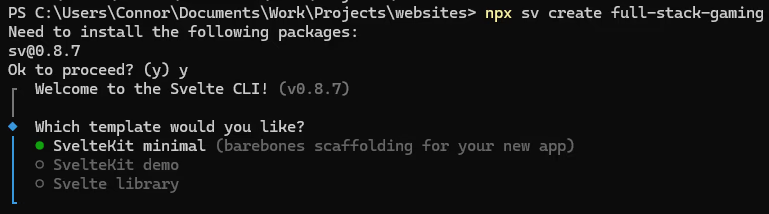
Go with the minimal option, it’s simplest to build from. Next it will ask you if you want to use type checking. As long as you know Typescript, there’s no good reason not to choose it, so you should!
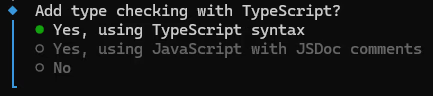
Next, it asks you if you want to install add-ons:
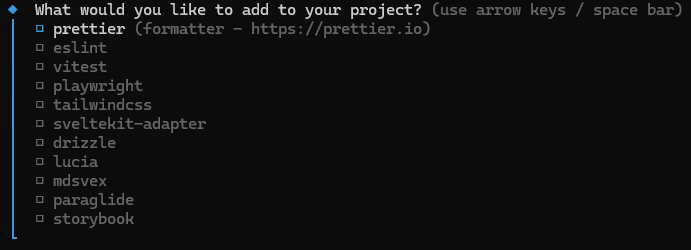
It’s too much to explain all of these here, so let’s keep it light. Take:
prettierfor your formatting.eslintfor you linting.vitestfor your unit testing.tailwindcssfor your styling.sveltekit-adapterfor deployment (we’ll need this for Cloudflare later).
Everything else is helpful in circumstance-dependent ways. If you’re interested in any of them, you can follow the links in the Terminal UI. Up next, we have Tailwind-specific configuration:

You don’t have to add either of these, but they could be handy if you’re building a site with a heavy form or content load. Next, we have our adapter configuration:
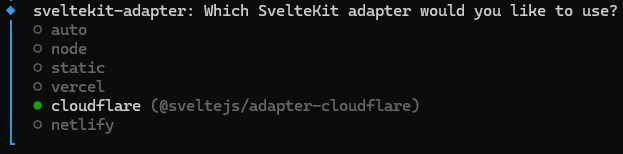
SvelteKit adapters are compilation methods, specialised for different platforms/ use-cases. Selecting the cloudflare adapter will turn your source code into Cloudflare-ready code, making deployment a doddle.
Your final option is a choice of package manager:
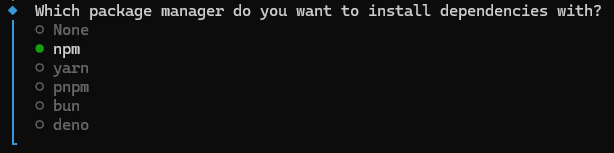
Pick whichever one you like best, and your directory will be created, your packages installed, and your options completed. At this point, you can open the directory in your IDE with something like:
code <your-directory-name>
cursor <your-directory-name>
You should see a directory structure like the following:
📁 ./
├── 📄 .gitignore
├── 📄 .npmrc
├── 📄 .prettierignore
├── 📄 .prettierrc
├── 📄 README.md
├── 📄 eslint.config.js
├── 📄 package-lock.json
├── 📄 package.json
├── 📄 svelte.config.js
├── 📄 tsconfig.json
├── 📄 vite.config.ts
├── 📄 vitest-setup-client.ts
├── 📁 .svelte-kit/
│   ├── 📄 ambient.d.ts
│   ├── 📄 non-ambient.d.ts
│   ├── 📄 tsconfig.json
│   ├── 📁 types/
│   │   ├── 📄 route_meta_data.json
│   │   ├── 📁 src/
│   │   │   ├── 📁 routes/
│   │   │   │   └── 📄 $types.d.ts
├── 📁 src/
│   ├── 📄 app.css
│   ├── 📄 app.d.ts
│   ├── 📄 app.html
│   ├── 📄 demo.spec.ts
│   ├── 📁 lib/
│   │   └── 📄 index.ts
│   ├── 📁 routes/
│   │   ├── 📄 +layout.svelte
│   │   ├── 📄 +page.svelte
│   │   └── 📄 page.svelte.test.ts
├── 📁 static/
│   └── 📄 favicon.png
💻 npm run dev
Now we have the initial app open, you can run it with npm run dev. This runs a Vite local server and serves your app on localhost:5173. Visit this website and you’ll see a hideous but running first page:
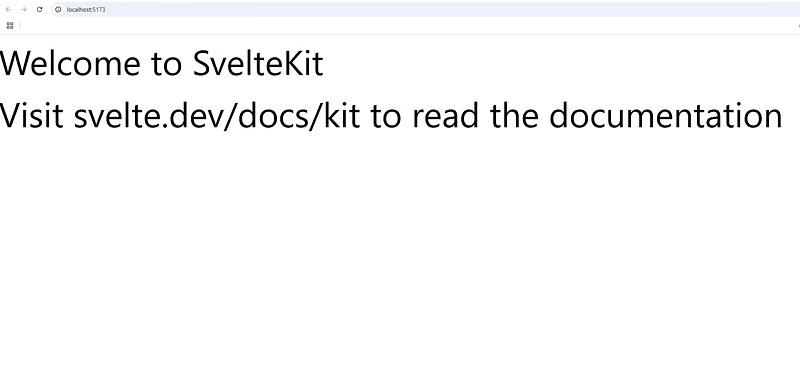
Let’s make this prettier by adding our Tailwind configuration!
Step 4 — Configure Tailwind
Copy the Tailwind config you generated in Step 2, open your app.css, held in the root of the /src directory, and paste it in under the Tailwind imports. You’ll end up with something like this:
@import 'tailwindcss';
@plugin '@tailwindcss/forms';

@theme {
 /* PRIMARY Indigo SCALE - conveys intelligence, trust, and developer credibility */
 --color-primary-50: #eef2ff;
 --color-primary-100: #e0e7ff;
 --color-primary-200: #c7d2fe;
 --color-primary-300: #a5b4fc;
 --color-primary-400: #818cf8;
 --color-primary-500: #6366f1; /* Main brand color */
 --color-primary-600: #4f46e5;
 --color-primary-700: #4338ca;
 --color-primary-800: #3730a3;
 --color-primary-900: #312e81;
 --color-primary-950: #1e1b4b;

 /* SECONDARY Teal SCALE - fresh, focused, and energizing for learners */
 --color-secondary-50: #f0fdfa;
 --color-secondary-100: #ccfbf1;
 --color-secondary-200: #99f6e4;
 --color-secondary-300: #5eead4;
 --color-secondary-400: #2dd4bf;
 --color-secondary-500: #14b8a6;
 --color-secondary-600: #0d9488;
 --color-secondary-700: #0f766e;
 --color-secondary-800: #115e59;
 --color-secondary-900: #134e4a;
 --color-secondary-950: #042f2e;

 /* ACCENT Orange SCALE - used for call-to-actions, ratings, purchases */
 --color-accent-50: #fff7ed;
 --color-accent-100: #ffedd5;
 --color-accent-200: #fed7aa;
 --color-accent-300: #fdba74;
 --color-accent-400: #fb923c;
 --color-accent-500: #f97316;
 --color-accent-600: #ea580c;
 --color-accent-700: #c2410c;
 --color-accent-800: #9a3412;
 --color-accent-900: #7c2d12;
 --color-accent-950: #431407;

 /* NEUTRAL Zinc SCALE - modern and developer-friendly, ideal for dark/light UIs */
 --color-neutral-50: #fafafa;
 --color-neutral-100: #f4f4f5;
 --color-neutral-200: #e4e4e7;
 --color-neutral-300: #d4d4d8;
 --color-neutral-400: #a1a1aa;
 --color-neutral-500: #71717a;
 --color-neutral-600: #52525b;
 --color-neutral-700: #3f3f46;
 --color-neutral-800: #27272a;
 --color-neutral-900: #18181b;
 --color-neutral-950: #09090b;

 /* DANGER Red SCALE - for errors or alerts */
 --color-danger-50: #fef2f2;
 --color-danger-100: #fee2e2;
 --color-danger-200: #fecaca;
 --color-danger-300: #fca5a5;
 --color-danger-400: #f87171;
 --color-danger-500: #ef4444;
 --color-danger-600: #dc2626;
 --color-danger-700: #b91c1c;
 --color-danger-800: #991b1b;
 --color-danger-900: #7f1d1d;
 --color-danger-950: #450a0a;

 /* TYPOGRAPHY - developer-meets-product vibe, readable and crisp */
 --font-sans: 'Inter', ui-sans-serif, system-ui, sans-serif;
 --font-mono: 'JetBrains Mono', ui-monospace, 'Courier New', monospace;

 /* SPACING - enough room for cards and breathing space */
 --spacing-section: 6rem;
 --spacing-component: 2.5rem;
 --spacing-element: 1rem;

 /* BORDER RADIUS - modern and smooth, appeals to gamer/developer aesthetic */
 --radius-sm: 0.25rem;
 --radius-md: 0.5rem;
 --radius-lg: 1rem;

 /* SHADOWS - subtle depth for game cards and modals */
 --shadow-sm: 0 1px 2px 0 rgba(0, 0, 0, 0.05);
 --shadow-md: 0 4px 6px -1px rgba(0, 0, 0, 0.1);
 --shadow-lg: 0 10px 15px -3px rgba(0, 0, 0, 0.1);
}

@layer base {
 html {
  scroll-behavior: smooth;
  font-family: var(--font-sans);
 }

 body {
  @apply bg-neutral-950 text-neutral-100 antialiased;
 }

 h1 {
  @apply text-primary-500 text-4xl font-bold;
 }

 h2 {
  @apply text-primary-400 text-3xl font-semibold;
 }

 h3 {
  @apply text-2xl font-semibold text-neutral-100;
 }

 h4 {
  @apply text-xl font-medium text-neutral-200;
 }

 h5 {
  @apply text-lg font-medium text-neutral-300;
 }

 p {
  @apply text-base leading-relaxed text-neutral-300;
 }

 a {
  @apply text-secondary-400 underline underline-offset-2;
 }

 a:hover {
  color: var(--color-secondary-200);
 }

 button,
 input,
 textarea,
 select,
 a {
  @apply focus:ring-primary-500 focus:ring-2 focus:outline-none;
 }

 code {
  @apply text-accent-400 font-mono;
 }

 pre {
  @apply overflow-x-auto rounded-md bg-neutral-900 p-4;
 }

 pre code {
  @apply text-sm leading-loose;
 }
}
Restart your Vite server by killing the running process with ctrl+c then re-running:
npm run devNow my site looks like this:

I’ll level with you: I don’t like this colour scheme. Fortunately, I can easily change it by returning to my AI friend and telling it what’s wrong with it. For example:
The colour scheme is too contrasting, please give me something more gentleYou can keep doing this until you find something that works. If you’d like to view your configuration’s styling easily, you can do so by creating a new page in the /src/routes directory. From there, run:
mkdir config
cd config
touch +page.svelte
Open +page.svelte and paste in the following code:
<script>
// Color scales from the configuration
const colorScales = [
{
name: 'Primary (Indigo)',
description: 'Intelligence, trust, and developer credibility - Main brand color',
prefix: 'primary',
mainColor: '500'
},
{
name: 'Secondary (Teal)',
description: 'Fresh, focused, and energizing for learners',
prefix: 'secondary',
mainColor: '500'
},
{
name: 'Accent (Orange)',
description: 'Call-to-actions, ratings, purchases',
prefix: 'accent',
mainColor: '500'
},
{
name: 'Neutral (Zinc)',
description: 'Modern and developer-friendly, ideal for dark/light UIs',
prefix: 'neutral',
mainColor: '500'
},
{
name: 'Danger (Red)',
description: 'For errors or alerts',
prefix: 'danger',
mainColor: '500'
}
];
const colorValues = [50, 100, 200, 300, 400, 500, 600, 700, 800, 900, 950];
const typographyExamples = [
{ tag: 'h1', text: 'Heading 1 - Primary 500, 4xl, Bold' },
{ tag: 'h2', text: 'Heading 2 - Primary 400, 3xl, Semibold' },
{ tag: 'h3', text: 'Heading 3 - Neutral 100, 2xl, Semibold' },
{ tag: 'h4', text: 'Heading 4 - Neutral 200, xl, Medium' },
{ tag: 'h5', text: 'Heading 5 - Neutral 300, lg, Medium' },
{ tag: 'p', text: 'Paragraph - Base size, relaxed leading, Neutral 300' },
{ tag: 'a', text: 'Link - Secondary 400, underlined' },
{ tag: 'code', text: 'Code - Accent 400, JetBrains Mono font' }
];
const spacingValues = [
{ name: 'Section', variable: 'spacing-section', description: 'For major sections' },
{ name: 'Component', variable: 'spacing-component', description: 'Between components' },
{ name: 'Element', variable: 'spacing-element', description: 'Between elements' }
];
const radiusValues = [
{ name: 'Small', class: 'rounded-sm' },
{ name: 'Medium', class: 'rounded-md' },
{ name: 'Large', class: 'rounded-lg' }
];
const shadowValues = [
{ name: 'Small', class: 'shadow-sm', description: '0 1px 2px 0 rgba(0, 0, 0, 0.05)' },
{ name: 'Medium', class: 'shadow-md', description: '0 4px 6px -1px rgba(0, 0, 0, 0.1)' },
{ name: 'Large', class: 'shadow-lg', description: '0 10px 15px -3px rgba(0, 0, 0, 0.1)' }
];
</script>
<!--
Safelist: These classes are used dynamically and need to be included in the build:
bg-primary-50 bg-primary-100 bg-primary-200 bg-primary-300 bg-primary-400 bg-primary-500 bg-primary-600 bg-primary-700 bg-primary-800 bg-primary-900 bg-primary-950
bg-secondary-50 bg-secondary-100 bg-secondary-200 bg-secondary-300 bg-secondary-400 bg-secondary-500 bg-secondary-600 bg-secondary-700 bg-secondary-800 bg-secondary-900 bg-secondary-950
bg-accent-50 bg-accent-100 bg-accent-200 bg-accent-300 bg-accent-400 bg-accent-500 bg-accent-600 bg-accent-700 bg-accent-800 bg-accent-900 bg-accent-950
bg-neutral-50 bg-neutral-100 bg-neutral-200 bg-neutral-300 bg-neutral-400 bg-neutral-500 bg-neutral-600 bg-neutral-700 bg-neutral-800 bg-neutral-900 bg-neutral-950
bg-danger-50 bg-danger-100 bg-danger-200 bg-danger-300 bg-danger-400 bg-danger-500 bg-danger-600 bg-danger-700 bg-danger-800 bg-danger-900 bg-danger-950
-->
<svelte:head>
<title>Tailwind Configuration Showcase</title>
</svelte:head>
<div class="min-h-screen bg-neutral-950 px-4 py-12">
<div class="mx-auto max-w-7xl">
<!-- Header -->
<div class="mb-16 text-center">
<h1 class="mb-4">Tailwind Configuration Showcase</h1>
<p class="mx-auto max-w-3xl text-xl text-neutral-400">
A comprehensive overview of your custom Tailwind theme including colors, typography,
spacing, borders, and shadows.
</p>
</div>
<!-- Color Scales Section -->
<section class="mb-16">
<h2 class="mb-8">Color Scales</h2>
<div class="grid gap-8">
{#each colorScales as scale}
<div class="rounded-lg bg-neutral-900 p-6">
<div class="mb-4">
<h3 class="mb-2">{scale.name}</h3>
<p class="text-neutral-400">{scale.description}</p>
</div>
<div class="grid grid-cols-2 gap-2 sm:grid-cols-4 md:grid-cols-6 lg:grid-cols-11">
{#each colorValues as value}
<div class="text-center">
<div
class="mb-2 h-16 w-full rounded-md border border-neutral-700 bg-{scale.prefix}-{value}"
class:ring-2={value.toString() === scale.mainColor}
class:ring-white={value.toString() === scale.mainColor}
></div>
<div class="text-xs text-neutral-400">{value}</div>
<div class="text-xs text-neutral-500">{scale.prefix}-{value}</div>
</div>
{/each}
</div>
</div>
{/each}
</div>
</section>
<!-- Typography Section -->
<section class="mb-16">
<h2 class="mb-8">Typography</h2>
<div class="rounded-lg bg-neutral-900 p-6">
<div class="grid gap-6">
{#each typographyExamples as example}
<div class="border-b border-neutral-800 pb-4 last:border-b-0">
<svelte:element this={example.tag}>
{example.text}
{#if example.tag === 'a'}
<span class="ml-2 text-sm text-neutral-500">(hover to see color change)</span>
{/if}
</svelte:element>
<div class="mt-1 text-sm text-neutral-500">
<{example.tag}> element styling
</div>
</div>
{/each}
<!-- Font Family Examples -->
<div class="mt-8 border-t border-neutral-800 pt-8">
<h4 class="mb-4">Font Families</h4>
<div class="grid gap-4">
<div>
<p class="font-sans">
Sans-serif font (Inter): The quick brown fox jumps over the lazy dog
</p>
<div class="text-sm text-neutral-500">
font-sans: Inter, ui-sans-serif, system-ui
</div>
</div>
<div>
<p class="font-mono">
Monospace font (JetBrains Mono): The quick brown fox jumps over the lazy dog
</p>
<div class="text-sm text-neutral-500">
font-mono: JetBrains Mono, ui-monospace, Courier New
</div>
</div>
</div>
</div>
</div>
</div>
</section>
<!-- Spacing Section -->
<section class="mb-16">
<h2 class="mb-8">Custom Spacing</h2>
<div class="rounded-lg bg-neutral-900 p-6">
<div class="grid gap-6">
{#each spacingValues as spacing}
<div>
<h4 class="mb-2">{spacing.name} Spacing</h4>
<p class="mb-3 text-neutral-400">{spacing.description}</p>
<div
class="bg-primary-500 flex items-center justify-center rounded-md font-medium text-white"
style="background-color: var(--color-primary-500); height: var(--{spacing.variable})"
>
{spacing.variable}
</div>
</div>
{/each}
</div>
</div>
</section>
<!-- Border Radius Section -->
<section class="mb-16">
<h2 class="mb-8">Border Radius</h2>
<div class="rounded-lg bg-neutral-900 p-6">
<div class="grid grid-cols-1 gap-6 md:grid-cols-3">
{#each radiusValues as radius}
<div class="text-center">
<h4 class="mb-3">{radius.name}</h4>
<div
class="mx-auto mb-2 flex h-24 w-24 items-center justify-center font-medium text-white {radius.class}"
style="background-color: var(--color-secondary-500)"
></div>
<div class="text-sm text-neutral-400">{radius.class}</div>
</div>
{/each}
</div>
</div>
</section>
<!-- Shadows Section -->
<section class="mb-16">
<h2 class="mb-8">Shadows</h2>
<div class="rounded-lg bg-neutral-900 p-6">
<div class="grid grid-cols-1 gap-8 md:grid-cols-3">
{#each shadowValues as shadow}
<div class="text-center">
<h4 class="mb-3">{shadow.name}</h4>
<div
class="mx-auto h-24 w-24 rounded-lg bg-neutral-100 {shadow.class} mb-3 flex items-center justify-center font-medium text-neutral-900"
>
{shadow.class}
</div>
<div class="text-xs break-all text-neutral-400">{shadow.description}</div>
</div>
{/each}
</div>
</div>
</section>
<!-- Interactive Examples Section -->
<section class="mb-16">
<h2 class="mb-8">Interactive Elements</h2>
<div class="rounded-lg bg-neutral-900 p-6">
<div class="grid gap-8">
<!-- Buttons -->
<div>
<h4 class="mb-4">Button Variations</h4>
<div class="flex flex-wrap gap-4">
<button
class="rounded-md px-6 py-3 font-medium text-white transition-colors hover:opacity-90"
style="background-color: var(--color-primary-500)"
>
Primary Button
</button>
<button
class="rounded-md px-6 py-3 font-medium text-white transition-colors hover:opacity-90"
style="background-color: var(--color-secondary-500)"
>
Secondary Button
</button>
<button
class="rounded-md px-6 py-3 font-medium text-white transition-colors hover:opacity-90"
style="background-color: var(--color-accent-500)"
>
Accent Button
</button>
<button
class="rounded-md border-2 bg-transparent px-6 py-3 font-medium transition-colors hover:opacity-75"
style="border-color: var(--color-primary-500); color: var(--color-primary-400)"
>
Outline Button
</button>
</div>
</div>
<!-- Cards -->
<div>
<h4 class="mb-4">Card Examples</h4>
<div class="grid grid-cols-1 gap-6 md:grid-cols-3">
<div class="rounded-lg bg-neutral-800 p-6 shadow-sm">
<h5 class="mb-2">Small Shadow Card</h5>
<p>This card uses shadow-sm for subtle depth.</p>
</div>
<div class="rounded-lg bg-neutral-800 p-6 shadow-md">
<h5 class="mb-2">Medium Shadow Card</h5>
<p>This card uses shadow-md for moderate depth.</p>
</div>
<div class="rounded-lg bg-neutral-800 p-6 shadow-lg">
<h5 class="mb-2">Large Shadow Card</h5>
<p>This card uses shadow-lg for prominent depth.</p>
</div>
</div>
</div>
<!-- Form Elements -->
<div>
<h4 class="mb-4">Form Elements</h4>
<div class="grid grid-cols-1 gap-6 md:grid-cols-2">
<div>
<label class="mb-2 block text-sm font-medium" for="sample-input">Sample Input</label
>
<input
id="sample-input"
type="text"
placeholder="Focus to see the ring effect"
class="w-full rounded-md border border-neutral-600 bg-neutral-800 px-4 py-2 text-neutral-100 placeholder-neutral-400"
/>
</div>
<div>
<label class="mb-2 block text-sm font-medium" for="sample-select"
>Sample Select</label
>
<select
id="sample-select"
class="w-full rounded-md border border-neutral-600 bg-neutral-800 px-4 py-2 text-neutral-100"
>
<option>Option 1</option>
<option>Option 2</option>
<option>Option 3</option>
</select>
</div>
</div>
</div>
</div>
</div>
</section>
<!-- Code Examples Section -->
<section>
<h2 class="mb-8">Usage Examples</h2>
<div class="rounded-lg bg-neutral-900 p-6">
<h4 class="mb-4">Sample CSS Classes</h4>
<pre><code
>{`<!-- Color Classes -->
<div class="bg-primary-500 text-white">Primary background</div>
<div class="bg-secondary-400 text-white">Secondary background</div>
<div class="text-accent-500">Accent text</div>
<div class="border-danger-500">Danger border</div>
<!-- Typography -->
<h1>Auto-styled heading 1</h1>
<p>Auto-styled paragraph</p>
<code>Auto-styled code</code>
<!-- Spacing -->
<div class="p-[var(--spacing-component)]">Component padding</div>
<div class="mb-[var(--spacing-section)]">Section margin</div>
<!-- Radius -->
<div class="rounded-sm">Small radius</div>
<div class="rounded-md">Medium radius</div>
<div class="rounded-lg">Large radius</div>`}</code
></pre>
</div>
</section>
</div>
</div>Go to localhost:5173/config on you dev server and you’ll see something like the following:
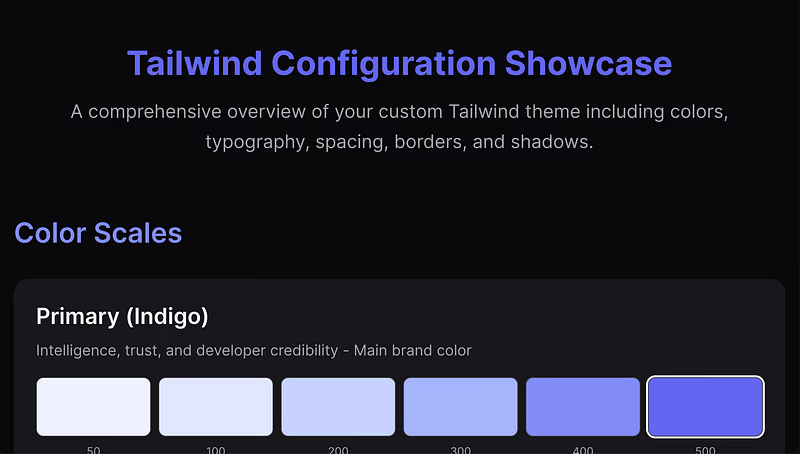
This includes all of the colour scales, the border radii, the spacing, the shadows, the typography, etc. It helps you get a feel for your website and makes it easier to prompt your AI with changes. Or, if you like, make alterations yourself!
Troubleshooting
If your theme isn’t working, try passing my working theme into the AI and alongside yours and asking it to troubleshoot why mine works and yours doesn’t. This should allow you to figure out the problem.
Step 5 — Publish on GitHub
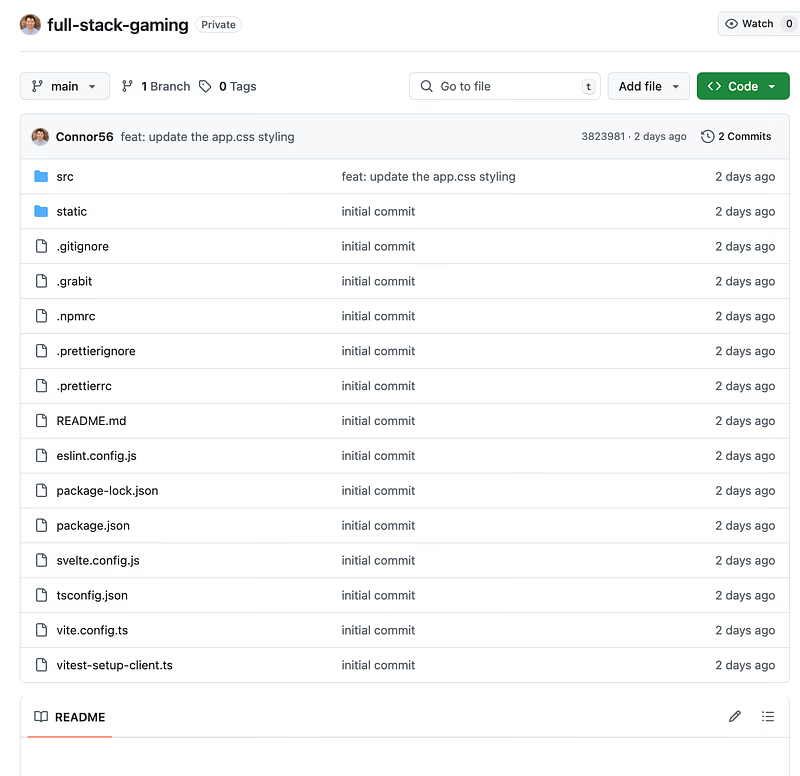
Now you have your base website built and styled, you can put it in source control with:
git init
git commit -m "initial commit"
Then push it to a git repo of your choosing with:
git branch -m master main // rename standard branch to main
git remote add origin <remote-repo-URL>
git push -u origin main
Tadah!
Step 6 — Deploy to Cloudflare
Time to deploy the site. You’ll need a Cloudflare account first, but this should be easy; you can read about signing up here:
Create account · Cloudflare Fundamentals docs
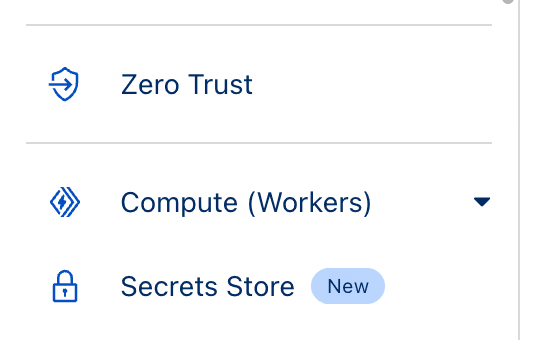
Once you have your account, you can go into the left hand side bar, and click on Compute (Workers):
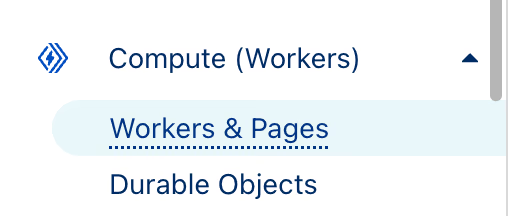
From here, click on Workers & Pages:
You’ll see the following page:
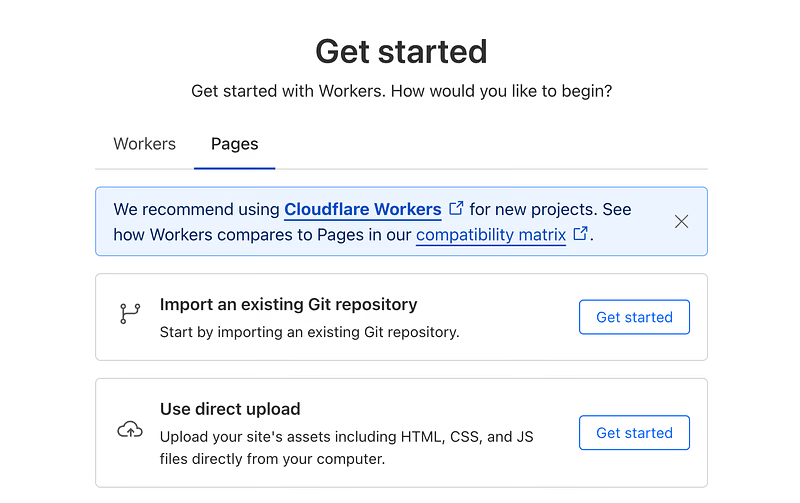
Click on the Pages tab and then Import an existing Git repository. Click on the Connect GitHub option:
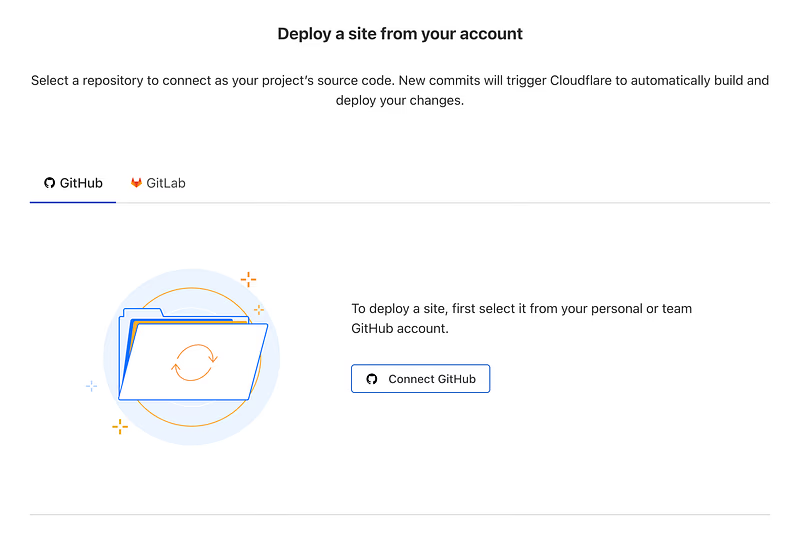
You’ll be taken through an OAuth sign-up. You must at least grant access to your recently created GitHub repository; beyond that, grant as much as you feel comfortable with. You’ll be redirected to Cloudflare and your repository will be selectable:
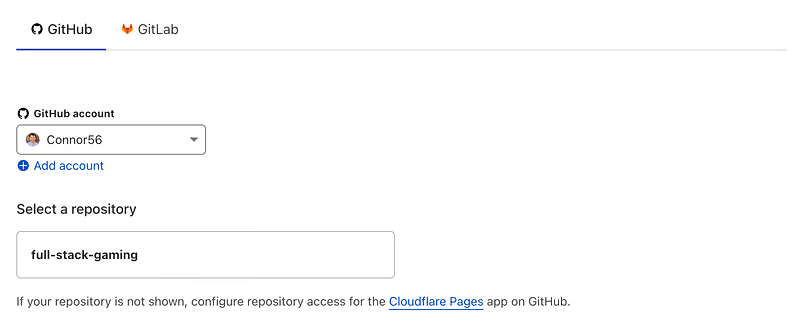
Click on Begin Setup in the bottom right corner and you’ll be taken to this page:
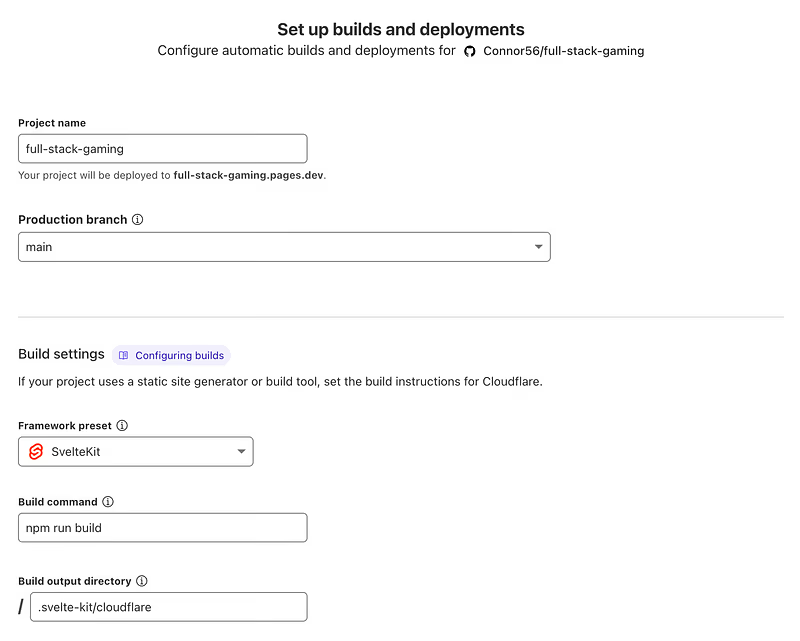
You can largely leave this as is, but if the Framework preset is wrong, swap it to SveleteKit. Click on Save and Deploy and you’ll be taken to this screen to watch your build complete:
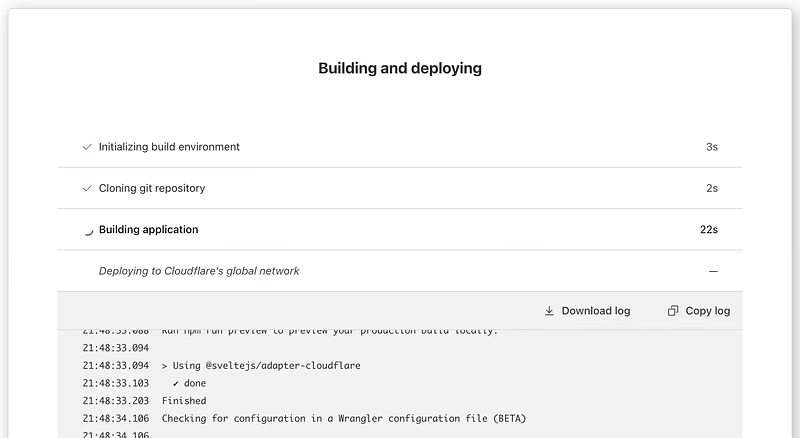
You’ll be taken to a final page where you’ll see options for adding a custom domain or seeing the deployed site via a generated URL. Your site URL, will look something like this:
project-name.pages.devVisit it, and see your page in its deployed glory! Finally, look at the pages management GUI, it looks like this:
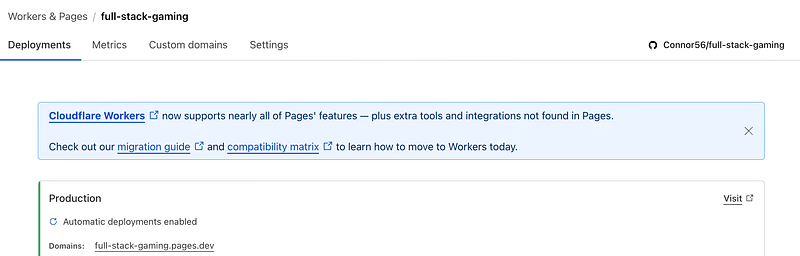
From here, you can check the metrics of your site's functions, set up a Custom Domain, or manage Settings.
Metrics
Interestingly, the Cloudflare adapter actually turns your site’s pages into functions. So when a user hits any route on your site, it will trigger a worker. If you wait a few hours after deployment, you’ll be able to see this:
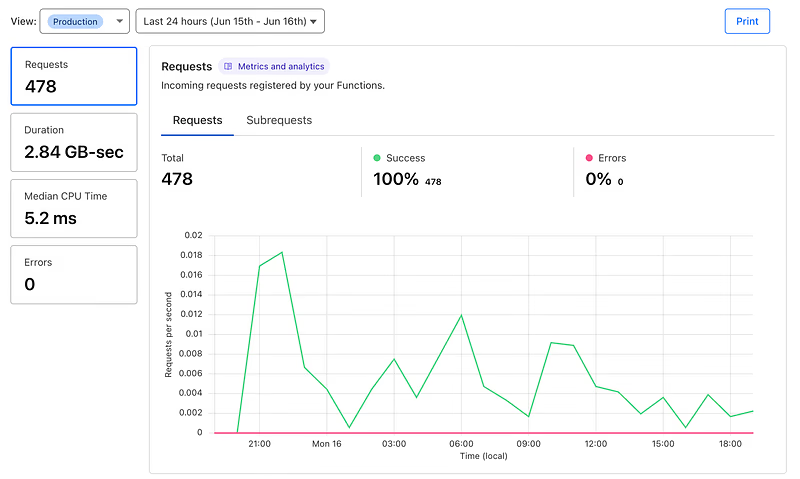
This gives a good overall picture of your site’s resource usage.
Redeploying the Site
Now you’ve deployed once, you may be wondering:
How do I deploy again?
Well, that’s the magic of this Cloudflare system, every time you push commits to your main branch on GitHub it will redeploy your site! Cool, eh? You can view the builds in your Deployments section.
Step 7 — Add a Custom Domain
Warning: If you haven’t already bought a domain name, this costs money.
A Custom domain can be used to give your site a nice name. full-stack-gaming.pages.dev just doesn’t cut it. Let’s get a new domain name. First, we can register one on Cloudflare. Click on Domain Registration then Register Domains:
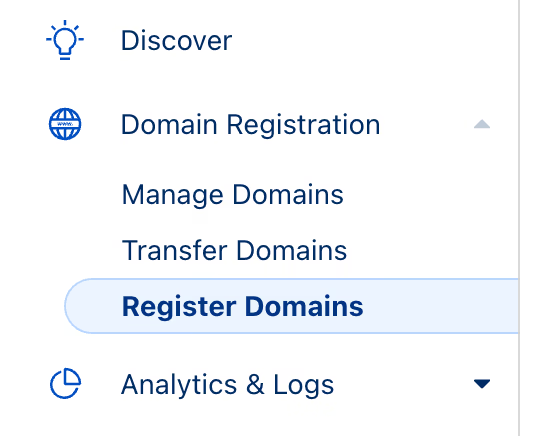
You’ll be taken to a page where you can search for and choose domain names. Type the name you want, for example fullstackgaming.dev and you can see if it’s available:
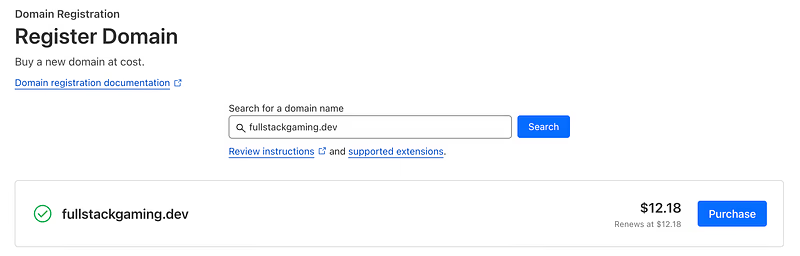
Wahey! My choice is available, so I can purchase it and allow Cloudflare to manage it. Walk through the billing options, it’s all pretty obvious. You should end up on a page like this:
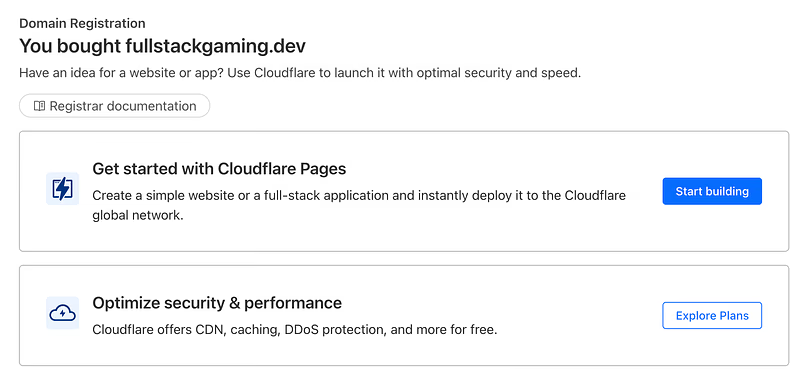
Congratulations, you have a domain! Let’s assign it. Go back to your page management GUI and click on Custom domains:
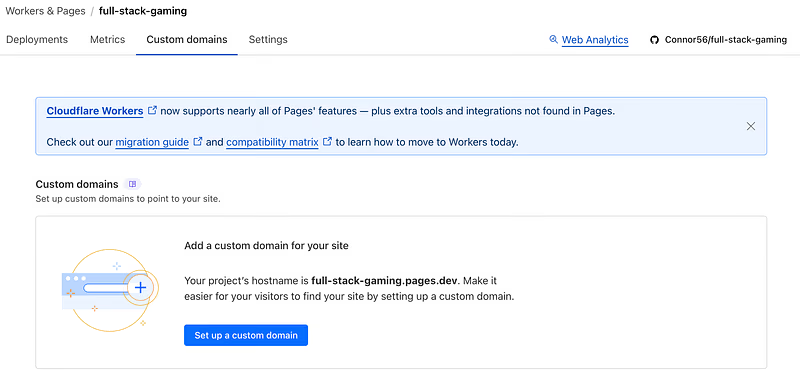
Click on Set up a custom domain and then type in your newly purchased domain name:
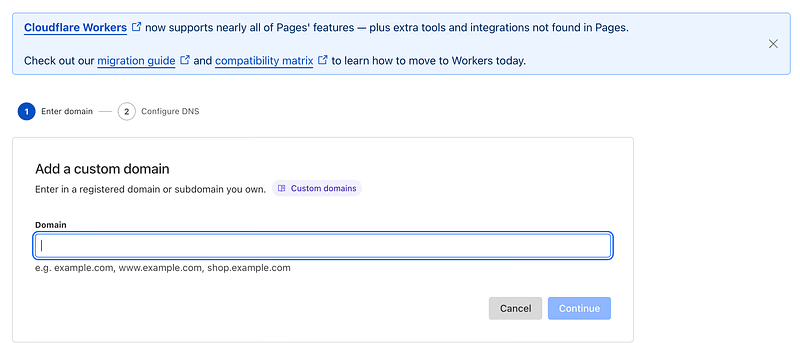
Click Continue then you should see a page like this:
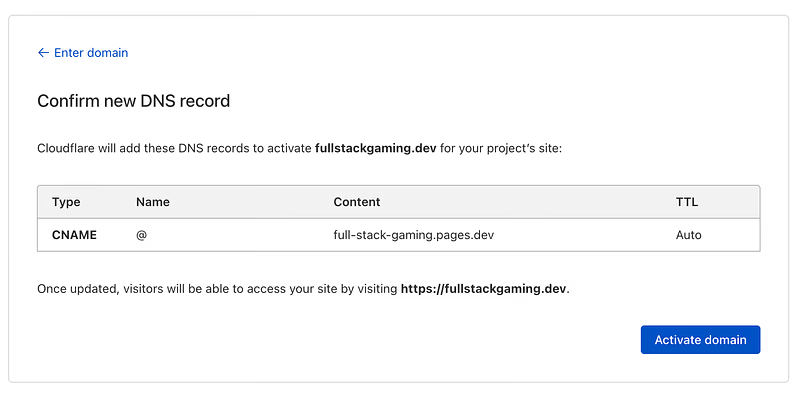
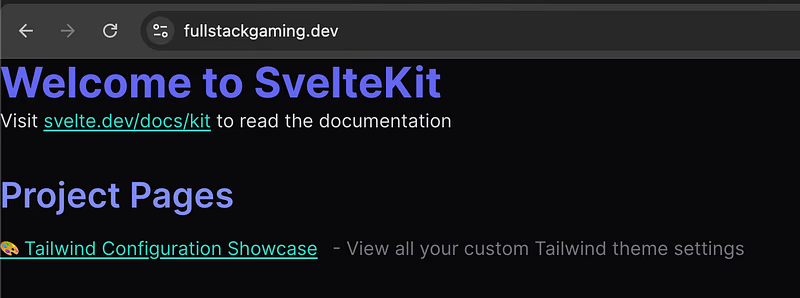
Click Activate domain and boom, you’ll see it loading as it sends the information around the world's Domain Name Servers! Give it a few minutes, and your domain will be connected. Follow the link, and there’s your site.
Step 8 — Switch on Web Analytics
Cloudflare gives you a lot of analytics by default, but these are at the DNS, HTTP request, and resource level. They don’t tell you about user behaviour on your site. To get user behaviour, you need to switch on web analytics. To do this, scroll to the bottom of the Metrics tab on your Pages GUI:

Click Enable web analytics. Then for your Custom domain, go to the main Account Home:
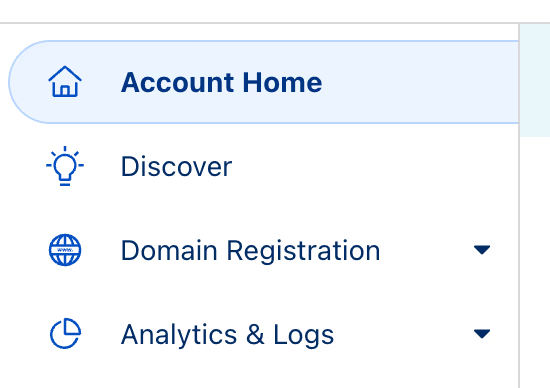
Click on your custom domain:
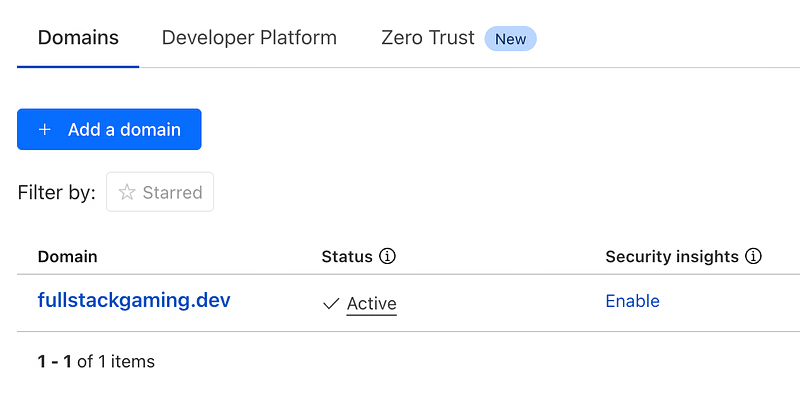
Then go to Analytics and Logs in the left-hand sidebar and choose web analytics:
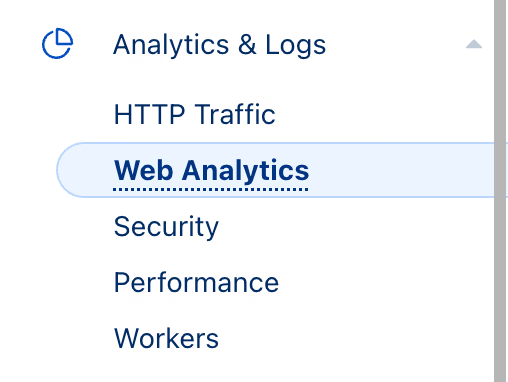
Enable web analytics, and wait a couple of hours, you’ll have something that looks like this:
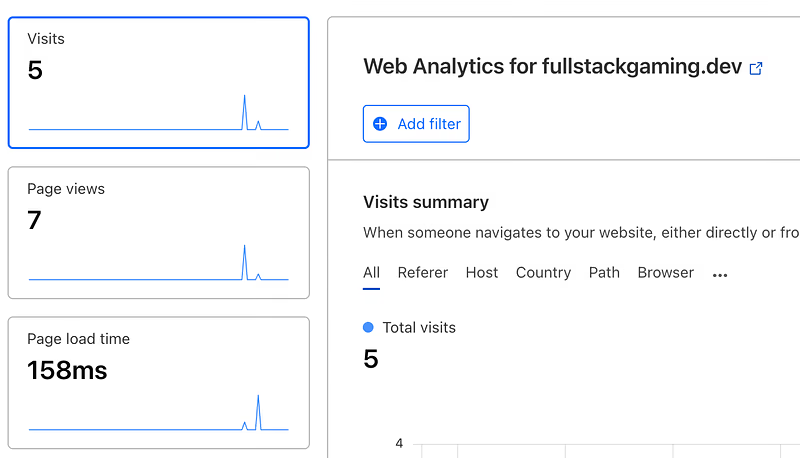
There we go! Now you can see the actual users visiting your site. Fair warning, it can take a while to process the data, so be patient once you’ve got this set up.
Step 9 — Build Components
Now you’re deployed with metrics in place, your site needs some consistent design. For that, we’ll build some reusable components. To keep it simple, lets use the basics:
- Navigation Bar: A consistent header for site-wide navigation, ensuring users can always find key pages like Home, About, and Blog.
- Footer: A consistent footer with links, copyright info, and social media icons to anchor every page.
- Cards: Reusable content blocks for games, tutorials, or blog posts, with consistent styling for titles, images, and descriptions.
- Buttons: Standardized action elements for CTAs (e.g., “Play Now,” “Learn More”) across the site.
- Forms: Consistent input fields and labels for user interactions like sign-ups or comments.
- Modals: Uniform pop-ups for alerts, logins, or additional content, maintaining a seamless experience.
Create these inside src/lib/components, you can create the components directory from the project root with:
mkdir src/lib/componentsIf you know what you’re doing, again, crack on! But if you suck at design, like me, then I’ve prepared another script to help you. There are two ways of using it.
With an AI IDE (e.g. Cursor)
Go back to the AI that you used to make the Tailwind CSS — ask it to summarise your project in a README.md, this will serve as a style guide. Paste it into your project. Next, paste this straight into the chat box:
I need you to create reusable Svelte 5 components for my website, placed in
Let the magic happen.
Without an AI IDE
You’ll need to copy in your project’s information. The easiest way to do this is with something like grabit, a command line tool I’ve made in Python. Simply, install it with:
pip install grabitThen, in your root directory, create a file called .grabit and put the following text inside of it:
// How to use:
// The file is split into sections, each section is used to determine the behaviour of the script.
// The sections are:
// - exclude: files to exclude from the context using regex, one regex per line
// - include: files to include in the context using regex, one regex per line (doesn't work yet)
// - messsage: starting message before the file data, used to help prompt the LLM
//
// Exclude takes precedence over include.
// No section is required, grabit will still run without a .grabit file, this just helps control it.
// Comments are denoted by `//` at the start of a line.
// The message is prepended to the start of the context and is used to guide the LLM.

## exclude

.*grabit

// Exclude git files
.*\.git

// Exclude commonly autogenned files
.*package-lock\.json
.*\.DS_Store

// SvelteKit
.*node_modules
.*\.(wrangler|svelte-kit)
.*pnpm-lock.yaml

## include

## message

// This option can be overridden by the command line argument -ng (--no-git)
// When set, will switch off the git history of the files read by `grabit scan`
## git file logs
true

// When set, grabit will get the git history of the entire repo and append it to
// the context for the LLM to get more overall context of what's happened.
## git all logs
false
Grabit is a “context-grabbing” tool for LLMs, and this configuration file is like a .gitignore file with extra steps. It lets you say which files to include or exclude, then pulls the tokens from them and formats them so they can be quickly pasted into an LLM.
To use it, run this from the root directory:
grabit scan . -c --order tokensThis tells grabit to scan the files in the directory, take those that need to be included, format them, and put them into your clipboard, -c, so you can easily paste them. --order tokens makes the output order itself by tokens in the file. My project produced 15,000 tokens, which is small enough to fit in all mainstream LLM context windows.
I recommend you use the same prompt as above, but add a section at the bottom:
---

The code below is my entire project:

<paste-your-project-here>
Use the --- as a separator to make it clear to the LLM these are no longer instructions. Then paste everything in below. This will give it all the context it needs to make your components. As it’s not in Cursor you’ll have to copy and paste them in, but that’s life.
The Output
You should end up with something like the following:

I mean, come on, that is pretty epic. Imperfect, but a fantastic place to start. If you’re in an AI IDE, this is where you can begin to prompt back and forth and get to what you want. If you’re not using an AI IDE, it will be slower, but you can use grabit to go back and forth.
Step 10 — Finishing Your Site
This is where this tutorial ends, and your work begins. You have a solid framework, an example webpage, and components to build with. Use the configuration and design you’ve been given, and either prompt an AI for more features or build them yourself. Test locally, deploy to GitHub, and iterate until you’re happy.
If this feels daunting, don’t worry. In the coming months I will write articles on:
- Adding user login to your site.
- Adding a database to your site.
- Adding search functionality to your site.
If you want any other features, add them in the comments and I’ll start working on tutorials for those too.
Extras
Google Lighthouse
Once you’ve finished your site, you can see what Google thinks. This has an impact on where you rank in search. Go onto your site and open the inspector tab:
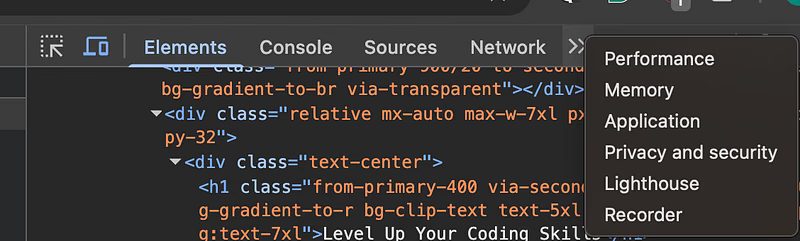
Click the two arrows on the right and select Lighthouse. Choose to analyse your page load and you’ll get a report:
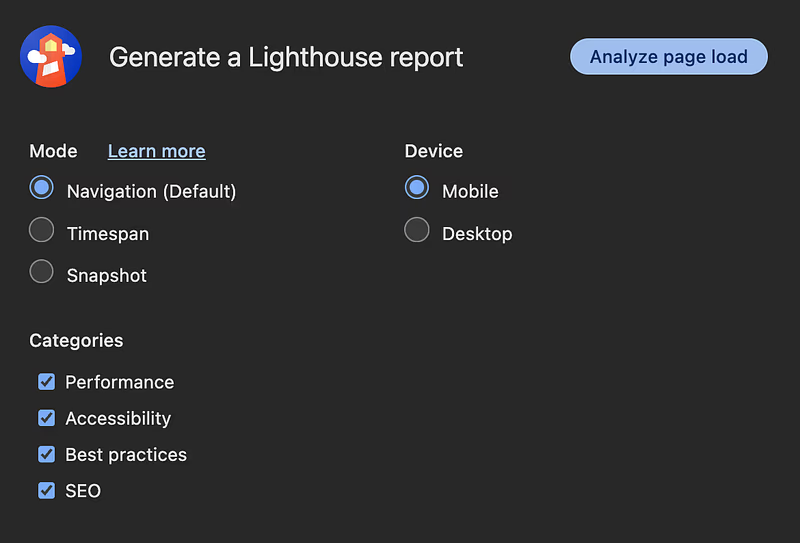
You can use this report to guide the development of your site.
Next Steps
Want to go deeper down the Cloudflare rabbit hole? Learn how to add an API endpoint to your site:
SvelteKit + Cloudflare — Create an API Endpoint
Final Words
Thank you for reading up to this point! The idea this tutorial could help someone get started on the web fills me with happiness. I hope you use it again and again to get your ideas into the world quickly.
I write articles for two reasons. Firstly, as tutorials for my future self, and secondly to share practical knowledge that makes people effective at tech. If you want to improve your practical full stack skills, subscribe and I’ll see you in the next one!