The Simplest AWS Lambda in Golang
Typescript CDK for the infrastructure, Golang for the code.
This is for all the people suffering under the oppression of AWS’ lacklustre docs. Here’s how to make a Go Lambda via the Typescript Cloud Development Kit (CDK). I have trial-and-errored my way to the solution.
I’m going to assume you have Golang and Nodejs installed already. If not, you’ll need to do that first. I suggest asdf for improved version management if you're on Mac or Linux. If you’re on Windows, yikes. You better download the source code:
- Golang: https://go.dev/doc/install
- Nodejs: https://nodejs.org/en/download
Step 0 — Install the CDK
Run the following command from your terminal:
npm install -g aws-cdk
This installs a global version of the CDK so that you can use the Command Line Interface (CLI) anywhere.
Step 1 — Setup Your CDK Directory
Make a directory for your CDK project. Any old folder will do. Open a terminal and cd into it, then run this command:
cdk init app --language typescript
Run through the options, and your directory will be ready to go. In case it’s not apparent, setting the language to typescript will initialise the project for the typescript version of the CDK.
An AWS guide for the options is here:
Tutorial: Create your first AWS CDK app
Annoyingly, the Typescript AWS CDK is a huge sufferer of dependency disease, sitting pretty at an eye-watering 231MB! If you plan on making many CDK apps on your machine, I’d suggest installing pnpm for package management. It downloads packages to a central repository and re-uses them rather than installing new ones every time!
Fast, disk space efficient package manager | pnpm
As of Jan 2025, you can install it using npm with:
npm install -g pnpm@latest-10
Bun is an option, too, although I haven’t tried it:
Bun - A fast all-in-one JavaScript runtime
Step 2 — Setup your AWS account
You must log in to your AWS account to use the CDK. Assuming you already have an account set up, you can do this with:
aws sso login --profile <your-profile-here-if-you-have-one>
This will open a page on your browser. Log in to AWS, and you can use CDK to deploy. Next, set up your AWS account by running the following:
cdk bootstrap --profile <your-profile-here-if-you-have-one>
This sets up your AWS account with S3 resources and prepares your environment for deploying CDK-defined infrastructure.
Aside — Profiles
To see your available AWS profiles, run this command:
aws configure list-profiles
You’ll get a list of possible profiles you can use to connect to AWS. You can also see these profiles stored on file with this command:
vim ~/.aws/config
Step 3— Create a folder for your Go Code
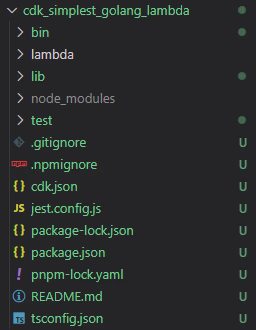
I created one called lambda, but the name isn’t important. Call it what you like. My directory looks like this now:
Step 3 — Add some simple Hello World Golang code
Next, create a Golang file called: main.go. You have to call the file main.go because Golang expects the entry point of any project to be called main and have the function main inside of it.
Put the following code inside of the file:
package main
Don’t worry about the verbose response structure. It looks intimidating, but it’s just boilerplate required by AWS’s API Gateway. Without it, we get an annoying "internal server error".
But I don’t care about API Gateway…
In that case, we can make the code even more straightforward. Use this instead:
package main

import (
 "context"

 "github.com/aws/aws-lambda-go/lambda"
)

func handler(ctx context.Context, event map[string]interface{}) (string, error) {

 return "Hi lambda", nil
}

func main() {
 lambda.Start(handler)
}
This is a lot less verbose, but it means we can’t use API Gateway.
Step 4 — Compile the code into a binary called bootstrap
On Mac
This naming scheme is standard and necessary for deploying your Lambda function. You can compile with this command on MacOS and Linux:
GOOS=linux GOARCH=amd64 go build -o bootstrap main.go
If your code is spread across multiple files, use this command:
GOOS=linux GOARCH=amd64 go build -o bootstrap
Dropping the main.go uses all the files in the folder, not just main.go.
On Windows
Use this command in PowerShell on Windows:
set GOOS=linux
set GOARCH=amd64
go build -o bootstrap main.go
If your code is spread over more than one file, you can use the following command to compile:
set GOOS=linux
set GOARCH=amd64
go build -o bootstrap
If you need to run a specific Golang version when compiling, you can use this command:
set GOOS=linux
set GOARCH=amd64
go1.22.5 build -o bootstrap
This will compile with Golang: version 1.22.5.
Other Powershell Commands
Sometimes, I have no luck with the commands above. I’m not exactly sure why. This PowerShell command seems to sort out the issue:
$env:GOOS="linux"; $env:GOARCH="amd64"; $env:CGO_ENABLED="0"; go build -o bootstrap
There are two things here, CGO_ENABLED=0 and the alternative $env setting method. At this point, I’m not sure which one fixes the problem. But if you’re getting annoying errors like this:
RequestId: 5f2cbb1e-8dc5-43f2-99bd-cf7570ff58b2 Error: fork/exec /var/task/bootstrap: exec format error
It’s worth checking if the above command can fix it for you.
Extra Info
You may read online that you have to grant bootstrap execute permissions and zip it into an archive. In CDK, this is NOT TRUE! Zipping your bootstrap reduces the size of your Lambda function by selecting only the bootstrap binary, but it is unnecessary for deployment and unimportant for a lambda of our size.
If you want to zip bootstrap anyway, that’s your prerogative. Just make sure the code argument in your CDK stack points to the archive.
Step 5 — Set up your simple stack with an API Endpoint
Define your infrastructure using the Typescript CDK like so:
import * as cdk from "aws-cdk-lib";
import { Construct } from "constructs";
import * as lambda from "aws-cdk-lib/aws-lambda";
import * as apigateway from "aws-cdk-lib/aws-apigateway";
import * as path from "path";

export class CdkSimplestGolangLambdaStack extends cdk.Stack {
  constructor(scope: Construct, id: string, props?: cdk.StackProps) {
    super(scope, id, props);

    const goLambda = new lambda.Function(this, "GoLambdaFunction", {
      runtime: lambda.Runtime.PROVIDED_AL2023, // Use the custom runtime
      handler: "bootstrap", // Go binary name
      code: lambda.Code.fromAsset(path.join(__dirname, "../lambda")), // Path to Go binary
    });

    const endpoint = new apigateway.LambdaRestApi(this, "LambdaAPI", {
      handler: goLambda,
    });
  }
}
This gives you a lambda function running on Amazon Linux 2023, which expects a file called bootstrap in the lambda directory to handle incoming requests.
You can see we’ve attached an API Gateway to the Lambda. When we deploy, this will spit out a URL to call the Lambda function.
I still don’t care about API Gateway
If you didn’t define an API Gateway, you can use this setup instead:
import * as cdk from "aws-cdk-lib";
import { Construct } from "constructs";
import * as lambda from "aws-cdk-lib/aws-lambda";
import * as path from "path";

export class CdkSimplestGolangLambdaStack extends cdk.Stack {
  constructor(scope: Construct, id: string, props?: cdk.StackProps) {
    super(scope, id, props);

    // Define the Go Lambda function
    const goLambda = new lambda.Function(this, "GoLambdaFunction", {
      runtime: lambda.Runtime.PROVIDED_AL2023, // Use the custom runtime
      handler: "bootstrap", // Go binary name
      code: lambda.Code.fromAsset(path.join(__dirname, "../lambda")), // Path to Go binary
    });

    // Define the Lambda function URL
    const myFunctionUrl = goLambda.addFunctionUrl({
      authType: lambda.FunctionUrlAuthType.NONE,
    });

    // Output the function's url
    new cdk.CfnOutput(this, "FunctionUrl", {
      value: myFunctionUrl.url,
    });
  }
}
This adds a simpler function URL to the lambda that can also be called via HTTP request. It lacks API Gateway features but doesn’t require the verbose response setup.
Step 6 — Deploy!
Whether you’re using API Gateway or not, you can run your deployment with this:
cdk deploy --profile <your-profile-here-if-you-have-one>
Output with API Gateway
These are the IAM Statements you should get when running deploy.
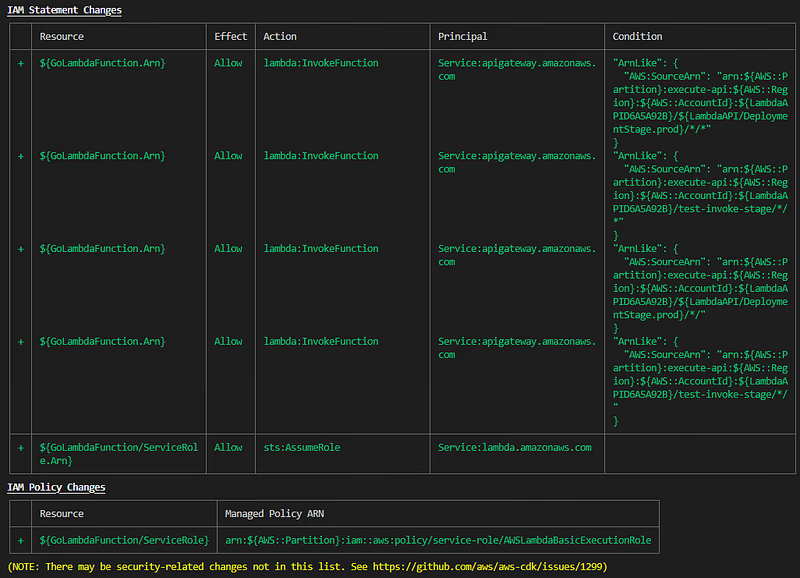
These are the statements as of 2025–01–18. This may change in the future.
Output without API Gateway
These are the IAM Statements you should get when running deploy.
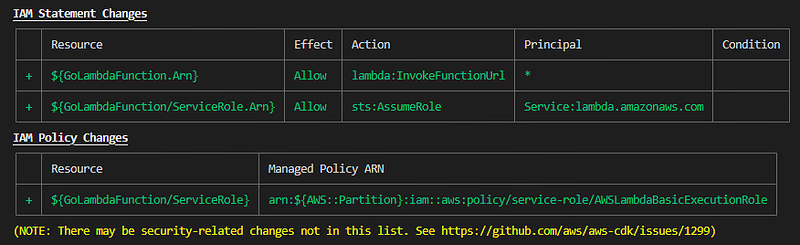
These are the statements as of 2025–01–18. This may change in the future.
Step 7 — Check the deployment worked by calling the URL
You can do this with curl:
curl https://your-aws-url.here
This should return something like this:
StatusCode        : 200
StatusDescription : OK
Content           : {"message":"Hello, AWS Lambda!"}
...
If you get a message like the above, congratulations! You have a running Golang Lambda on your AWS account.
Step 8— Quickly change and redeploy Go Lambda logic
Sometimes, you don’t need to redeploy your infrastructure. For example, when you make a small change to your code. In these instances, you can hot swap with the following command:
cdk deploy --hot-swap
As long as you’ve recompiled your Golang binary bootstrap, this will swap out the code quickly for you. Mine ran in 27 seconds, an absolute miracle for cloud deployments. Firebase often takes minutes at a minimum.
Step 9 — Get rid of your Lambda function
To get rid of the function, you can run the following command:
cdk destroy --profile <your-profile-here-if-you-have-one>
This will go into your AWS account and delete your CDK stack, shutting down all resources you’ve used to support your Lambda.
Gotchas
internal server error
You might see this a lot when trying to call your lambda via the API Gateway:
PS C:/some-file-path/cdk_simplest_golang_lambda> curl https://some.url.amazonaws.com/prod/
curl : {"message": "Internal server error"}
At line:1 char:1
+ curl https://some.url.amazonaws.com/prod/
+ ~~~~~~~~~~~~~~~~~~~~~~~~~~~~~~~~~~~~~~~~~~~~~~~~~~~~~~~~~~~~~~~~~
    + CategoryInfo          : InvalidOperation: (System.Net.HttpWebRequest:HttpWebRequest) [Invoke-WebRequest], WebException
    + FullyQualifiedErrorId : WebCmdletWebResponseException,Microsoft.PowerShell.Commands.InvokeWebRequestCommand
I spent a long time debugging this one, with no definite answer. In the end, I had to assume the problem was cached state from a previous non-functional bootstrap binary. To fix:
- Destroy the current stack with
cdk destroy. - Delete the
/cdk.outdirectory. - Redeploy using
cdk deploy
If this doesn’t fix your issue, please leave a comment. I want a second chance at figuring this out.
Final Words
Golang Lambda deployed!…? No? Shit. Well these are the official AWS docs on deploying Golang Lambdas, I hope they’re more helpful to you than they were to me!
Building Lambda functions with Go
If you have questions, drop them in the comments, I’m happy to help. Go forth and Devops.