The Simplest AWS Lambda in Python
How do you set up an AWS Python Lambda using the Python CDK?
You can do it all in Python. Infrastructure as Code? No problem. Lambda function? Easy. If all you know is Python, the full-stack world is still open to you.
This tutorial shows you how to set up an AWS CDK project to deploy a simple Python Lambda function.
What is CDK?
If you’ve stumbled across this and have no idea what CDK stands for, it's the “*Cloud Development Kit*.” An AWS tool for managing infrastructure as code. It translates Python or TypeScript code into CloudFormation templates, declarative documents that tell AWS how and what resources to provision on your account.
Without further ado, let’s build.
Step 0 — Preparation
The Python CDK Project
I’m assuming you've already set up your CDK project. If not, read this:
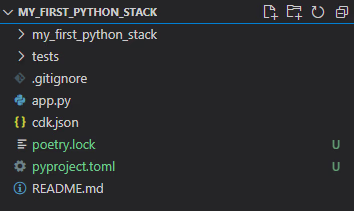
You should end up with a directory structure that looks like this:
An AWS Account
I’m also assuming you already have an AWS account set up that works on the CLI. If not, read this:
Configuring IAM Identity Center authentication with the AWS CLI
Now, let’s get to it.
Step 1 — Prepare the CLI
To deploy a stack via CDK, you need to be signed in to AWS on the CLI. Assuming you’re already signed in to your account, you can do this with:
aws sso login
If you have separate profiles for different AWS accounts, you can use:
aws sso login --profile <your-profile-here>
I will use --profile in every command from now on. If you’re not using a profile, delete it from the command.
Running the above will open a page on your browser. Log in to AWS, and you can use CDK to deploy. Next, if this is your first time using CDK on your account, run the following:
cdk bootstrap --profile <your-profile-here-if-you-have-one>
This adds S3 resources and prepares your environment for deploying CDK-defined infrastructure.
Aside — Profiles
Profiles are AWS CLI configurations saved on your local machine. To see your available AWS profiles, run this command:
aws configure list-profiles
You’ll get a list of possible profiles you can use to connect to AWS. You can also see these profiles stored on file with this command:
vim ~/.aws/config
Step 2— Create a Folder for Your Python Code
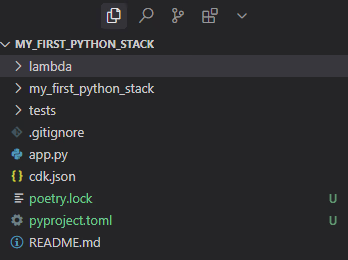
I created one called lambda, but the name isn’t important. Call it what you like. My directory looks like this now:
Step 3 — Add a Hello World Endpoint
Create a new Python file. The name isn’t important, but I’ve called mine lambda_function.py. Paste the following code into your file:
import json
The name of the function isn’t important either. However, convention is to call the entry point of your lambda handler or lambda_handler. As you can see, this function accepts an event from the requester and, regardless of what is in that event, responds with the “Hello Lambda!” JSON.
Returning JSON isn’t necessary, but it is the overwhelming convention . Hence its usage here.
Event and Context
The event and context input parameters must be given. They contain information from the requester and context about the Lambda function runtime, respectively.
It works like this: you need information from two places, the requester and the runner. The requester gives it to you in the event parameter, and the runner (AWS Lambda) gives it to you in the context parameter.
Step 4 — Write the Stack Code
To deploy your Lambda function, you need to write some basic Python stack code. In your root directory you will see a folder named after your CDK project. For example:
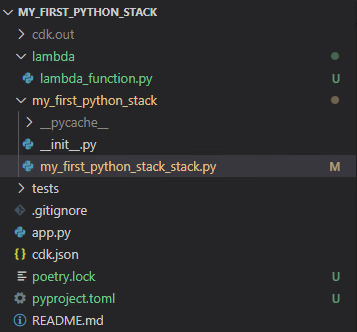
My project is called my_first_python_stack. So my stack file’s path from root is: ./my_first_python_stack/my_first_python_stack_stack.py. Yes, there are two stacks at the end.
Open your version of this file, and you will see some boilerplate already there. Don’t worry about it, delete it and paste this instead:
from aws_cdk import (
    Stack,
    aws_lambda as _lambda,
)
from constructs import Construct


class MyFirstPythonStackStack(Stack):

    def __init__(self, scope: Construct, construct_id: str, **kwargs) -> None:
        super().__init__(scope, construct_id, **kwargs)

        # Base lambda function set up
        fn = _lambda.Function(
            self,
            "MyFunction", # <-- The name of the function in Cloud Formation
            runtime=_lambda.Runtime.PYTHON_3_11, # <-- Choose your environment
            code=_lambda.Code.from_asset("lambda"), # <-- Your directory
            handler="lambda_function.lambda_handler", # <-- Change this if you named your file and handler differently
        )

        # Create a function URL for the Lambda function
        fn_url = fn.add_function_url(
            auth_type=_lambda.FunctionUrlAuthType.NONE,  # Public access, no Auth required
            cors=_lambda.FunctionUrlCorsOptions(
                allowed_origins=["*"], # Allow the request to come from any origin
                allowed_methods=[_lambda.HttpMethod.ALL], # Allow the request to have any http method
                allowed_headers=["*"], # Allow any headers in the request
            ),
        )

        # Output the function URL
        from aws_cdk import CfnOutput

        # Print the URL address to the terminal when you deploy
        CfnOutput(
            self,
            "FunctionUrl",
            value=fn_url.url,
            description="URL for the Lambda function",
        )
I’ve added This stack defines two things:
- Your core function:
_lambda.Function(...) - A URL to call the core function:
fn.add_function_url(...)
The final part CfnOutput prints the url address out when you deploy. This will be helpful later when we test the deployment.
Step 5 — Deploy!
To deploy your stack, navigate to the root directory in the terminal and run:
cdk deploy --profile <your-profile-here-if-you-have-one>
This will synthesise your stack and then show you any security changes you’re making. For example, on deployment, my stack produced the following:
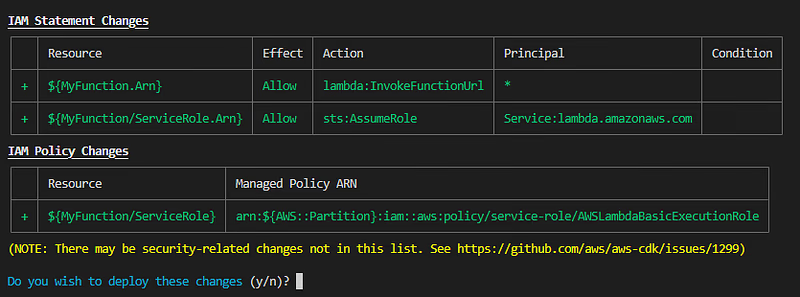
IAM stands for *Identity and Access Management*. These statements are telling you about new permissions being created to fulfil your stack. They’re highlighted because AWS wants to give you oversight of the security of your resources.
From the above, lambda:InvokeFunctionUrl is granting anyone access to invoke your Lambda function, and sts:AssumeRole is alloing the AWS Lambda service to control your function. The policy change is associated with the sts:AssumeRole and allows your function to write logs etc.
Type y to deploy. You can see the deployment happen in the terminal.
Step 6 — Call Your Function
At the end of the deployment, you will have an output like this:
Outputs:
MyFirstPythonStackStack.FunctionUrl = https://hgkcnx665cppv6x2s2fsvuif7m0bphne.lambda-url.eu-west-2.on.aws/
Copy the URL and try it out with this curl command:
curl <your-url-name-here>
This should return something like this:
StatusCode        : 200
StatusDescription : OK
Content           : {"message":"Hello Lambda!"}
...
If you get a message like the above, congratulations! You have a running, working Python Lambda deployed!
On the Function URL
Why am I okay showing you my function URL? Because it’s newly generated on every fresh deployment of the stack. Fresh means you’re not updating a current stack with cdk deploy you’re adding a new one.
At this level, this won’t cause you any issues. However, for production stacks, having a set URL address is essential. That’s when you should start looking at API Gateway.
Step 7 — Quickly Redeploy Your Stack
Oops! You made a mistake in your initial Python code, and now you have to redeploy your stack. A full deployment of this tiny stack takes about 30 seconds; that’s annoying. Well, you can speed it up with this command:
cdk deploy --hot-swap --profile <your-profile-here-if-you-have-one>
If you’re change is a simple alteration to the Python code this will deploy in roughly 7 seconds. Now that is FAST. The --hot-swap flag is the magic here. The flag causes CDK to examine the required changes to your stack closely and take the minimum number of steps to make them.
Step 8 — Get rid of your Lambda function
Finally! After all that excitement, you don’t want an AWS bill building up, so you need to remove your stack. You can do that with:
cdk destroy --profile <your-profile-here-if-you-have-one>
This will go into your AWS account and delete your CDK stack, shutting down all resources you’ve used to support your Lambda.
Final Words
Python Lambda deployed!…? No? Shit. Well, these are the official AWS docs on deploying Python Lambdas… Good luck.
Building Lambda functions with Python
If you have questions, drop them in the comments. I’m happy to help. If you’re interested in seeing a complex Python stack, subscribe; that’s coming next.
Go forth and DevOps.