The Simplest Firebase API
How to create a “hello world” Firebase API using Python.
Firebase is Google’s best Cloud product. Their “backend as a service” model makes the cloud easy. They give you all the tools you need to succeed in a simple, beautiful interface. It’s easy to develop, and the documentation is excellent.
In this article, I will show you how to set up your first Firebase project: a simple “hello world” API that you can call from your browser. Let’s go.
Step 0 — Preparation
This tutorial uses firebase-tools a suite of tools that let you emulate your cloud environment on your local machine. This simplifies and improves the development process. The easiest way to use this toolkit is through Node, which you can install here:
Node.js - Run JavaScript Everywhere
Node is a software package that lets you run Javascript code outside of the browser. It runs on the V8 JavaScript engine that powers Chrome. Node is commonly used to deploy web applications and run servers.
Step 1 — Install firebase-tools
Node comes with a package manager: Node Package Manager, or npm for short. Once you have Node installed, you can run the following command from your terminal:
npm install -g firebase-toolsThis will globally install firebase-tools so that you can use it anywhere on your system. You may get some warnings, for example:
npm warn EBADENGINE Unsupported engine {
Most warnings can be ignored. However, if you find unexplained errors are happening later in the tutorial and superstatic is popping up in the stack trace, try swapping to one of the suggested required node versions.
Step 2— Set up your Firebase account
You'll need a Firebase account to run your project on the cloud. To get an account, you’ll need a Google account. If you don’t have one, you can sign up here. If you already have one, visit the Firebase console:
Because Google owns Firebase, you’ll immediately be logged in to the console. Huzzah! You have yourself a Firebase account. Next, type the following command into your terminal:
firebase loginThis will load a Google login screen on your browser. Select the account you have associated with Firebase, and allow the Firebase CLI permissions to pop up.
Congratulations! You’re connected to Firebase.
Step 3— Setup your Firebase project
Visit the Firebase console, and you’ll be presented with this screen:
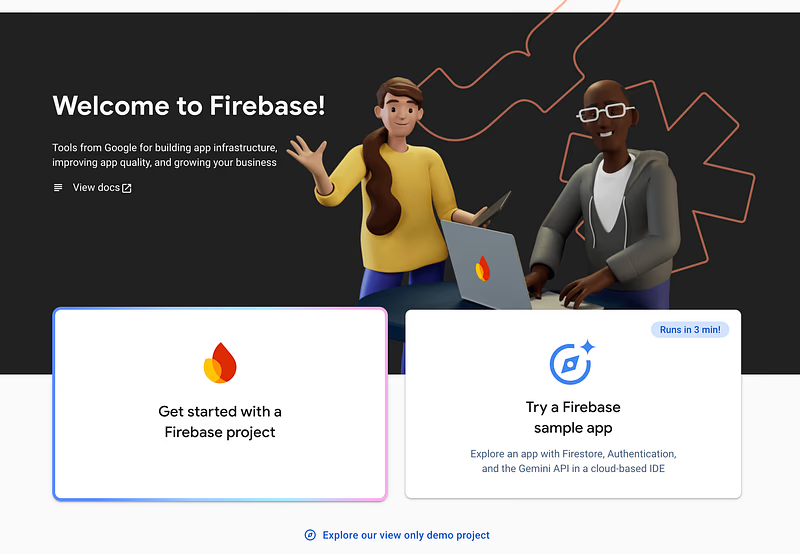
Click Get started with a Firebase project. The next screen will be:
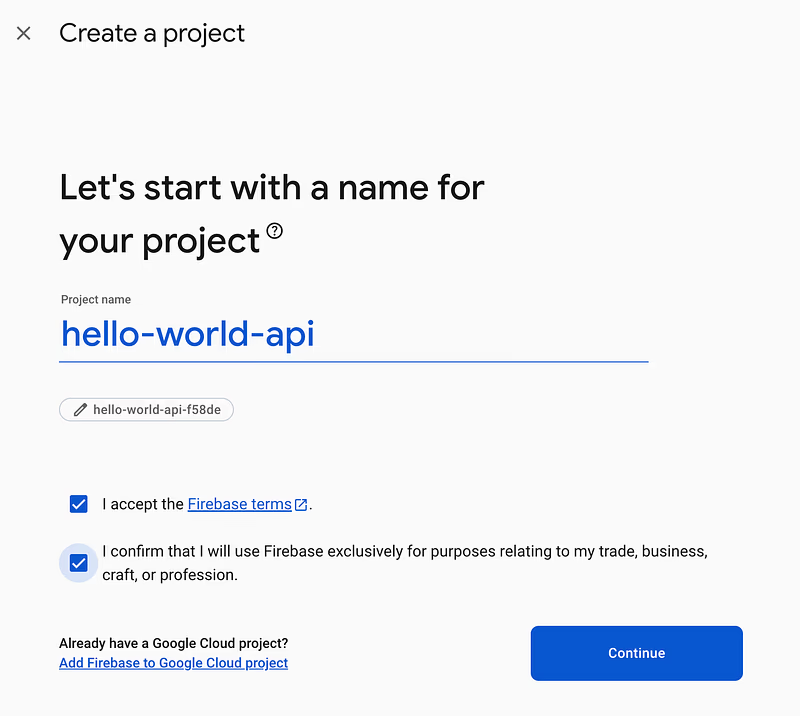
Fill in the name of your project, as I’ve done above, accept the terms, and you’re good to go. You may be wondering what the tiny chip below my project name is: hello-world-api-f58de. It’s the Project’s global ID inside of Google Cloud, a unique identifier you’ll see in your project’s URL momentarily.
Click Continue and you’ll be asked to sign up for Google Analytics. Decline on this occasion; this is just a simple app. Create your project, and you’ll see a loader like this:
Once complete, click through to your project’s page:
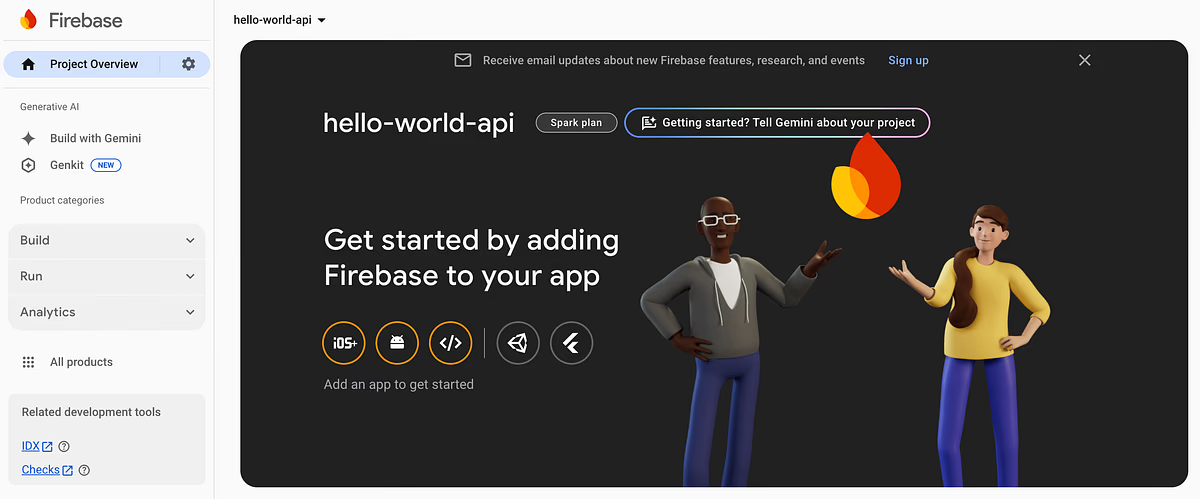
Because our project will use Firebase functions, we can’t stay on the Spark plan (free tier). We have to move to Blaze (pay as you go). Don’t worry about accidentally paying; there’s a generous free tier even on Blaze, and there’s no chance of you hitting it in this tutorial.
To swap to Blaze, click the Spark plan chip next to your Project’s name in the centre of the screen. You’ll see an interface like this:
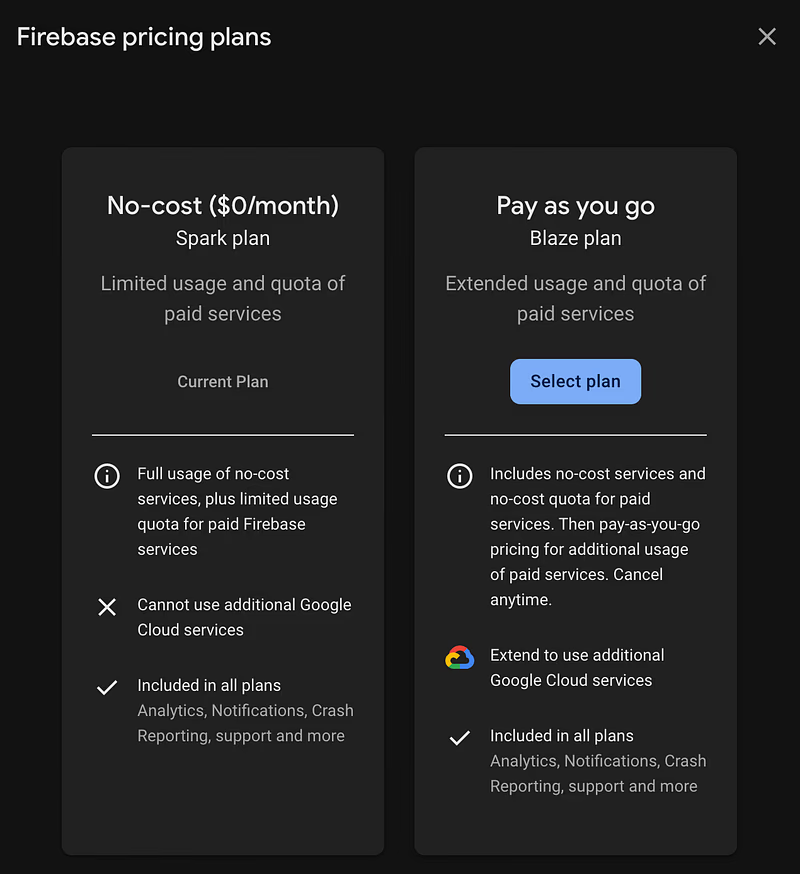
Select the Blaze plan. If you need to set up a Google Cloud billing account, also work through that process. Once you’re done, congratulations! Your project is ready to go. To check it’s worked, go back to your terminal and type the following command:
firebase projects:listYou should get output similar to the following:
✔ Preparing the list of your Firebase projects
For security purposes, don’t publicly show people your Project ID or Project Number. It is technically not secret information, but it will still make it easier to find and potentially attack your project. I’m only showing you as this project will be long deleted at the time of publishing.
Learn More about Firebase Projects
If you are interested in the intricacies of Firebase projects, you can read more here:
Understand Firebase projects | Firebase Documentation
Step 4 — Setup your local development environment
Go back to your terminal and begin by setting up a git repository with:
mkdir <your-project-name-here>
If you like, you can start a GitHub repository at the same time:
Build software better, together
Follow the instructions to link your local repo to the GitHub repo, and you’ll have a backup ready. Next, initialise the Firebase project inside of the repo with:
firebase initAn interactive terminal interface will pop up and ask you these questions:
- \What project would you like to associate this directory with? *\A: hello-world-api*
- \What Firebase features do you want? *\A: Firebase Emulators*
- What emulators functionality would you like? A: Functions Emulator
- Which port do you want to use for the functions emulator? A: 5001
- Would you like to enable the Emulator UI? A: Yes
- Which port do you want to use for the Emulator UI? A: (Just press enter)
- Would you like to download the emulators now? A: Yes
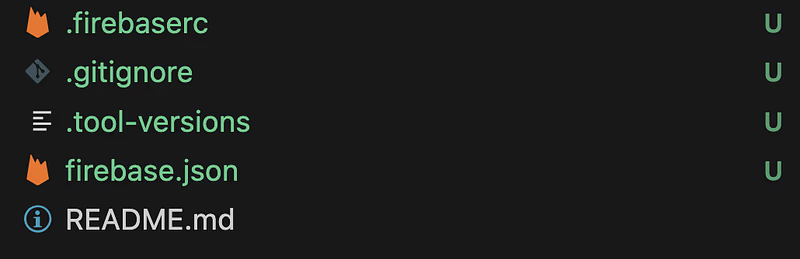
This will set up your project, and you’ll end up with a directory structure like this:
Step 5 — Add your Hello World function
To add Python functions to your project, run the following command:
firebase init functionsThis will load a terminal application again and ask you the following questions:
- What language would you like to use to write Cloud Functions? A: Python
- Do you want to install dependencies now? A: Yes
This will create the functions directory in your application and add a Python virtual environment for your cloud function’s package management.
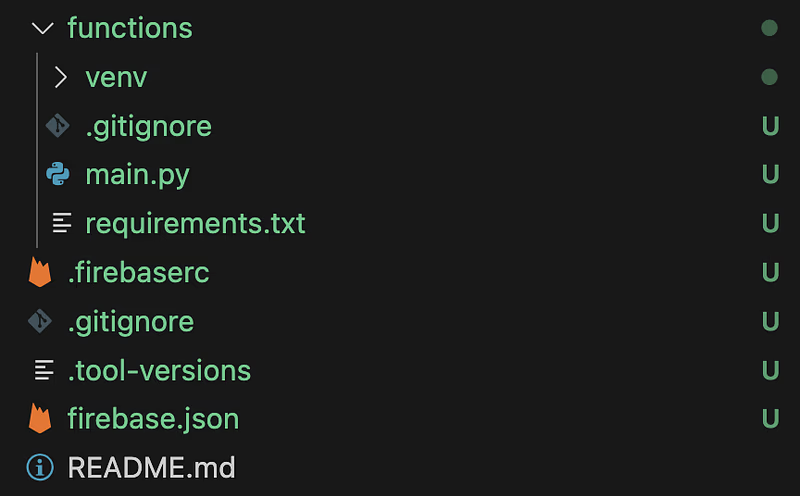
Next, look inside of the main.py file, and you’ll see the following:
# Welcome to Cloud Functions for Firebase for Python!
The “Hello world” response is already set up for you! As the doc comment suggests, uncomment the code, and you’re ready. I uncommented the endpoint and renamed it:
# Welcome to Cloud Functions for Firebase for Python!
# To get started, simply uncomment the below code or create your own.
# Deploy with `firebase deploy`

from firebase_functions import https_fn
from firebase_admin import initialize_app

initialize_app()


@https_fn.on_request()
def hello_world(req: https_fn.Request) -> https_fn.Response:
    return https_fn.Response("Hello world!")
What is https_fn?
This is a firebase module that lets you handle https requests to your server. It provides a Request type and a Response type for you to use.
What is initialize_app?
This function initialises Firebase’s services so you can use them in your code.
Step 6 — Run the function on the local emulator
Go back to your terminal and start your emulator with:
firebase emulators:startThis will start a process that deploys your functions to the port you chose during firebase init. In my case, this is port 5001. You’ll be given some output similar to this:
✔  functions: Loaded functions definitions from source: hello_world.
✔  functions[us-central1-hello_world]: http function initialized (http://127.0.0.1:5001/hello-world-api-f58de/us-central1/hello_world).
Copy the function URL from the second line, and you can immediately test it works with curl:
curl -X GET "http://127.0.0.1:5001/hello-world-api-f58de/us-central1/hello_world"You should use whatever your own URL is here; mine won’t work for you! The expected response is: "Hello world".
Step 7 — REST API with POST requests
This is awesome, but let’s up the complexity. Let’s get our API to handle JSON input from the request. Alter the main file to the following:
from firebase_functions import https_fn
from firebase_admin import initialize_app

initialize_app()


@https_fn.on_request()
def hello_world(req: https_fn.Request) -> https_fn.Response:
    # Get JSON data from the request body
    request_json = req.get_json(silent=True)

    return {
        "message": f"Hello {request_json['name']}!",
    }, 200
This will trigger an automatic redeployment from your emulators application. Wait for the functions to be redeployed:

Then set up either a Jupyter Notebook, or a Python script. Download the requests package with pip install requests, then, make a request to your API endpoint with this code:
import requests

response = requests.post(
    "http://127.0.0.1:5001/hello-world-api-f58de/us-central1/hello_world",
    json={"name": "Connor the Wise"}
)
print(response.json())
The output will look like this:
{'message': 'Hello Connor the Wise!'}Step 8 — Deploy the function to the cloud
Now we’ve set up our function and tested it locally, we can deploy it to the cloud. Run the following in the terminal:
firebase deploy --only functionsThis process WILL take a long time, which is Firebase’s worst feature. Python functions take an absolute age to upload. It will eventually complete, though, and when it does, you’ll see something like this:
.
.
.
Function URL (hello_world(us-central1)): https://us-central1-hello-world-api-f58de.cloudfunctions.net/hello_world
.
.
.
This is your function’s live URL! If your API responds to GET requests you can paste this straight into your browser and get "Hello world!" in return. If you made it a POST request in step 7, you’ll have to use Python to get a response:
import requests

response = requests.post(
    "https://us-central1-hello-world-api-f58de.cloudfunctions.net/hello_world",
    json={"name": "Connor the Wise"}
)
response.json()
This will return you: {'message': 'Hello Connor the Wise!'}.
The Final Word
There you have it! That’s how you can make the simplest possible API in Firebase and get it live on the internet. I hope you found this helpful; if you have any questions, post them in the chat. If you’d like to know how to use Firestore with your API, stick around; that article’s coming soon…
Some Related Docs
While writing this article, I stumbled across some good resources. Peruse them at your leisure:
Get started: write, test, and deploy your first functions | Cloud Functions for Firebase