Use a D1 Database in a Cloudflare Pages SvelteKit Application
How to set up a Cloudflare D1 bucket and use it to store and serve data in a SvelteKit application deployed via GitHub.
Cloudflare’s serverless offerings are incredible, and D1 is no different. It’s a serverless, SQLite database that lets you pull data into your applications fast. SvelteKit is the perfect modern partner for Cloudflare, easy to build with, and easy to deploy. This article will show you how to:
- Set up a D1 database via the wrangler CLI tool.
- Bind the Database to your SvelteKit Pages application.
- Set up your SvelteKit application to receive the Database from Cloudflare.
- Set up a basic comments frontend.
- Set up an API endpoint for interacting with the D1 Database.
- Use the D1 database in local deployment (
npm run dev). - Deploy to production, and check out your data in the Cloudflare D1 dashboard.
This is the next article in a series of articles I’ve published on SvelteKit + Cloudflare, so if you don’t meet the prerequisites below, you can start from the beginning here:
The Best Frontend — SvelteKit + Tailwind + Cloudflare
And if the comments test page is still up, it might not be if it’s getting botted, you can see it here:
Comments Test - Database Testing
Prerequisites
Here’s what you’ll need to complete this tutorial:
- A SvelteKit application deployed to Cloudflare Pages via their GitHub integration.
npx— The npm eXecutor, it downloads packages and executes commands from them without installing locally.- Basic knowledge of the
Node.jsecosystem.
Let’s get started.
Step 1 — Set Up The D1 Database
The easiest way to set up the database is via Cloudflare’s awesome CLI tool wrangler. This lets you manage your infrastructure from the command line. First, log in to wrangler if you haven’t already:
npx wrangler loginWalk through the OAuth login flow and confirm access for the CLI tool. You can check that you have successfully logged in with:
npx wrangler whoamiOnce you’re successfully logged in, you can use this command to create a D1 Database:
npx wrangler d1 create <your-database-name>Add in the name you’d like to give your database. I’m going to use:
npx wrangler d1 create fullstackgaming-database-prodYou’ll see some output like this:
{
  "d1_databases": [
    {
      "binding": "DB",
      "database_name": "fullstackgaming-database-prod",
      "database_id": "bdff2fd9-95b7-4t78-b22f-asd868fe6b78"
    }
  ]
}
Save this, we’ll be using it in the next step. If you want to double-check the database exists, you can run:
npx wrangler d1 listYou’ll get some output like this:
 ⛅️ wrangler 4.19.1 (update available 4.23.0)
─────────────────────────────────────────────
┌──────────────────────────────────────┬───────────────────────────────┬──────────────────────────┬────────────┬────────────┬───────────┐
│ uuid                                 │ name                          │ created_at               │ version    │ num_tables │ file_size │
├──────────────────────────────────────┼───────────────────────────────┼──────────────────────────┼────────────┼────────────┼───────────┤
│ bdff2fd9-95b7-4t78-b22f-asd868fe6b78 │ fullstackgaming-database-prod │ 2025-07-06T21:14:50.683Z │ production │            │ 0         │
└──────────────────────────────────────┴───────────────────────────────┴──────────────────────────┴────────────┴────────────┴───────────┘
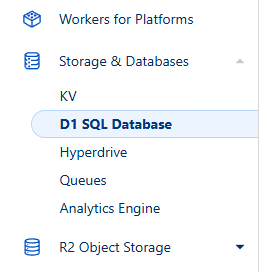
Confirming, yes, it worked, you have a D1 Database. If you’re really worried, you can also check on the Cloudflare dashboard. In the left-hand side bar, select Storage & Databases > D1 SQL Database:
You should see something like this:
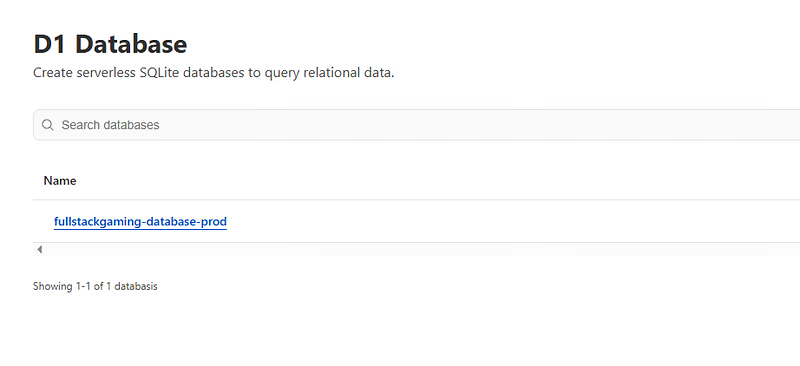
With that set up ready to go, let’s bind it to the project.
Step 2 — Bind The D1 Database To Your SvelteKit Application
To begin, we need to bind the database, which is Cloudflare’s name for adding a resource to your pages application. Cloudflare allows you to do this with a file called: wrangler.jsonc a deployment configuration file. It lets you control what resources are attached to your Pages application within your repo.
If you don’t have one already, create one by running the following command from your project’s root:
touch wrangler.jsoncInside this file, paste the following:
{
  "name": "fullstackgaming",
  "compatibility_date": "2025-01-01",
  "pages_build_output_dir": ".svelte-kit/cloudflare"
  // <your-output-from-step-1>
}
In my case, I ended up with the following file:
{
  "name": "fullstackgaming",
  "compatibility_date": "2025-01-01",
  "pages_build_output_dir": ".svelte-kit/cloudflare",
  "d1_databases": [
    {
      "binding": "DB",
      "database_name": "fullstackgaming-database-prod",
      "database_id": "bdff2fd9-95b7-4t78-b22f-asd868fe6b78"
    }
  ]
}
Here’s an explanation of what all of this means:
name- The project name used by Wrangler and Cloudflare to identify this app or worker. It’s often used in URLs or dashboard listings.compatibility_date- Specifies which version of the Workers runtime APIs your project expects. This allows Cloudflare to avoid breaking changes by locking in behaviour as of this date.pages_build_output_dir- The output directory for your built Pages project. In this case, it's pointing to the SvelteKit build output for Cloudflare. This tells Wrangler to look in this directory for the deployment.d1_databases- An array of D1 database bindings that connect your project to Cloudflare's D1 SQL database service. Each entry in the array represents a database your Worker or Pages project can access.binding- The variable name your code will use to reference this D1 database (e.g.env.DBin Workers). You can call this whatever you like.D1is an obvious but boring name, but not necessary. You can call the database binding whatever you like, even something silly likeporridgewould work.database_name- The human-readable name of the D1 database as it appears in the Cloudflare dashboard.database_id- The unique identifier for the D1 database instance — required for API operations and deployment linkage.
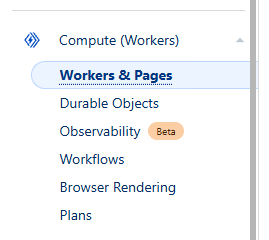
Push your code to GitHub and let your site redeploy. Bingo, you can now access a D1 database. If you want to double-check, go to your site’s Cloudflare Pages deployment. Click on Workers & Pages under Compute (Workers) in the left-hand side panel:
You should see a page like this:
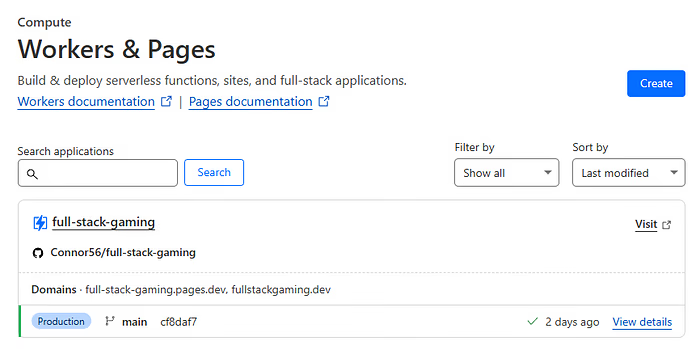
Click on your site. From the resulting page, select the Settings option:
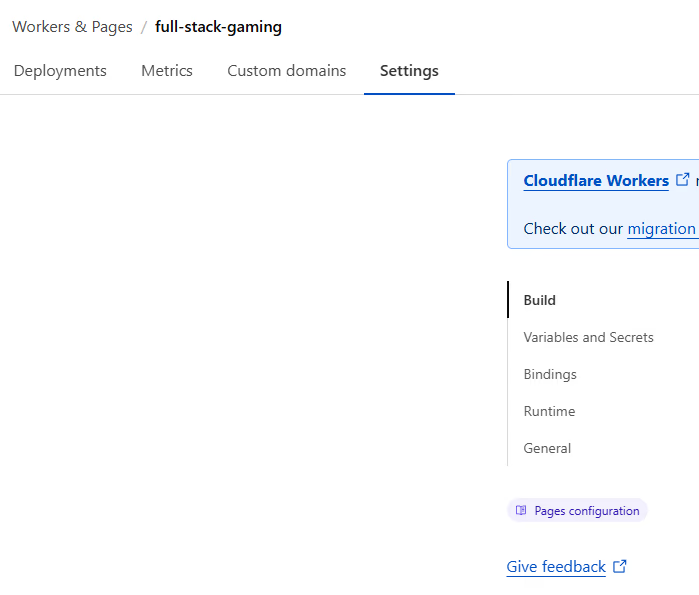
In the sidebar, select Bindings. You should see your database bound to your application:
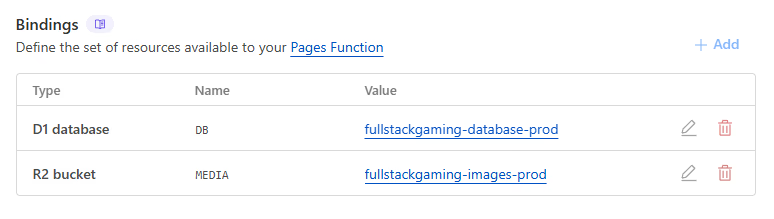
You can see mine bound with the name DB as we expect from wrangler.jsonc. Ignore the R2 bucket it’s from a previous tutorial — you shouldn’t expect to see it attached to your Pages application.
Step 3 — Prepare SvelteKit To Use the D1 Database
Now that the database is bound, we need set up SvelteKit so that it can use it. You can read more about how to do this in SvelteKit’s adapter-cloudflare documentation.
Simply, SvelteKit has a file: src/app.d.ts. This file defines all of the _ambient types_. These types are automatically imported and available everywhere in your SvelteKit app. One of those types is: platform, this type contains platform-specific values. Cloudflare populates this with connections to Cloudflare resources.
To make the database available, open your src/app.d.ts file:
// See https://svelte.dev/docs/kit/types#app.d.ts
// for information about these interfaces
declare global {
  namespace App {
    // interface Error {}
    // interface Locals {}
    // interface PageData {}
    // interface PageState {}
    // interface Platform {}
  }
}

export {};
If you’ve created a brand new SvelteKit site, it will look like the above. You have:
global— A declaration, which allows you to extend the global variable space.namespace App— A namespace within the global space that helps you avoid aliasing.
Within the namespace, you can see all of the standard SvelteKit type interfaces commented out. We want to uncomment the Platform interface and tell SvelteKit to expect a D1 Database:
import { D1Database} from '@cloudflare/workers-types';

// See https://svelte.dev/docs/kit/types#app.d.ts
// for information about these interfaces
declare global {
 namespace App {
  // interface Error {}
  // interface Locals {}
  // interface PageData {}
  // interface PageState {}
  interface Platform {
   env: {
    DB: D1Database;; // <-- Your Variable name from Step 2 (could be porridge)
   };
  }
 }
}
export {};
The resulting code should look like the above. This makes your bucket available under the platorm.env.<your-name-here>. In my case, platform.env.DB.
If you’re seeing an error on the D1Database import, you may need to install the @cloudflare/workers-types, you can do this with:
npm install @cloudflare/workers-typesStep 4 — Use the Database
To show it working, let’s create a live comments section. We want the following:
- A page that shows all the comments made by people in a list.
- The ability for anyone to leave a comment.
- The ability for anyone to delete anyone else’s comment.
- The comments shared globally via the database.
For this, we’ll need two things:
- A new route to a
comments-testpage. - A new api endpoint
api/commentsto handle addition, deletion, and fetching.
Let’s start with the page.
Comments Test Page
Create a new test page route:
mkdir -p src/routes/comments-test && touch src/routes/comments-test/+page.sveltePaste the following into your +page.svelte:
<script lang="ts">
 import { onMount } from 'svelte';

 interface Comment {
  id: number;
  content: string;
  created_at: string;
 }

 let comments = $state<Comment[]>([]);
 let newComment = $state('');

 // Fetch comments from the API
 async function fetchComments() {
  const response = await fetch('/api/comments');
  const data = await response.json();

  if (response.ok) {
   comments = data.comments;
  } else {
   console.error('Failed to fetch comments');
  }
 }

 // Add a new comment
 async function addComment() {
  // Ignore empty comments
  if (!newComment.trim()) return;

  const response = await fetch('/api/comments', {
   method: 'POST',
   headers: {
    'Content-Type': 'application/json'
   },
   body: JSON.stringify({ content: newComment.trim() })
  });

  await fetchComments(); // Refresh the list
 }

 // Delete a comment
 async function deleteComment(id: number) {
  const response = await fetch(`/api/comments?id=${id}`, {
   method: 'DELETE'
  });

  await fetchComments(); // Refresh the list
 }

 // Format date for display
 function formatDate(dateString: string): string {
  const date = new Date(dateString);
  return date.toLocaleString();
 }

 // Load comments on mount
 onMount(fetchComments);
</script>

<svelte:head>
 <title>Comments Test - Database Testing</title>
</svelte:head>

<div style="max-width: 56rem; margin-left: auto; margin-right: auto; padding: 1.5rem;">
 <h1 style="margin-bottom: 1.5rem; font-size: 1.875rem; line-height: 2.25rem; font-weight: 700;">
  Comments Test Page
 </h1>
 <p style="margin-bottom: 2rem; color: #4B5563;">
  This page tests the D1 database functionality with persistent comments. You can add, view, and
  delete comments.
 </p>

 <!-- Add Comment Form -->
 <div
  style="margin-bottom: 2rem; border-radius: 0.5rem; border: 1px solid #E5E7EB; background-color: white; padding: 1.5rem;"
 >
  <h2 style="margin-bottom: 1rem; font-size: 1.25rem; line-height: 1.75rem; font-weight: 600;">
   Add New Comment
  </h2>
  <form style="display: flex; flex-direction: column; gap: 1.5rem;">
   <div>
    <label for="comment" style="color: black;">
     Comment <span style="color: #F87171;">*</span>
    </label>
    <textarea bind:value={newComment} style="width: 100%; border-radius: 0.5rem; color: black;"
    ></textarea>
   </div>
   <button
    onclick={addComment}
    style="background: #6366f1; border-radius: 2rem; padding: 0.5rem 1rem; color: #fff; cursor: pointer;"
   >
    Add Comment
   </button>
  </form>
 </div>

 <!-- Comments List -->
 <div style="border-radius: 0.5rem; background-color: white; padding: 1.5rem;">
  <h2 style="margin-bottom: 1rem; font-size: 1.25rem; line-height: 1.75rem; font-weight: 600;">
   Comments ({comments.length})
  </h2>

  <div style="display: flex; flex-direction: column; gap: 1rem;">
   {#each comments as comment (comment.id)}
    <div style="border-radius: 0.5rem; border: 1px solid #E5E7EB; padding: 1rem;">
     <div style="display: flex; align-items: flex-start; justify-content: space-between;">
      <div style="flex: 1;">
       <p style="margin-bottom: 0.5rem; color: #1F2937;">{comment.content}</p>
       <p style="font-size: 0.875rem; line-height: 1.25rem; color: #6B7280;">
        Posted on {formatDate(comment.created_at)}
       </p>
      </div>
      <button
       onclick={() => deleteComment(comment.id)}
       style="background: #dc2626; border-radius: 2rem; padding: 0.25rem 1rem; color: #fff; cursor: pointer;"
      >
       Delete
      </button>
     </div>
    </div>
   {/each}
  </div>
 </div>
</div>

<style></style>
This includes all the functions and HTML you need to interact with the API endpoint you’ll make shortly. Briefly, these functions are:
fetchComments()— Retrieves the list of comments from the/api/commentsendpoint and updates the localcommentsvariable if successful.addComment()— Sends a new comment to the server via aPOSTrequest and then refreshes the comments list.deleteComment(id)— Sends aDELETErequest for the specified comment ID via a query parameter, then refreshes the comments afterwards.
It produces a decent-looking comment interface, but it’s a reduced version of this comment snippet:
cloudflare-d1-based-comments-section/+page.svelte at main ·…
This looks nicer, has more features, and it works with the same functions. However, it’s a bit long to paste into a Medium article, and the features aren’t necessary for showing D1 working.
That being said, the tutorial will still work with it. If you’d rather use it, you can copy code from the linked page into your +page.svelte instead.
Comments API Endpoint
With the client-side route in place, time to add the server-side route with:
mkdir -p src/routes/api/comments && touch src/routes/api/comments/+server.tsThis route matches requests that come to your-site.com/api/comments. Paste the following inside this file:
import { json } from "@sveltejs/kit";A SvelteKit API endpoint can handle multiple different request types. As you can see here, we’re handling:
GET(Retrieve Comments): HandlesGETrequests by querying the database for all comments, ordered by creation time, and returning them as JSON. It also ensures the table exists by callinginitializeDatabase().POST(Create Comment): HandlesPOSTrequests by accepting a JSON body with comment content, validating it, inserting the comment into the database, and returning a success response. This method is used to create new data on the server. It also ensures the table exists by callinginitializeDatabase().DELETE(Remove Comment): HandlesDELETErequests by reading a comment ID from the URL, checking if it exists, and deleting it from the database if found. This method is used to remove data from the server. It also ensures the table exists by callinginitializeDatabase().
As you can see, all of these functions are interacting with platform.env.DB the interaction object for the Cloudflare D1 database. Cloudflare uses its own D1 API which you can read about here:
D1 Database · Cloudflare D1 docs
Caution!
Using a function like initializeDatabase to set up your table, is NOT good practice. You should set up your database schema beforehand, manage it in source control, and rely on that schema in your endpoint. But, for our little test example, this is a reasonable hack.
That’s it then, client-side and server-side built. Time to see what it does!
Step 5 — Deploy Locally and Test
One of the greatest things about SvelteKit + Cloudflare is how easy it is to emulate a production environment locally. Cloudflare’s wrangler tool can set up a local state that perfectly mimics the Cloudflare API. This lets you run your production code locally, with no changes, as if it’s in production.
This works because we have our wrangler.jsonc and app.d.ts file set up. To run locally, use the following command:
npm run devThis sets up a directory called .wrangler. The directory structure will look something like this:
📁 .wrangler/
├── 📁 state/
│   ├── 📁 v3/
│   │   ├── 📁 cache/
│   │   ├── 📁 d1/
│   │   ├── 📁 workflows/
The structure contains your local application’s data. A Cloudflare program, called Miniflare, uses it to emulate the real Cloudflare environment. It then makes this emulated environment available to your SvelteKit app, allowing you to interact with the Cloudflare API as if the application were deployed on pages.
To test the comments-test works, you can go to: http://localhost:5173/comments-test. Your page should look more or less like this:
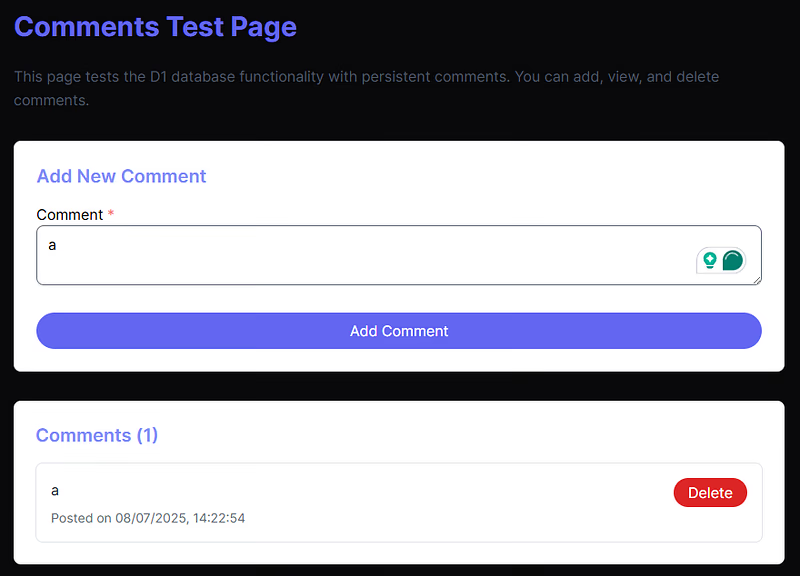
I’m using the simpler +page.svelte here. You can see I’ve added a comment. Huzzah! Have a play around with this, you’ll see it works nicely!
Step 6 — Deploy to Production
To deploy, commit your code to main, and let the GitHub-Cloudflare connection work its magic. Once complete, repeat Step 5 on the live site to check everything is working.
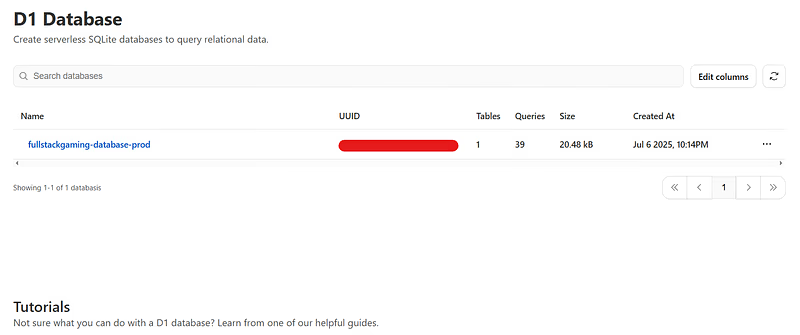
On the production site, there is one further cool way you can check that things are going through correctly. Go into the Cloudflare dashboard and in the left-hand sidebar click Storage & Databases > D1 SQL Database:
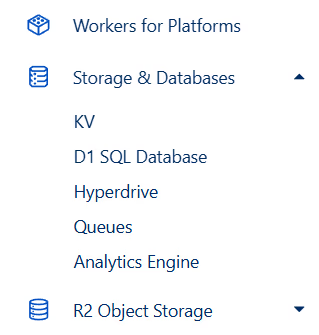
You’ll see an interface like this:
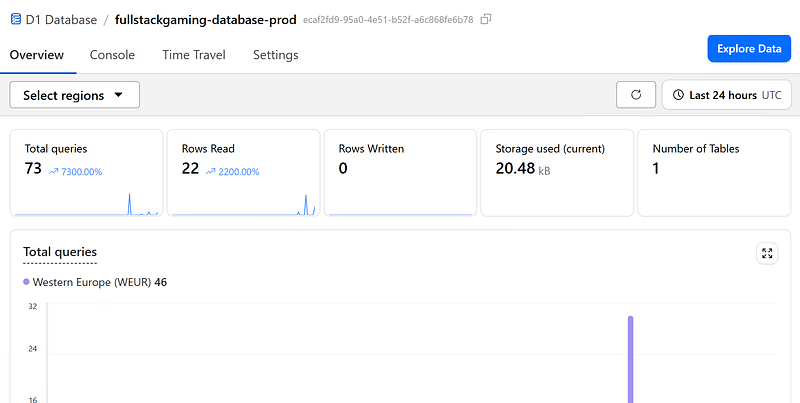
Click on the D1 database you made during this tutorial. Then, in the top right of the following screen, click on Explore Data:
From here, you’ll be able to see your comment data:
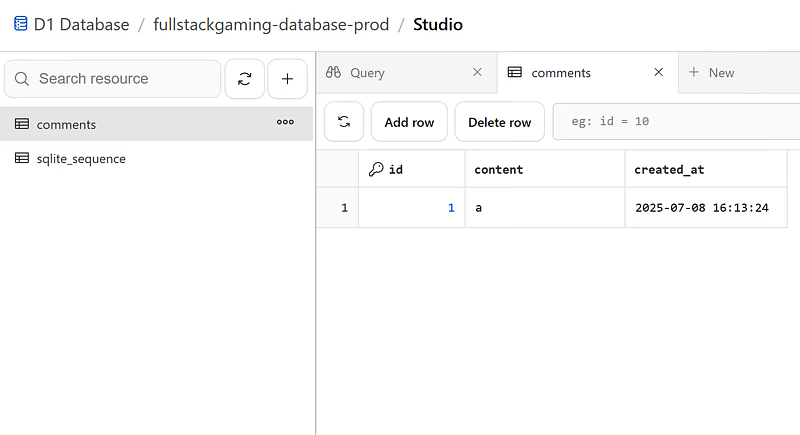
There you go! That’s how you integrate and use a D1 database on Cloudflare!
A Final Massive Warning
Don’t leave this comment section open on your live site for long. It has no protection on it whatsoever and you don’t want people filling it up with crap! This is not an article on how to create a comments section, it’s just a simple example of something you could potentially do!
Final Words
Thank you for reading! I hope this helps you get cracking with Cloudflare, D1, and SvelteKit. If you’re interested in more Cloudflare content, subscribe. I’m in the process of building a site and writing up everything I learn. Using Drizzle ORM with D1 is next.