Use an R2 Bucket in a Cloudflare Pages SvelteKit Application
How to add Cloudflare’s R2 object storage solution to a Cloudflare Pages SvelteKit application and serve media from it.
R2 is Cloudflare’s answer to AWS S3. If you’re serving images out of a SvelteKit Web app deployed on a Cloudflare page, then using R2 is the simplest, cheapest way to do it. In this tutorial, I’ll show you how to:
- Set up an R2 Bucket.
- Bind it to a Cloudflare Pages deployment.
- Add images and video to it from your local machine.
- Serve your images and video on a locally running version of your SvelteKit application.
- Serve your images and video on a production version of your SvelteKit application.
- Use a script to download your remote R2 database to your local machine.
- Manage bindings with a
wrangler.jsonc.
If you want to see the bucket serving images, you can view it on my website:
Prerequisites
Here’s what you’ll need to complete this tutorial:
- A SvelteKit application deployed to Cloudflare Pages via their GitHub integration.
npx— The npm eXecutor, it downloads packages and executes commands from them without installing locally.- Basic knowledge of the
Node.jsecosystem.
Let’s get started.
Step 1 — Create The Bucket
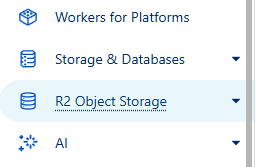
To create a bucket, you should allow R2 usage on your account. Visit the online Cloudflare dashboard GUI, and click on R2 Object Storage in the left-hand panel:
If you haven’t allowed R2 already, you’ll see the following:
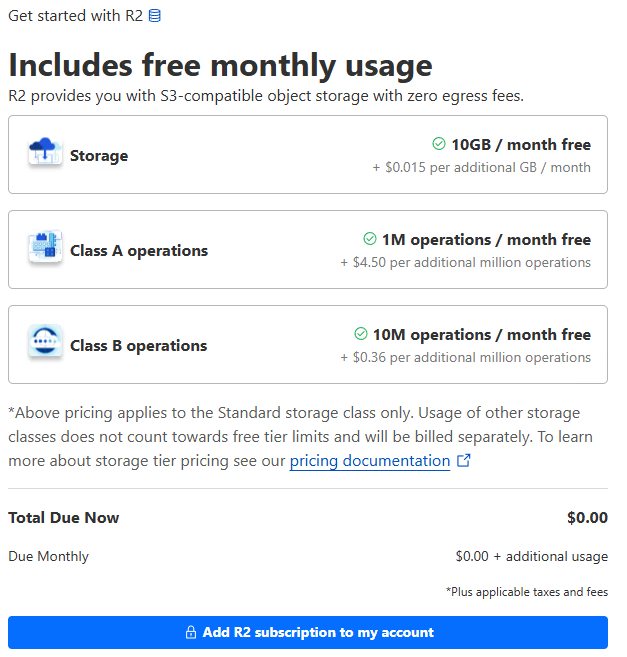
The free tier is generous; for a small site, you should never hit the limits. Click Add R2 subscription to my account. This will enable R2 for you, so you can set up a bucket.
The fastest way to do this is from the CLI, run the following command to log in to Cloudflare’s CLI tool, wrangler:
npx wrangler loginWalk through the OAuth login flow and confirm access for the CLI tool. You can check that you have successfully logged in with:
npx wrangler whoamiOnce you’re successfully logged in, you can use this command to create a bucket in R2:
npx wrangler r2 bucket create your-bucket-nameReplace your bucket name with a name you’d like to use. I’m going to use:
npx wrangler r2 bucket create fullstackgaming-images-prodYou’ll see some output like this:
{
  "r2_buckets": [
    {
      "bucket_name": "images-prod",
      "binding": "images_prod"
    }
  ]
}
Save this, we’ll use it later. If you want to double-check that you have the bucket, you can run:
npx wrangler r2 bucket listStep 2— Add an Image
You can add an image directly from the CLI, download one from the internet. I decided to download this one:
Then you can push the image into the R2 bucket with:
npx wrangler r2 object put <BUCKET_NAME>/<OBJECT_KEY> --file=<LOCAL_PATH_TO_FILE> --remoteWhere we have:
BUCKET_NAME— The name of your R2 bucket.OBJECT_KEY— The name of the file inside of the R2 bucket.LOCAL_PATH_TO_FILE— The path to the image on your local machine.--remote— This flag tellswranglerto upload your image into the live R2 bucket. Without this flag, it creates a local version.
For example, I downloaded my image to my SvelteKit project, then ran the following command:
npx wrangler r2 object put fullstackgaming-images-prod/my-test-file.png --file=.\Image_created_with_a_mobile_phone.png --remoteIf you want to double-check that the image has been uploaded, you can get bucket info with:
npx wrangler r2 bucket info fullstackgaming-images-prodThis will show you something like the following:
Getting info for 'fullstackgaming-images-prod'...
As you can see, we now have 1 object in there! If you want to triple-check, you can look at the online dashboard. Go to R2 Object Storage in the left-hand panel, click on your bucket, and you’ll see something like this:
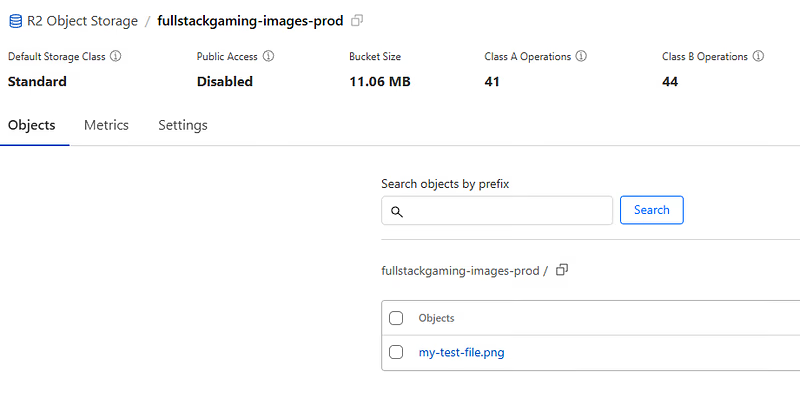
Click on my-test-file.png and you can see a preview:
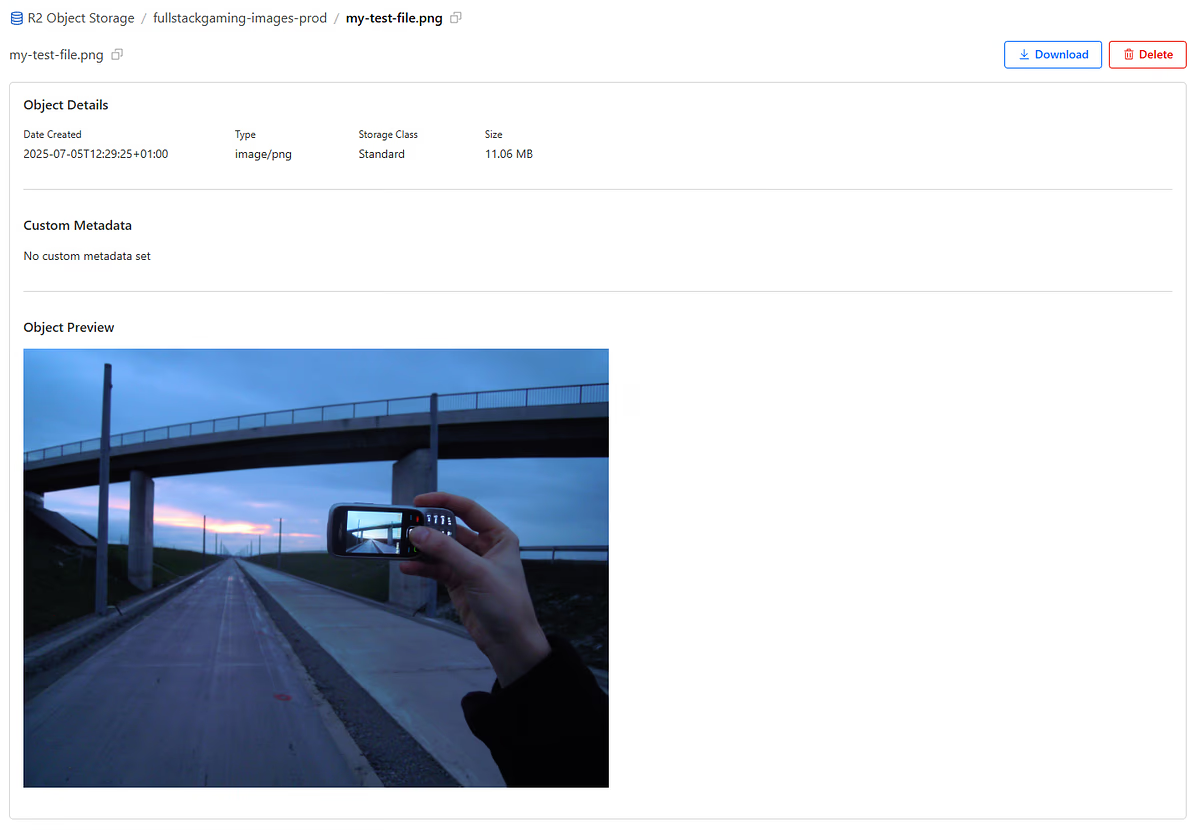
There we go, that’s our file ready to go! Make sure you hang onto the OBJECT_KEY name you used; we’ll need it later in the tutorial.
The Boring, Manual Way
If you don’t want to use wrangler you can use the online dashboard to upload files too. From your Bucket’s dashboard, select Objects and then Upload:
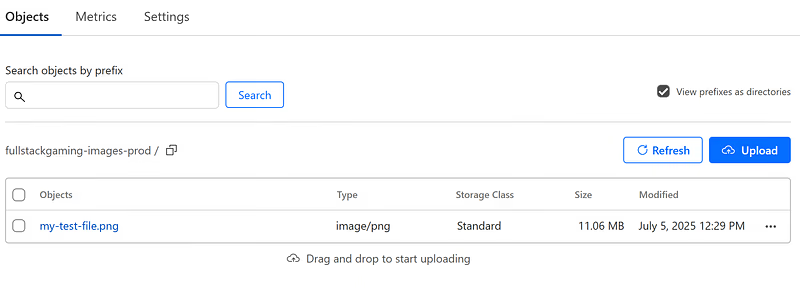
This works too. But, come on, the CLI is way cooler.
Step 3 — Bind The Bucket to Your Pages Application
To begin, we need to bind the bucket, which is Cloudflare’s name for adding a resource to your pages application. To do this, go to your Cloudflare dashboard and click on Compute (Workers) then Workers & Pagesin the left-hand panel:
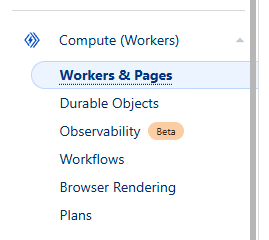
You should see a page like this:
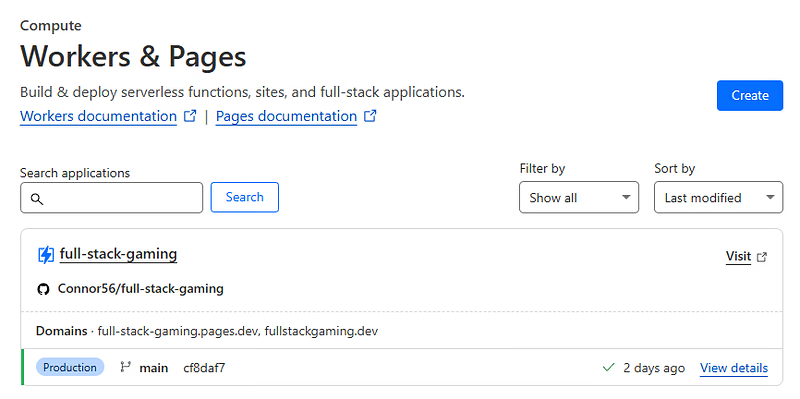
Click on your site. From the resulting page, select the Settings option:
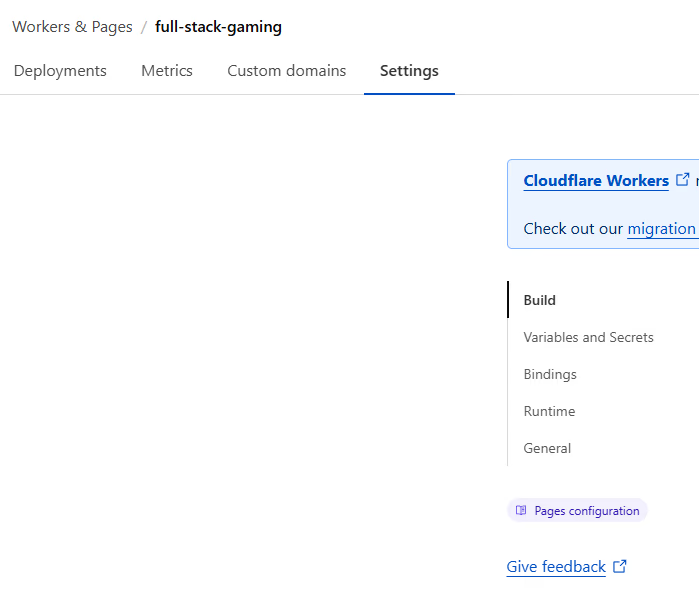
In the sidebar, select Bindings. If you have no bindings, you will see something like this:

To add a binding, click the + Add button on the top right. This will take you open a sidebar on the right-hand side of your screen:
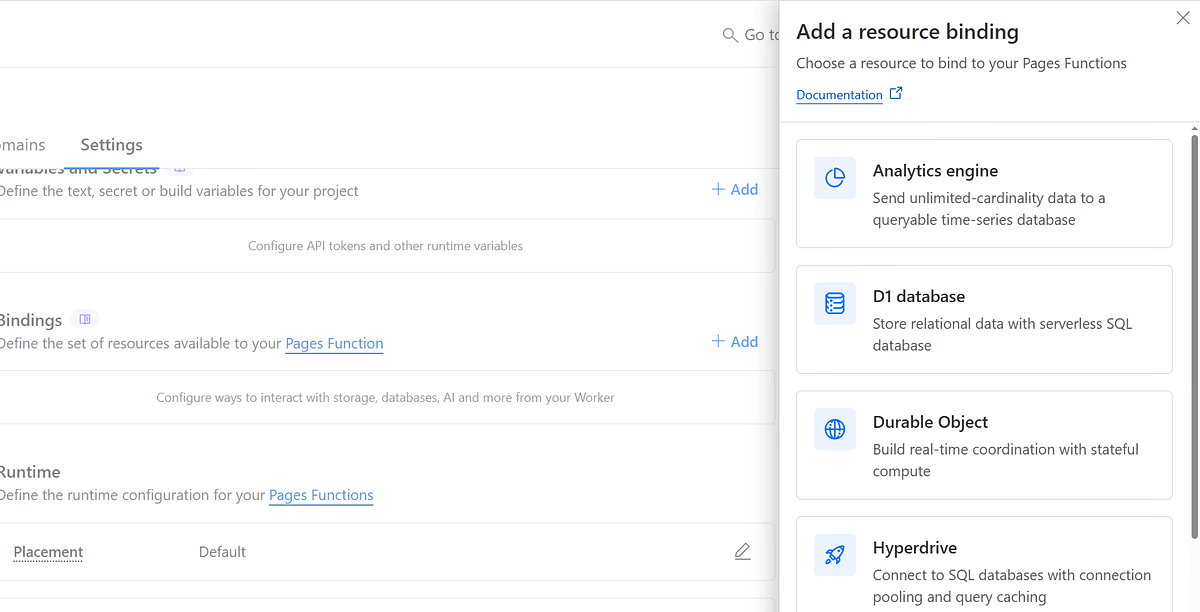
Scroll down the sidebar until you find the R2 Bucket option. Click it, and you’ll be taken to the following screen:
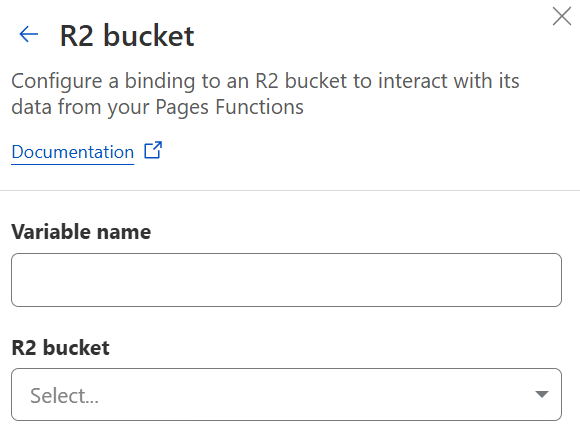
You have two things to complete here, and this is what they mean:
Variable name— The name of the variable you can use in your application to access the bucket.R2 bucket— The bucket resource you want to attach to your page, the drop-down will show you all of your buckets, including the one you created in Step 1.
For the Variable name, Cloudflare recommends you go for something like IMAGES or MEDIA. Capitalised to indicate it’s a constant, and short so it can be easily used in your application. I'd go for IMAGES, but, technically, you can go for whatever you like: linglingladedah is also fine.
Enter your name, select your bucket, then click Save in the bottom right-hand corner of the panel. You will now see that the bucket is bound to your page:
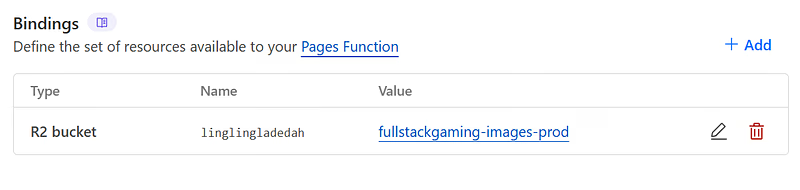
I went for linglingladedah for the fun of it. Now, you may have seen above the Save dialog, the bucket will be attached on the next deployment. Don’t worry about this for now, we’ll be deploying the site again shortly. Whatever name you choose, hang on to it, we’ll use it again in a moment.
Step 4 — Preparing SvelteKit for the Bucket
Now that the bucket is bound, we need to set up SvelteKit to use it. You can read more about how to do this in SvelteKit’s adapter-cloudflare documentation.
Simply, SvelteKit has a file: src/app.d.ts. This file defines all of the _ambient types_. These are types that are automatically imported and available everywhere in your SvelteKit app. One of those types is platform, this type contains platform-specific values. Cloudflare uses this variable to allow interaction between your SvelteKit app and Cloudflare resources.
To make the bucket available, open your src/app.d.ts file:
// See https://svelte.dev/docs/kit/types#app.d.ts
// for information about these interfaces
declare global {
  namespace App {
    // interface Error {}
    // interface Locals {}
    // interface PageData {}
    // interface PageState {}
    // interface Platform {}
  }
}

export {};
If you’ve created a brand new SvelteKit site, it will look like the above. You have:
global— A declaration, which allows you to extend the global variable space.namespace App— A namespace within the global space that helps you avoid aliasing.
Within the namespace, you can see all of the standard SvelteKit type interfaces commented out. We want to uncomment the Platform interface and tell SvelteKit to expect an R2 bucket:
import { R2Bucket } from "@cloudflare/workers-types";

// See https://svelte.dev/docs/kit/types#app.d.ts
// for information about these interfaces
declare global {
  namespace App {
    // interface Error {}
    // interface Locals {}
    // interface PageData {}
    // interface PageState {}
    interface Platform {
      env: {
        linglingladedah: R2Bucket; // <-- Your Variable name from Step 2
      };
    }
  }
}

export {};
The resulting code should look like the above. This makes your bucket available under the platorm.env.<your-name-here>. In my case, platform.env.linglingladedah.
If you’re seeing an error on the R2Bucket import, you may need to install the @cloudflare/workers-types, you can do this with:
npm install @cloudflare/workers-typesStep 5 — Use The Bucket
Now you have SvelteKit prepared and the bucket bound. It’s time to use it! Let’s create two new routes on your website. First, a page to display the image:
mkdir -p src/routes/image-test && touch src/routes/image-test/+page.svelteThen, a server-side route to fetch images:
mkdir -p src/routes/api/media/[...path] && touch src/routes/api/media/[...path]/+server.tsThe route above matches any path that comes after /api/media. We’ll use this to pull images from the R2 bucket and send them to the client. Here’s the set-up for both of them:
The image-test Page
Inside your image-test file, add the following code:
<div style="min-height: 100vh; background-color: #f3f4f6; padding-top: 2rem; padding-bottom: 2rem;">
 <div
  style="max-width: 56rem; margin-left: auto; margin-right: auto; padding-left: 1rem; padding-right: 1rem;"
 >
  <h1
   style="font-size: 1.875rem; line-height: 2.25rem; font-weight: 700; text-align: center; margin-bottom: 2rem; color: #1f2937;"
  >
   Image Gallery
  </h1>

  <div style="display: flex; justify-content: center;">
   <div
    style="background-color: #ffffff; border-radius: 0.5rem; box-shadow: 0 10px 15px -3px rgba(0, 0, 0, 0.1), 0 4px 6px -2px rgba(0, 0, 0, 0.05); overflow: hidden; max-width: 42rem;"
   >
    <!-- Where you load your test image -->
    <img
     src="/api/media/my-test-file.png"
     alt="Image of an image"
     style="width: 100%; height: auto;"
    />
    <div style="padding: 1rem;">
     <h3 style="font-size: 1.125rem; line-height: 1.75rem; font-weight: 600; color: #1f2937;">
      Test Image
     </h3>
     <p style="color: #4b5563;">Served from Cloudflare R2</p>
    </div>
   </div>
  </div>
 </div>
</div>
This is a simple page to display your image. I’ve used inline styling to keep it short on the screen. The most important part is the <img section in the middle. At the moment, you can see I’m attempting to load this image:
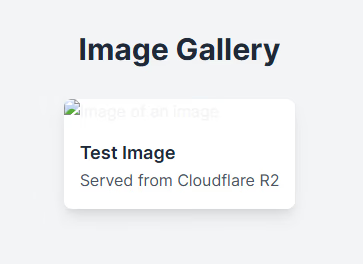
src="/api/media/my-test-file.png"However, the api/media route doesn’t exist yet, so if you push your changes to GitHub and it redeploys, your /image-test page will look like this _(text styling may vary)_:
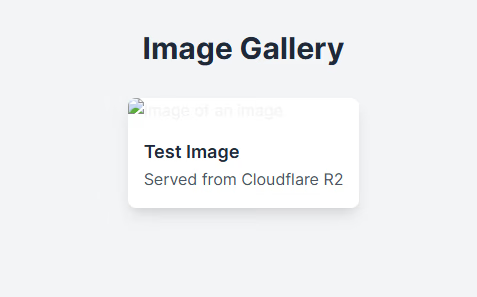
Let’s set up the api route so we can get this image.
The api/media Server Side Route
Add the following code to your +server.ts file:
import type { RequestEvent } from "@sveltejs/kit";

export const GET = async ({ params, platform }: RequestEvent) => {
  // Get the r2 bucket object key from the path
  const path = params.path!;

  // Check the bucket exists (I've used my silly R2 bucket binding)
  if (!platform?.env?.linglingladedah) {
    return new Response(null, { status: 500 });
  }

  // Get the file from the bucket
  const file = await platform.env.linglingladedah.get(path);

  // Return 404 if that's not possible
  if (!file) {
    return new Response(null, { status: 404 });
  }

  return new Response(file.body, {
    headers: {
      "Content-Type":
        file.httpMetadata?.contentType ?? "application/octet-stream",
      // Max age tells Cloudflare to cache images for 1 hour
      "Cache-Control": "public, max-age=3600",
    },
  });
};
This code uses the […page] value given at the end of api/media as the object key in the bucket. Retrieves the file and then returns it using the contentType R2 has stored against the object.
Remember, my silly R2 bucket binding probably doesn’t match yours, so replace mine with the one you set up in Step 3.
With this in place, the link to the image should work perfectly. You can check by committing the +sever.ts file and pushing it to GitHub. Once Cloudflare has picked it up and deployed it, you should see something like this:
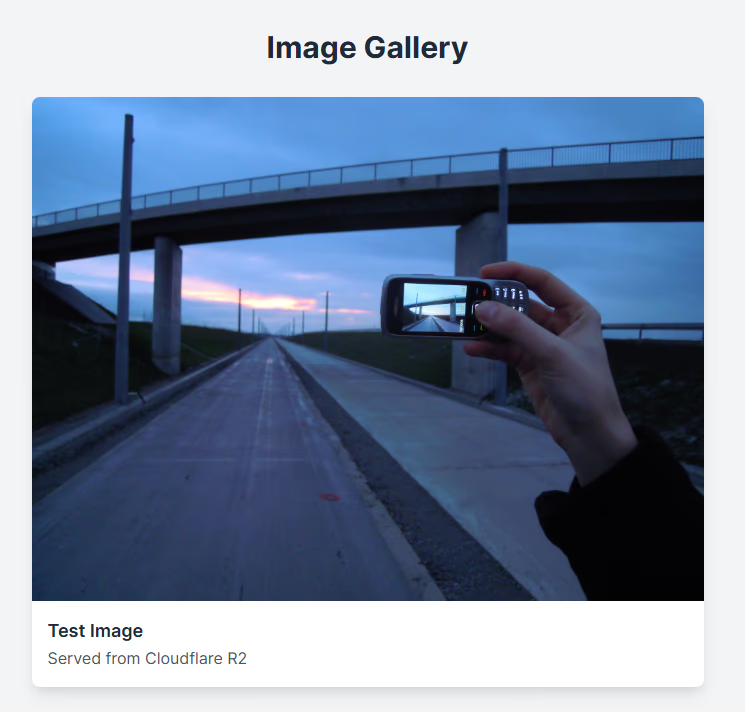
Boom! The image has loaded in nicely. But deploying your site every time you want to get the images loaded in is a pain in the ass. Let’s solve that.
Step 6 — Testing Locally
If you’ve used SvelteKit before, you’ll be used to the standard way to deploy your site locally:
npm run devThis will run your site on http://localhost:5173. It hot reloads your changes, and in almost all ways, completely mirrors your deployed site’s behaviour. But go to http://localhost:5173/image-test and…
Oh dear. This happens because Cloudflare hasn’t had a chance to inject all of its bindings. To get around this, we need to use wrangler, Cloudflare’s CLI tool.
Set up wrangler.jsonc
To start, we need a configuration file, a wrangler.jsonc. Create one with:
touch wrangler.jsoncThis file lets you configure how wrangler should deploy your site. Most importantly for us, it lets you define what resources the local site should have. Let’s set it up:
{
  "name": "fullstackgaming",
  "compatibility_date": "2025-01-01",
  "pages_build_output_dir": ".svelte-kit/cloudflare"
}
This tells wrangler the name of your project, the wrangler.jsonc version, and most importantly: pages_build_output_dir where all your compiled files are. wrangler uses this final config option to find your compiled site when deploying locally.
To add the R2 Bucket, we need to alter the file to the following:
{
  "name": "fullstackgaming",
  "compatibility_date": "2025-01-01",
  "r2_buckets": [
    {
      "bucket_name": "fullstackgaming-images-prod",
      "binding": "linglingladedah"
    }
  ],
  "pages_build_output_dir": ".svelte-kit/cloudflare"
}
We’ve added the r2_buckets array, each element of the array is expected to be a bucket with a name and a binding:
bucket_name— The literal name of your bucket on Cloudflare.binding— The name you want to use to access the bucket in your SvelteKit application.
That’s it, you have _bound_ the bucket. Remember to make sure bucket_name and binding match the ones you set up in Step 1 and Step 3, respectively.
Run the Page via Wrangler
Now your wrangler.jsonc is good to go, you can build your site:
npm run buildThen serve it locally via wrangler with:
npx wrangler pages devThis will run your site and give you output like the following:
 ⛅️ wrangler 4.19.1 (update available 4.23.0)
─────────────────────────────────────────────
▲ [WARNING] The package "node:async_hooks" wasn't found on the file system but is built into node.

  Your Worker may throw errors at runtime unless you enable the "nodejs_compat" compatibility flag.
  Refer to https://developers.cloudflare.com/workers/runtime-apis/nodejs/ for more details. Imported
  from:
   - ..\output\server\index.js


✨ Compiled Worker successfully
╭──────────────────────────────────────────────────────────────────────╮
│  [b] open a browser [d] open devtools [c] clear console [x] to exit  │
╰──────────────────────────────────────────────────────────────────────╯
✨ Parsed 2 valid header rules.
Your Worker has access to the following bindings:
Binding                                                Resource       Mode
env.linglingladedah (fullstackgaming-images-prod)      R2 Bucket      local

[wrangler:info] Ready on http://127.0.0.1:8788
▲ [WARNING] The package "node:async_hooks" wasn't found on the file system but is built into node.

  Your Worker may throw errors at runtime unless you enable the "nodejs_compat" compatibility flag.
  Refer to https://developers.cloudflare.com/workers/runtime-apis/nodejs/ for more details. Imported
  from:
   - .wrangler\tmp\pages-vXFAsN\bundledWorker-0.02865909950430967.mjs
You’ll probably find your site running on http://127.0.0.1:8788. Visit the /image-test endpoint on this site anddd…
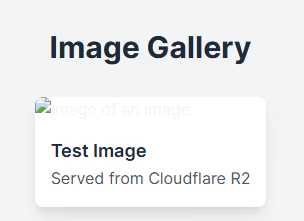
Still nothing. Why? We have no local images! But we do have a /.wrangler directory. You’ll see it in the root of your SvelteKit project:
./
├── 📁 .wrangler/
│   ├── 📁 state/
│   │   ├── 📁 v3/
│   ├── 📁 tmp/
│   │   ├── 📁 bundle-GrHHfb/
│   │   ├── 📁 bundle-iiLcbt/
│   │   ├── 📁 dev-k43YQm/
│   │   ├── 📁 pages-9T2R4O/
This is where your local wrangler deployment looks for data!
Add a Local Image to Wrangler
Remember in Step 2 when we added an image to the remote bucket? We used this command:
npx wrangler r2 object put fullstackgaming-images-prod/my-test-file.png --file=.\Image_created_with_a_mobile_phone.png --remoteWell, if we remove the --remote flag, this command creates a local version of the bucket instead. Run the following inside your project
npx wrangler r2 object put fullstackgaming-images-prod/my-test-file.png --file=.\Image_created_with_a_mobile_phone.pngRemember to use the correct values for BUCKET_NAME, OBJECT_KEY, and LOCAL_PATH_TO_FILE. Running this command will add a new file path to your /.wrangler:
├── 📁 .wrangler/
│   ├── 📁 state/
│   │   ├── 📁 v3/
│   │   │   ├── 📁 r2/
│   │   │   │   ├── 📁 fullstackgaming-images-prod/
│   │   │   │   │   ├── 📁 blobs/
│   │   │   │   │   │   └── 📄 dea57e56265d03c76951e02a706279fe07894f1c63cd71fdbafa61b9adc5ff8400000197db3b35e1
│   │   │   │   ├── 📁 miniflare-R2BucketObject/
│   │   │   │   │   ├── 📄 69d025a62469192289be9b837d21e1cbb5f8f8e5eb7294fa998e1aff862170f7.sqlite
│   │   │   │   │   ├── 📄 69d025a62469192289be9b837d21e1cbb5f8f8e5eb7294fa998e1aff862170f7.sqlite-shm
│   │   │   │   │   └── 📄 69d025a62469192289be9b837d21e1cbb5f8f8e5eb7294fa998e1aff862170f7.sqlite-wal
We have:
miniflare-R2BucketObject— Containing SQLite database information for tracking blobs in thefullstackgaming-images-prodbucket.fullstackgaming-images-prod— The local version of the bucket, complete with a binary blob representing your image!
This local state is used by the application, so go to: http://127.0.0.1:8788/image-test, and at last, you’ll see:
Just like in production! Wonderful stuff. But what about when we want to exactly mirror the remote R2 bucket locally during testing? That’s next.
Step 7 — Add a Video
Whilst we’re here, we may as well add a video, right? I got mine from here:
Sample MP4 files download | File Examples Download
It was the first result on Google, so hopefully it’s legit. If you don’t want to download a video from a random site, upload your own. Upload the video to your R2 bucket with:
npx wrangler r2 object put fullstackgaming-images-prod/my-test-video.mp4 --file=file_example_MP4_1920_18MG.mp4 --remoteThen update the /image-test endpoint to add a video:
<div style="min-height: 100vh; background-color: #f3f4f6; padding-top: 2rem; padding-bottom: 2rem;">
This adds a new section to load the video. Deploy this, and you’ll see something like the following:
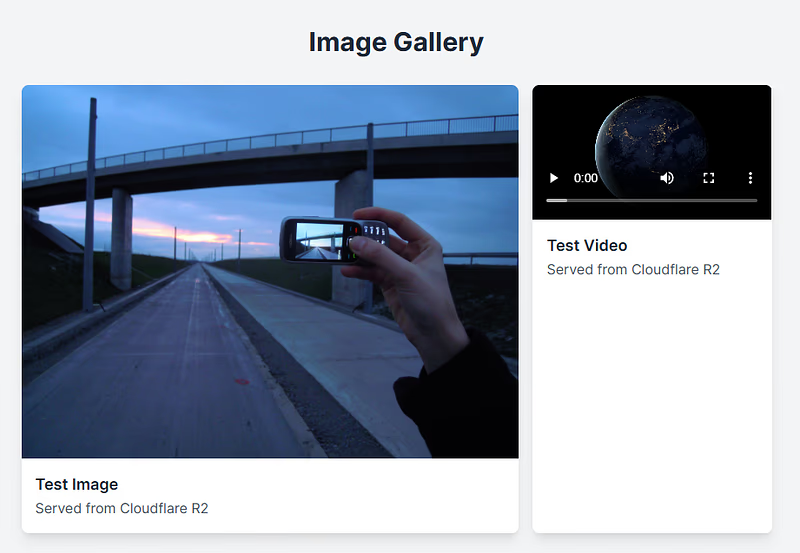
That’s how you load in a video.
Step 8 — Port All Files From Remote to Local
Finally, if you’re on a small enough project, you may want to download your entire remote R2 bucket to your local machine. Completely replicating your site locally makes it much easier to test. There’s no standard way of doing this, so I’ve set up a script for it.
To use the same script, set up a scripts directory and file:
mkdir scripts && touch scripts/sync-r2-to-local.tsThe script is lengthy, so I’ve uploaded it to GitHub. Copy the text and paste it into the file you just created:
cloudflare-sync-r2/sync-r2-to-local.ts at main · Connor56/cloudflare-sync-r2
If you want to understand how to use the script, there’s a README.md in the repo. Once you’ve pasted it in, add it to your package.json:
{
The script requires you to have these three variables in .env file:
CLOUDFLARE_ACCOUNT_IDCLOUDFLARE_ACCESS_KEY_IDCLOUDFLARE_SECRET_ACCESS_KEY
As I get deeper into Cloudflare, I’m going to create a repo for all of the dev tools I create. Stay tuned for more information about that.
How To Get the Env Values
If you don’t have API access keys for R2 already, here’s how you get them. Go into the main R2 dashboard, it looks like this:
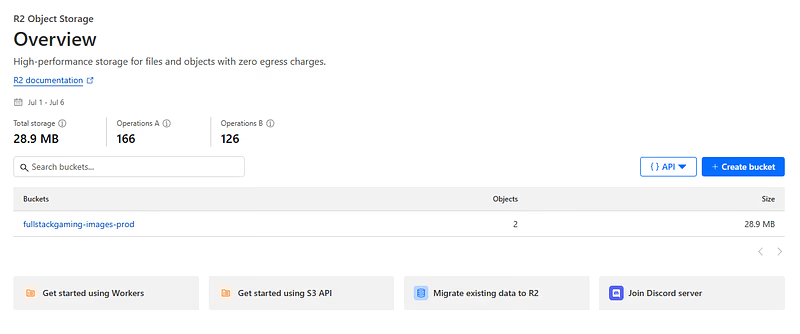
Click the API button in the top right, then Manage API tokens. You’ll see the following screen, you can see I’ve already made a token, but yours may be blank:
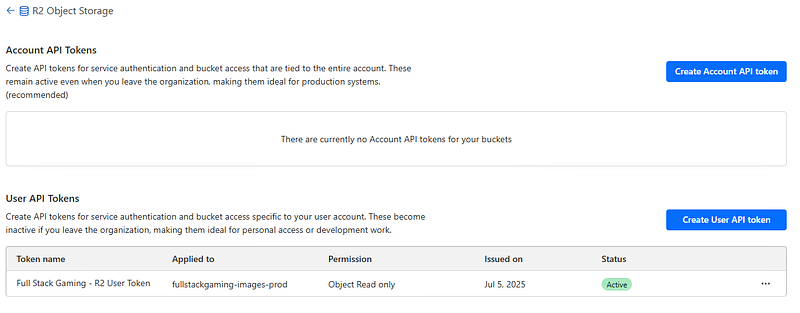
Create either type of token; it doesn’t matter. I chose the User token because this site is in dev, and I intend to delete the token once I have everything set up. You’ll be shown a UI to create the token:
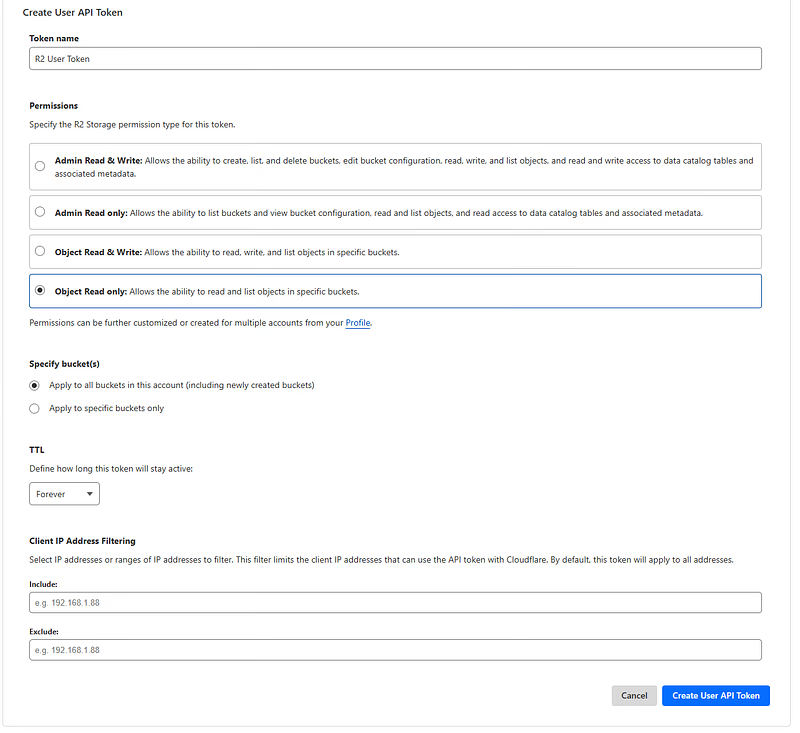
Complete this. I chose Object Read only, scoped it to my bucket, and gave it the name you saw in the previous photo. Click Create User Api Token. You’ll be taken to a final page with
Copy all of the values. In particular, you need:
Access Key ID=CLOUDFLARE_ACCESS_KEY_IDSecret Access Key=CLOUDFLARE_SECRET_ACCESS_KEY
Your account ID is in your dashboard’s web URL. The alphanumeric string at the start.
Step 9 — Manage Bindings From wrangler.jsonc
The bindings you set up manually in Step 3 can also be managed from a wrangler.jsonc file. If you’ve followed through Step 6, you’re already prepared to do this.
Commit your wrangler.jsonc to version control and push to GitHub. This will deploy your code. Check your deployment’s Settings page, in the bindings section, you’ll see this:
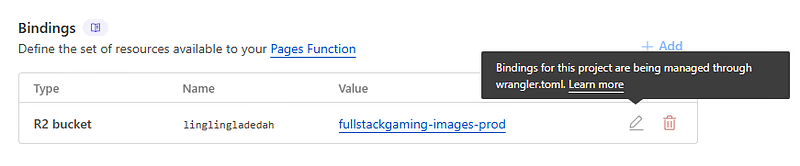
You can’t edit the binding because it’s managed in a wrangler.toml file. Technically, we’re using a wrangler.jsonc but they serve the same purpose - they’re both config files, and presumably Cloudflare is converting ours to a .toml internally.
To test this works, alter the name of your binding in the wrangler.jsonc. I’ll go for something sensible this time, like MEDIA.
{
  "name": "fullstackgaming",
  "compatibility_date": "2025-01-01",
  "r2_buckets": [
    {
      "bucket_name": "fullstackgaming-images-prod",
      "binding": "MEDIA"
    }
  ],
  "pages_build_output_dir": ".svelte-kit/cloudflare"
}
Push your changes, and Settings will show:
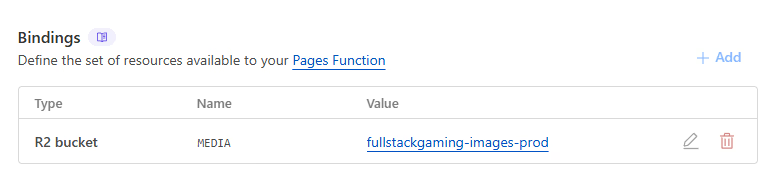
Check the site. What should you expect? A broken site. SvelteKit’s app.d.ts is expecting linglingladedah so the R2 bucket binding has broken. Update all occurrences of linglingladedah to MEDIA, redeploy, and you’ll find it works again.
If you want to avoid managing your bindings with wrangler.jsonc don’t commit the wrangler file to GitHub!If you’re testing infrastructure locally that isn’t ready for production, you may want to avoid controlling infrastructure with wrangler.jsonc.
Final Words
Fin! I hope this tutorial helped you set up R2 on your SvelteKit site. This is the hot, new, recommended way of reading files from an R2 bucket on Cloudflare. However, it’s not the only way; you can use an S3-style API too, which I’ll demonstrate in another tutorial. This lets you use your remote R2 for production and development. Stay tuned!
Resources
Some of the resources I used whilst writing this tutorial:
Use R2 as static asset storage with Cloudflare Pages · Cloudflare Pages docs