Use Drizzle ORM With a D1 Database in a Cloudflare Worker
Learn to define your schema, run migrations, and query D1 from a TypeScript Worker using Drizzle ORM.
In this tutorial, you will learn how to:
- Scaffold a bare-bones Cloudflare Worker with TypeScript.
- Create and bind a D1 database to your Worker.
- Install Drizzle ORM and Drizzle Kit.
- Define an SQLite schema in
schema.ts. - Configure
drizzle.config.tswith your D1 credentials. - Generate and push migrations to your D1 database.
- Query and mutate data from inside your Worker with Drizzle.
By the end, you’ll be able to use Drizzle ORM in any Cloudflare project, and you’ll know how to manage your database like a pro with migrations.
The Code
If you want the code, here’s a finished repo with everything set up for you:
GitHub - Connor56/d1-database-cloudflare-worker: Basic set up for a Cloudflare Worker with a D1…
You can clone it with:
git clone git@github.com:Connor56/d1-database-cloudflare-worker.gitIf you want to make this yourself, read on.
Prerequisites
To complete this tutorial, you’ll need:
- Node.js and npm installed.
- A Cloudflare account with Wrangler CLI logged in (
npx wrangler login). - Basic TypeScript knowledge.
Let’s get to it.
Step 1 — Scaffold a TypeScript Worker
First, set up a minimal Worker project. The best way to do this is with create-cloudflare:
npm i -g create-cloudflareOpen a terminal, and navigate to the location you want to create your project in:
cd path/to/your/directoryThen run the following:
npm create cloudflare@latest -- <name-of-your-project>When prompted:
- Choose Hello World example → Worker only → TypeScript.
- Accept git initialisation if you like.
- Choose not to deploy for now.
Your terminal output should look something like this:
╭ Create an application with Cloudflare Step 1 of 3
The resulting folder should look like this:
📁 ./
├── 📄 .editorconfig
├── 📄 .gitignore
├── 📄 .prettierrc
├── 📄 package-lock.json
├── 📄 package.json
├── 📄 tsconfig.json
├── 📄 vitest.config.mts
├── 📄 worker-configuration.d.ts
├── 📄 wrangler.jsonc
├── 📁 src/
│   └── 📄 index.ts
├── 📁 test/
│   ├── 📄 env.d.ts
│   ├── 📄 index.spec.ts
│   └── 📄 tsconfig.json
If you’re interested, here’s an explanation of every file that’s produced:
.editorconfig— Defines consistent coding styles (indentation, line endings, charset) across different editors/IDEs..gitignore— Lists files/folders Git should ignore (e.g.node_modules, build outputs)..prettierrc— Configuration for Prettier, the code formatter (e.g. tab width, semicolons, quotes). This is a common way to make code look nice.package.json— Main metadata file for the project, as well as a place to define project-level scripts for development work. For examplenpm run build.package-lock.json— Exact dependency tree (ensures reproducible installs).tsconfig.json— TypeScript configuration — compiler options, which files to include/exclude, module resolution settings, etc.vitest.config.mts— Configuration for Vitest, your test runner (like Jest but for Vite)..mtsindicates it’s a TypeScript module (type: "module").worker-configuration.d.ts— Type declaration file for Cloudflare Worker environment variables or bindings — lets TypeScript know about KV namespaces, Durable Objects, etc. Allows cool tools like IntelliSense.wrangler.jsonc— Configuration for Wrangler, the Cloudflare Workers CLI — defines entrypoint, name, routes, env vars..jsoncmeans JSON with comments. This is where we can connect Cloudflare resources to our code.
The most important files for this tutorial are /src/index.ts and wrangler.jsonc. You can happily ignore the others.
Step 2 — Create & Bind a D1 Database
Now that you have your worker outlined, you need a D1 database to attach to it. First, let’s create one with this command:
npx wrangler d1 create my-worker-dbYou should see output like the following:
✅ Successfully created DB 'my-worker-db' in region WEUR
Created your new D1 database.

To access your new D1 Database in your Worker, add the following snippet to your configuration file:
{
  "d1_databases": [
    {
      "binding": "my_worker_db",
      "database_name": "my-worker-db",
      "database_id": "cb56cbe4-7cfc-47eb-a426-d1de1921f8b0"
    }
  ]
}
? Would you like Wrangler to add it on your behalf? » - Use arrow-keys. Return to submit.
>   Yes
    Yes, but let me choose the binding name
    No
Select Yes, but let me choose the binding name when asked to add it to your config, then name the binding DB. Your wrangler.jsonc should now looking something like this:
{
  "$schema": "node_modules/wrangler/config-schema.json",
  "name": "d1-database-cloudflare-worker",
  "main": "src/index.ts",
  "compatibility_date": "2025-09-13",
  "observability": {
    "enabled": true
  },
  "d1_databases": [
    {
      "binding": "DB",
      "database_name": "my-worker-db",
      "database_id": "xxxxxxxx-xxxx-xxxx-xxxx-xxxxxxxxxxxx"
    }
  ]
}
If you don’t know, here is an explanation of everything in the file:
$schema– Points to Wrangler’s JSON schema innode_modules, enabling autocomplete and validation in your editor.name– The unique name for your Worker on Cloudflare (used when deploying).main– The entrypoint file that Wrangler will build and deploy (src/index.tshere).compatibility_date– Locks your Worker to a snapshot of the Workers runtime as of this date, preventing future breaking changes.observability– A block controlling logging/metrics collection for the Worker.observability.enabled– Iftrue, enables Cloudflare dashboard logs and metrics for this Worker.d1_databases– A list of D1 database bindings this Worker can access.d1_databases[].binding– The name you’ll use inside your Worker code to access the database (viaenv.DB).d1_databases[].database_name– The human-readable name of the D1 database as shown in the Cloudflare dashboard.d1_databases[].database_id– The unique identifier Cloudflare uses to connect this Worker to that specific D1 database.
Double Check Creation
To check that the D1 Database has been created correctly, you can go into the Cloudflare Dashboard and select Storage & Databases→ D1 SQL database.
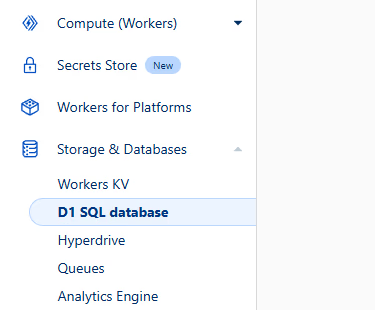
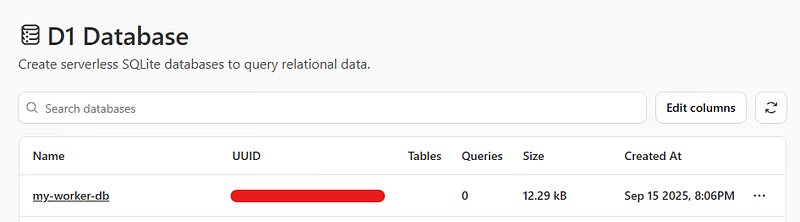
You should see your database in the list:
Step 3 — Install Drizzle ORM, Drizzle Kit & add Polyfills
Next, we come to the Drizzle bit. Install the runtime ORM (drizzle-orm), the migration toolkit (drizzle-kit), and helpers (dotenv and @types/node):
npm install drizzle-orm
For ease, you will use the Node process.env for getting configuration from a .env file. Because Cloudflare workers are not based on a Node environment, you need to add a polyfill. Add the following line to your wrangler.jsonc file:
"compatibility_flags": ["nodejs_compat"],Your updated wrangler.jsonc should look like this:
{
  "$schema": "node_modules/wrangler/config-schema.json",
  "name": "d1-database-cloudflare-worker",
  "main": "src/index.ts",
  "compatibility_date": "2025-09-13",
  "compatibility_flags": ["nodejs_compat"],
  "observability": {
    "enabled": true
  },
  "d1_databases": [
    {
      "binding": "DB",
      "database_name": "my-worker-db",
      "database_id": "xxxxxxxx-xxxx-xxxx-xxxx-xxxxxxxxxxxx"
    }
  ]
}
Step 4 — Define Your Schema
Create src/db/schema.ts with:
mkdir src/db
touch src/db/schema.ts
Open the file and paste in the following:
import { sqliteTable, integer, text } from "drizzle-orm/sqlite-core";

export const users = sqliteTable("users", {
  id: integer("id").primaryKey({ autoIncrement: true }),
  name: text("name").notNull(),
  email: text("email").notNull().unique(),
  age: integer("age").notNull(),
});
This defines a simple schema for a users table. Here’s an explanation of how it works:
sqliteTable('users', {…})— Is the enclosing function that lets Drizzle know we want a table, and gives it the name'users'.integer('id').primaryKey({ autoIncrement: true })— Create an auto-incrementing column calledid. Also makes this the primary key of the table.text("email")&integer("age")— Create columns in the database with the type text or integer, and with the namesemailandagerespectively.
You might be wondering why we have redundancy in the column name, i.e. id and "id". The split allows you to have a column name in the Database map to a different name in the Drizzle ORM code. For example, id in the ORM code could map to "user_id" in the database.
More on Schema Definitions
If you want to test something slightly more complex, you can read about defining schemas here:
Step 5 — Configure Drizzle Kit
Before you can apply the schema you just created to D1, you need set up Drizzle Kit. You do this with a config file called drizzle.config.ts at the root of your project. Make it with:
touch drizzle.config.tsOpen it, and paste in the following:
import { defineConfig } from "drizzle-kit";
Here’s an explanation of everything happening in this file:
defineConfig– Wraps your config so Drizzle can validate and autocomplete the fields.out– Directory where Drizzle outputs migrations and metadata (./drizzlehere).schema– Path to your schema file containing table definitions.dialect– The SQL dialect Drizzle should target ("sqlite"because Cloudflare D1 is SQLite-based).driver– Specifies how Drizzle connects to the DB ("d1-http"means using Cloudflare’s D1 HTTP API).dbCredentials– Object containing authentication/connection info for the database.dbCredentials.accountId– Your Cloudflare account ID (selects the right Cloudflare account).dbCredentials.databaseId– The ID of the D1 database you want to connect to.dbCredentials.token– API token with D1 access permissions (used for authentication).process.env.*– Reads values from environment variables (populated via.env).
As our configuration is relying on a ./drizzle directory, create one from root with:
mkdir drizzleStep 6 — Prepare the .env File
As you’ve seen in Step 5, Drizzle’s configuration relies on environment variables stored in process.env. The file should look like this:
CLOUDFLARE_ACCOUNT_ID=
CLOUDFLARE_DATABASE_ID=
CLOUDFLARE_D1_TOKEN=
An explanation on how to gather these is given below:
accountId
From the terminal, run the following command:
npx wrangler whoamiIf you’re logged in, you should see output like the following:
┌──────────────────────────────────┬──────────────────────────────────┐
│ Account Name                     │ Account ID                       │
├──────────────────────────────────┼──────────────────────────────────┤
│ Connor-The-Wise's Account        │ <your-account-id-will-be-here>   │
└──────────────────────────────────┴──────────────────────────────────┘
Pull the account ID from here and paste it into your .env file next to CLOUDFLARE_ACCOUNT_ID=.
databaseId
This is the same ID as you have in your wrangler.jsonc in the database_id field. Take it from there and paste it into your .env file next to CLOUDFLARE_DATABASE_ID=.
token
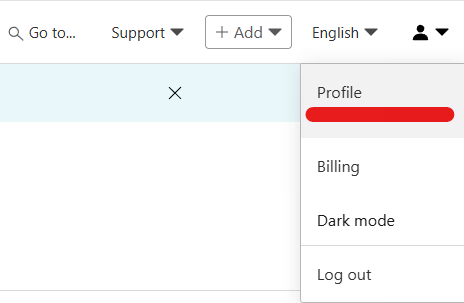
This one is slightly more complicated. To allow Drizzle Kit access, you need to provide it with an API key with access to D1. To create one, visit the Cloudflare Dashboard and click the profile option in the top right corner of the screen:
You will see a screen like the following:
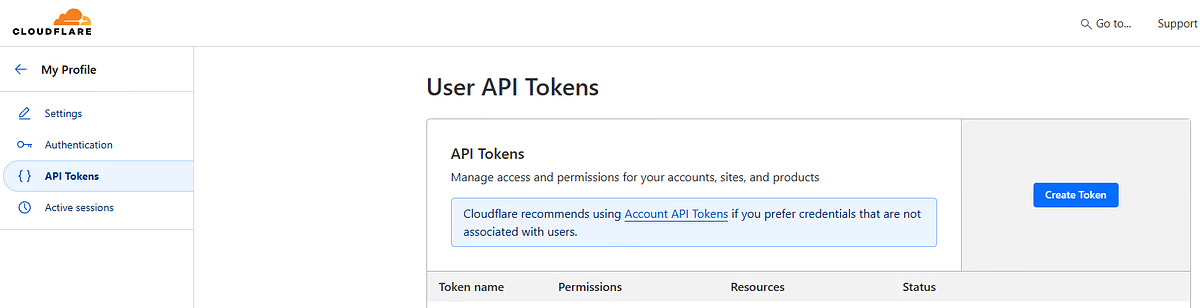
To create a token for your D1 database, click on Create Token then scroll all the way to the bottom and select Get started in the Create Custom Token section:
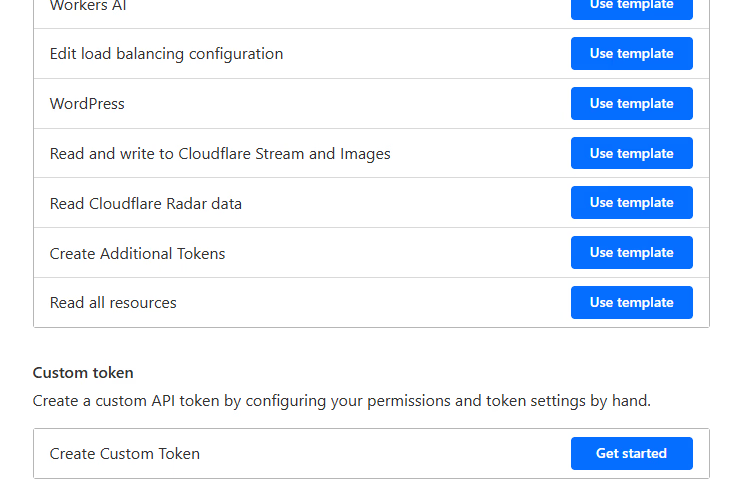
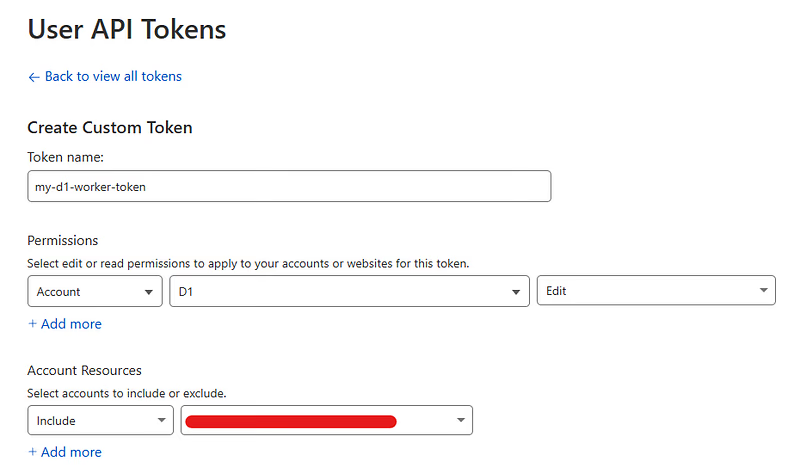
Choose the following options:
Token name— Whatever you like.Permissions— Account → D1 → EditAccount Resources— Include → <your-account-name>
There are also options for TTL, and Client IP Address Filtering. You can leave these blank and select Continue to summary → Create Token. You’ll see a screen like this:
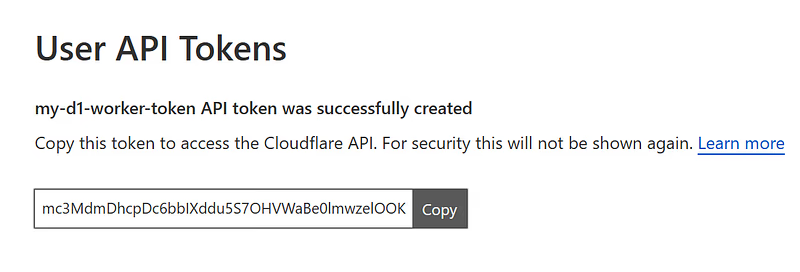
Copy the token, and paste it into your .env file next to CLOUDFLARE_D1_TOKEN=.
WARNING: You should never paste your actual token anywhere, the one shown in this image will be deleted before this post is published.
Your Final .env
When you’ve completed these steps, your .env should look something like this:
CLOUDFLARE_ACCOUNT_ID=9kjshdf782374923hkjsdf79723423
Step 7 — Generate & Push Migrations
Now we’re ready to generate our first migration. You can do this by running:
npx drizzle-kit generateYou should see output like the following:
No config path provided, using default 'drizzle.config.ts'
Check inside your /drizzle folder and you’ll see something like this:
📁 drizzle/
├── 📄 0000_rainy_morlun.sql
├── 📁 meta/
│   ├── 📄 0000_snapshot.json
│ └── 📄 _journal.json0000_rainy_morlun.sql— The SQL migration statement that will be applied to your D1 database.0000_snapshot.json— A JSON version of your current schema._journal.json— A log of all the migrations, their order and timestamps.
To apply the migration to your D1 database run the following:
npx drizzle-kit migrateYou should see output like this:
No config path provided, using default 'drizzle.config.ts'
There you have it! Your D1 database has a users table.
Double Check Table Creation
If you want to be sure this has worked, visit D1 console → Your Database → Explore Data and confirm your users table exists:
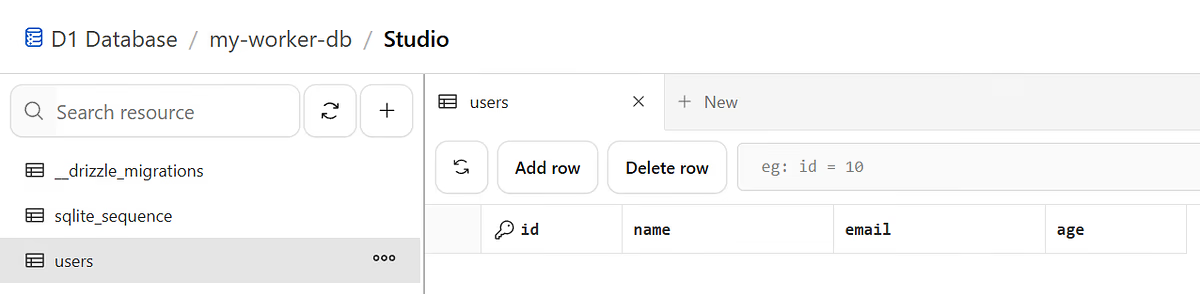
You should see your created table, a table for the __drizzle_migrations, and a table called sqlite_squence which tracks your auto-incrementing columns.
More Migrations
To create more migrations, you edit the schema.ts file, re-run the npx drizzle-kit generatecommand, and then migrate D1 with npx drizzle-kit migrate. Rinse and repeat to get the tables you want.
Step 8 — Query D1 with Drizzle in Your Worker
Now Edit src/index.ts to use Drizzle ORM:
import { drizzle } from "drizzle-orm/d1";This code does the following:
Env { DB: D1Database }— Creates theEnvvariable that Cloudflare populates with yourDBbinding.fetch(request: Request, env: Env)— This handles requests coming into the worker and accepts theEnvdefined at the top of the file.drizzle(env.DB)— Passes yourDBinstance into Drizzle’s D1 ORM, which allows you to communicate with your database.new URL(request.url)— Creates a standardURLobject out of the request URL.url.pathname === '/add'— If the user has hit the/addendpoint, this will add a new user to the D1 database.url.pathname === '/users'— If the user has hit the/usersendpoint all the users will be printed out.Default— If any other endpoint or URL are requested, the message'Drizzle & D1 are live!'will be returned.
Step 9 — Deploy the Worker
To check this is working, you can deploy your worker with:
npx wrangler deployYou will see output like this:
 ⛅️ wrangler 4.37.0
───────────────────
Total Upload: 192.29 KiB / gzip: 37.94 KiB
Worker Startup Time: 13 ms
Your Worker has access to the following bindings:
Binding                    Resource
env.DB (my-worker-db)      D1 Database

Uploaded d1-database-cloudflare-worker (5.32 sec)
▲ [WARNING] Worker has workers.dev disabled, but 'workers_dev' is not in the config.

  Using fallback value 'workers_dev = true'.


Deployed d1-database-cloudflare-worker triggers (4.51 sec)
  https://d1-database-cloudflare-worker.account-name.workers.dev
Paste the URL you’re given into your address bar and try the endpoints. Your D1 database should look like this:
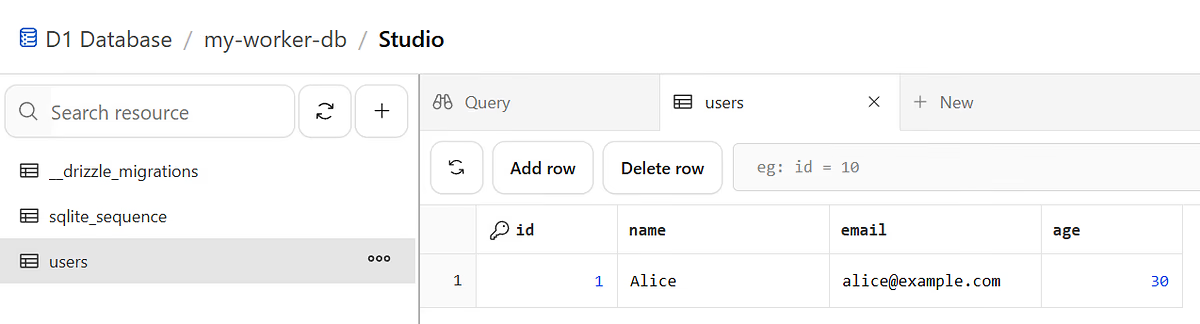
There we go! You have a worker using a D1 database, isn’t it marvellous?
Extra Credit
If you hit the /add more than once, you’ll get an error. Look at the schema, you should be able to see why. Explain it to me in the comments.
Step 10 — Undeploy a Cloudflare Worker
To take your worker down, you run the following CLI command from your root:
npx wrangler deleteSelect Y when asked if you really want to delete the worker. Check your dashboard and you’ll see it has been deleted.
Final Words
That’s it! You now have a Worker talking to a Cloudflare D1 database through a fully typed ORM with migrations. I wrote this because I want to use an ORM on all my Cloudflare projects, and all the tutorials I found were poor! I hope this one is much more helpful. Happy Drizzle-ing!